# Column Footers
RadGridView allows you to display additional information which applies to the columns in a specific row placed at the bottom of the control. This row consists of individual footer cells for each column.
By default, column footers are hidden and in order to make them visible you have to set the **ShowColumnFooters** property to **True**.
**Example 1: Show column footers**
```XAML
```
To set the value of the footer cells, you can use the **Footer** property of the columns.
**Example 2: Set the content of the footer cells**
```XAML
```
> caption RadGridView with footer cells
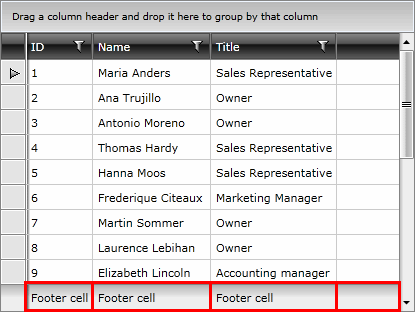
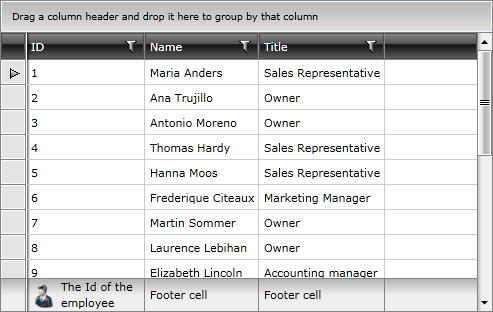
Because it is of type object, you are not limited to just using plain text. For example, you can add a corresponding picture to the footer text.
**Example 3: Adding an image to the footer content**
```XAML
```
> caption Image in the footer cell
## Aggregates
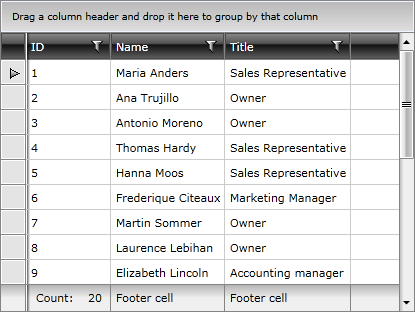
Column footers are also used to display aggregated information on the data displayed in the column via aggregate functions.
**Example 4: Adding an aggregate function to a column**
```XAML
```
> caption Footer cell with aggregate results
To learn more about aggregate functions please have a look at [this article](https://www.telerik.com/products/wpf/documentation/controls/radgridview/columns/aggregate-functions).
> important Please note that if the **Footer** property is explicitly defined, it will take precedence over the aggregate results.
## See Also
* [Aggregate Functions](https://www.telerik.com/products/wpf/documentation/controls/radgridview/columns/aggregate-functions)
* [Resizing Columns](https://www.telerik.com/products/wpf/documentation/controls/radgridview/columns/resizing-columns)
* [Reordering Columns](https://www.telerik.com/products/wpf/documentation/controls/radgridview/columns/reordering-columns)