# ExplorerControl
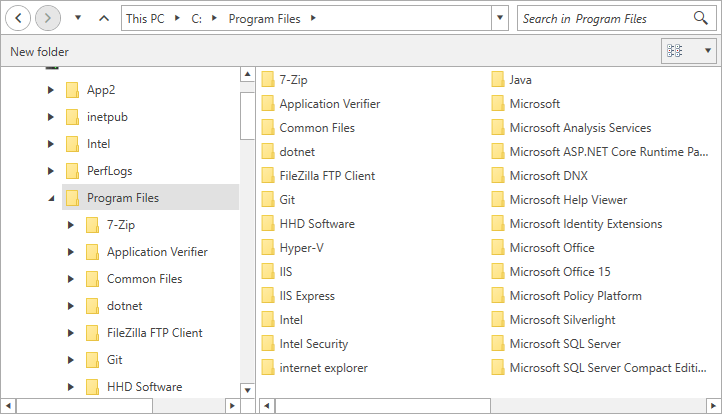
The `ExplorerControl` is the view that presents the UI of the dialogs. When a dialog is opened its content is shown via this control.
The ExplorerControl element can be used as a stand-alone control, thus allowing you to set is as the content of a UserControl, a Window, etc.
## Defining ExplorerControl
> tip The explorer control can be found in the Telerik.Windows.Controls.FileDialogs namespace, so in order to use it in XAML you can define the following namespace: `xmlns:fileDialogs="clr-namespace:Telerik.Windows.Controls.FileDialogs;assembly=Telerik.Windows.Controls.FileDialogs"`.
**Define explorer control**
```XAML
```
> caption ExplorerControl
## Common Features
The ExplorerControl supports most of the features described in the [Features](https://www.telerik.com/products/wpf/documentation/controls/radfiledialogs/features/common) section of the documentation.
## Using the ExplorerControl
Here are some of the key properties that the `ExplorerControl` exposes:
* `CurrentDirectoryPath`—Gets or sets a value indicating the path of the current directory in the ExplorerControl instance.
* `CustomPlacesPaths`—Gets or sets the paths to the custom places navigation tree view. It is of type IEnumerable of string which differs from the [CustomPlaces](https://www.telerik.com/products/wpf/documentation/controls/radfiledialogs/features/custom-places) property of the dialogs which is of type IList of string.
* `ExpandToCurrentDirectory`—Gets or sets a value indicating whether the main navigation pane expands and brings into view the current directory.
* `Filter`—Gets or sets the filter string that describes the list of extensions to filter by. It has an effect only when the IsFolderBrowser property is False.
* `FilterDescriptors`—Gets the list of the Telerik.Windows.Controls.FileDialogs.FileFilterDescriptor specified by the Filter property. It has effect only when IsFolderBrowser is False.
* `FilterIndex`—Gets or sets a value indicating the current filter index from the list of filter strings specified by the `Filter` property. It has an effect only when the IsFolderBrowser property is False.
* `IsFolderBrowser`—Gets or sets a value indicating whether the ExplorerControl instance is used for directories selection or both directories and files.
* `Layout`—Gets or sets the current Telerik.Windows.Controls.FileDialogs.LayoutType of the Main pane.
* `MultiSelect`—Gets or sets a value indicating whether multiple selection of files or folders is allowed.
* `SelectedFileName`—Gets the full path of the currently selected file or directory.
* `SelectedFileNames`—Gets the list of full paths of the currently selected files and / or folders.
* `SelectedSafeFileNames`—Gets the list of names of the currently selected files and / or folders.
* `ShowHiddenFiles`—Gets or sets a boolean value indicating whether hidden files and folders should be visible in the Explorer.
* `ShowNetworkLocations`—Gets or sets a value indicating whether the dialog shows network computers in the navigation tree.
* `CanUserRename`—Gets or sets a value indicating whether the user can rename files or folders via mouse click or keyboard F2 press in main pane.
## Setting the Layout
The ExplorerControl exposes a `Layout` property that determines the layout of the list with the files. This property is similar to the [InitialSelectedLayout](https://www.telerik.com/products/wpf/documentation/controls/radfiledialogs/features/common#setting-the-initial-layout-of-the-tiles) property of the file dialogs.
## Custom Places
The ExplorerControl provides you with the option display directories to the left of the Main Pane above the Tree Navigation Pane similarly to Windows' Quick Access view. You can do that by setting the `CustomPlacesPaths` property of the control. This property is similar to the [CustomPlaces](https://www.telerik.com/products/wpf/documentation/controls/radfiledialogs/features/common) property of the dialogs.
## Browser Mode
The control can work in two modes - the first one allows you to select folders and files. The second one allows you to select only folders. You can control this via the `IsFolderBrowser` property. If you set the property to **True** you will be able to see and select only folders.
**Allow selecting folders only**
```XAML
```
> Changing the `IsFolderBrowser` property during runtime is not supported. The property is respected only during initializing of the ExplorerControl.
## Navigating Through Directories
To navigate the explorer to a specific directory you can set its `CurrentDirectoryPath` property as shown in the first example.
## Selection
To get the selected files or folders you can use the `SelectedFileName`, `SelectedFileNames` and `SelectedSafeFileNames` properties of the control.
> The difference between SelectedFileNames and SelectedSafeFileNames is that the first collection contains the full paths of the files/folders. And the second collection contains only the names (safe names) of the files/folders.
**Getting the first item from the selected files/folders**
```C#
string selectedFile = this.explorerControl.SelectedFileNames[0];
```
By default the selection mode is single which allows you to select a single file or folder. To change this you can set the `Multiselect` property to **True**.
**Enable multi selection**
```XAML
```
## Filtering
In order to filter the ExplorerControl, you can bind its `Filter` and `FilterIndex` properties. The following example demonstrates how you can bind the FilterIndex property to the SelectedValue property of a RadComboBox which is bound to the FilterDescriptors property of the ExplorerControl.
**Filtering ExplorerControl**
```XAML
```
> caption Result from the above example before filtering

> caption Result from the above example after filtering

You can read some more about the Filter and FilterIndex properties in the [Filtering](https://www.telerik.com/products/wpf/documentation/controls/radfiledialogs/features/filtering) article.
> important Filtering is available only if the `IsFolderBrowser` property is set to **False**.
## Events
The control exposes the following events:
* `DirectoryRequesting`
* `ExceptionRaised`
* `Renaming`
Read more about these events and their arguments in the [Events](https://www.telerik.com/products/wpf/documentation/controls/radfiledialogs/events) article.
## See Also
* [Getting Started](https://www.telerik.com/products/wpf/documentation/controls/radfiledialogs/getting-started)
* [Visual Structure](https://www.telerik.com/products/wpf/documentation/controls/radfiledialogs/visual-structure)
* [RadOpenFileDialog](https://www.telerik.com/products/wpf/documentation/controls/radfiledialogs/dialog-controls/radopenfiledialog)
* [RadOpenFolderDialog](https://www.telerik.com/products/wpf/documentation/controls/radfiledialogs/dialog-controls/radopenfolderdialog)
* [RadSaveFileDialog](https://www.telerik.com/products/wpf/documentation/controls/radfiledialogs/dialog-controls/radsavefiledialog)