# Overview
> tip This topic will present you with the simple way of creating a theme. It's suitable for themes which contain less XAML. The advanced approach is more performant, especially when creating themes for the larger controls.
The **RadDocking** uses controls such as **PaneHeader**, [RadPaneGroup](https://www.telerik.com/products/wpf/documentation/controls/raddocking/features/pane-groups), [ToolWindow](https://www.telerik.com/products/wpf/documentation/controls/raddocking/features/tool-window), [RadSplitContainer](https://www.telerik.com/products/wpf/documentation/controls/raddocking/features/split-container) that are usually created dynamically depending on the user's actions. Such controls cannot be styled declaratively in XAML. In order to style them you have to apply a theme to your **RadDocking** control that contains the styles for them.
> By applying a theme, the style for a particular control will be set to all of the controls of this type.
## Creating the Theme
Before theming the controls involved with the **RadDocking** control, you have to create a Class Library project that will represent your theme. For example create a project with the following name.
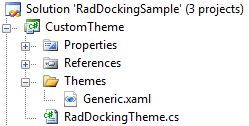
In the **Generic.xaml** you should place the styles and the resources for your theme.
> The **RadDockingTheme** class should inherit from the Telerik.Windows.Controls.**Theme** class.
## Applying a Theme
The theme can be easily set to your **RadDocking** control in the following way.
```C#
public StylingPaneHeader()
{
InitializeComponent();
StyleManager.SetTheme(this.radDocking, new Theme());
}
```
```VB.NET
Public Sub New()
InitializeComponent()
StyleManager.SetTheme(Me.radDocking, New Theme())
End Sub
```
```XAML
```
```C#
public StylingPaneHeader1()
{
InitializeComponent();
StyleManager.SetTheme(this.radDocking, new RadDockingTheme());
}
```
```VB.NET
Public Sub New()
InitializeComponent()
StyleManager.SetTheme(Me.radDocking, New RadDockingTheme())
End Sub
```
To learn more about theming controls read the common theming topics on this matter. If you are new to the controls they will give you a basic knowledge about it.
## See Also
* [Theming the Pane Header](https://www.telerik.com/products/wpf/documentation/controls/raddocking/theming/pane-header)
* [Theming the RadPaneGroup](https://www.telerik.com/products/wpf/documentation/controls/raddocking/theming/radpane-group)
* [Theming the ToolWindow](https://www.telerik.com/products/wpf/documentation/controls/raddocking/theming/toolwindow)
* [Theming the RadSplitContainer](https://www.telerik.com/products/wpf/documentation/controls/raddocking/theming/radsplitcontainer)