# How to Freeze the Layout

The purpose of this tutorial is to show you how to **freeze** the entire layout of the **RadDocking** control. That means to disable the:

* Moving and closing of panes

* Drop-down menu in the pane header

* Resizing of panes

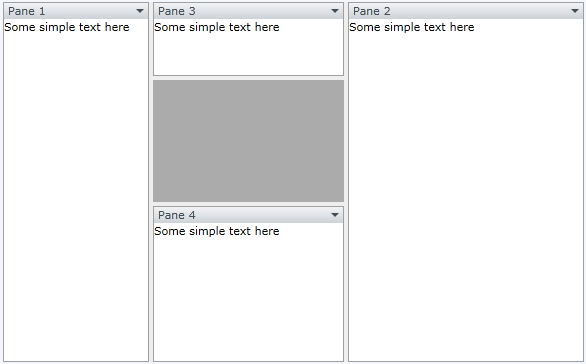
For the purpose of this tutorial the following **RadDocking** declaration will be used:

```XAML
<telerik:RadDocking x:Name="radDocking">

    <telerik:RadSplitContainer InitialPosition="DockedLeft">
        <telerik:RadPaneGroup>
            <telerik:RadPane x:Name="radPane1" Header="Pane 1">
                <TextBlock Text="Some simple text here"/>
            </telerik:RadPane>
        </telerik:RadPaneGroup>
    </telerik:RadSplitContainer>

    <telerik:RadSplitContainer InitialPosition="DockedRight">
        <telerik:RadPaneGroup>
            <telerik:RadPane x:Name="radPane2" Header="Pane 2">
                <TextBlock Text="Some simple text here"/>
            </telerik:RadPane>
        </telerik:RadPaneGroup>
    </telerik:RadSplitContainer>

    <telerik:RadSplitContainer InitialPosition="DockedTop">
        <telerik:RadPaneGroup>
            <telerik:RadPane x:Name="radPane3" Header="Pane 3">
                <TextBlock Text="Some simple text here"/>
            </telerik:RadPane>
        </telerik:RadPaneGroup>
    </telerik:RadSplitContainer>

    <telerik:RadSplitContainer InitialPosition="DockedBottom">
        <telerik:RadPaneGroup>
            <telerik:RadPane x:Name="radPane4" Header="Pane 4">
                <TextBlock Text="Some simple text here"/>
            </telerik:RadPane>
        </telerik:RadPaneGroup>
    </telerik:RadSplitContainer>

</telerik:RadDocking>
```

![WPF RadDocking Sample Declaration](https://www.telerik.com/products/wpf/documentation/assets/540b7abc7fbefc111e0e49d08871e54c/raddocking_howto_freezelayout_010.png)

## Disable the Close ("X") Button

In order to disable the close button, you need to set the **CanUserClose** property of the **RadPane** to **False**. So find the **RadPane** declarations and set the **CanUserClose** property:

```XAML

<telerik:RadPane x:Name="radPane10" Header="Pane 1" CanUserClose="False"/>

<telerik:RadPane x:Name="radPane20" Header="Pane 2" CanUserClose="False"/>

<telerik:RadPane x:Name="radPane30" Header="Pane 3" CanUserClose="False"/>

<telerik:RadPane x:Name="radPane40" Header="Pane 4" CanUserClose="False"/>
```

Here is the result:

![WPF RadDocking with Non-Closable Panes](https://www.telerik.com/products/wpf/documentation/assets/239731a3a60498cdc1a13da354ab5cd7/raddocking_howto_freezelayout_020.png)

## Disable the Pin/Unpin Button

In order to disable the pin/unpin button, you need to set the **CanUserPin** property of the **RadPane** to **False**. So find the **RadPane** declarations and set the **CanUserPane** property:

```XAML

<telerik:RadPane x:Name="radPane11" Header="Pane 1" CanUserClose="False" CanUserPin="False"/>

<telerik:RadPane x:Name="radPane21" Header="Pane 2" CanUserClose="False" CanUserPin="False"/>

<telerik:RadPane x:Name="radPane31" Header="Pane 3" CanUserClose="False" CanUserPin="False"/>

<telerik:RadPane x:Name="radPane41" Header="Pane 4" CanUserClose="False" CanUserPin="False"/>
```

Here is the result:

![WPF RadDocking with Panes without Pin/Unpin Button](https://www.telerik.com/products/wpf/documentation/assets/136e0d868090bd3427e10bd237320f56/raddocking_howto_freezelayout_030.png)

## Disable the Float Behavior

In order to disable the float behavior, you need to set the **CanFloat** property of the **RadPane** to **False**. Which means that the user will not be able to drag and drop the panes. So find the **RadPane** declarations and set the **CanFloat** property:

```XAML

<telerik:RadPane x:Name="radPane12" Header="Pane 1" CanUserClose="False" CanUserPin="False" CanFloat="False"/>

<telerik:RadPane x:Name="radPane22" Header="Pane 2" CanUserClose="False" CanUserPin="False" CanFloat="False"/>

<telerik:RadPane x:Name="radPane32" Header="Pane 3" CanUserClose="False" CanUserPin="False" CanFloat="False"/>

<telerik:RadPane x:Name="radPane42" Header="Pane 4" CanUserClose="False" CanUserPin="False" CanFloat="False"/>
```

## Disable the Drop-Down Menu in the Pane Header

In order to remove the menu from the **RadPane**, you need to remove all the menu items from the  **MenuCommands** collection of each **RadPane** control that doesn't need a menu.

Switch to the code-behind and clear the **MenuCommands** collection of each **RadPane**.

```C#
private void DisableMenu()
{
    radPane1.ContextMenuTemplate = null;
    radPane2.ContextMenuTemplate = null;
    radPane3.ContextMenuTemplate = null;
    radPane4.ContextMenuTemplate = null;
}
```

```VB.NET
Private Sub DisableMenu()
	radPane1.ContextMenuTemplate = Nothing
	radPane2.ContextMenuTemplate = Nothing
	radPane3.ContextMenuTemplate = Nothing
	radPane4.ContextMenuTemplate = Nothing
End Sub
```

Here is the result:

![WPF RadDocking with Panes without Context Menu](https://www.telerik.com/products/wpf/documentation/assets/fba49c060c0e82b9ec6f0e97038b2df9/raddocking_howto_freezelayout_040.png)

## Disable Resizing of the Panes

In order to disable the pane resizing, you need to use the **MinWidth**, **MinHeight**, **MaxWidth** and **MaxHeight** properties of the **RadSplitContainer**.

## See Also

* [How to Customize or Remove the RadPane's Menu](https://www.telerik.com/products/wpf/documentation/controls/raddocking/how-to/add-menu-items-to-the-radpanes-menu)

* [Visual Structure](https://www.telerik.com/products/wpf/documentation/controls/raddocking/general-information/visual-structure)

* [RadPane](https://www.telerik.com/products/wpf/documentation/controls/raddocking/features/panes/radpane)