# How to Disable the Close Button
The purpose of this tutorial is to show you how to disable/hide the close ("X") button.
For more information about the RadPane and its visual elements, read [here](https://www.telerik.com/products/wpf/documentation/controls/raddocking/features/panes/radpane).
There are two solutions for disabling the close button:
* Setting the **CanUserClose** property
* Handling the **PreviewClose** event
## Setting the CanUserClose Property
The first way to disable the close button is to simply **hide** it. In order to do that you need to set the **CanUserClose** property of the **RadPane** to **False**. See the following example.
Here is a simple **RadDocking** declaration with a single pane.
```XAML
```
As you can see, by default the close button is enabled and you can close the pane anytime when you click the "X".
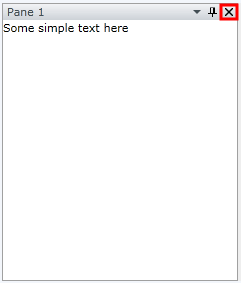
So, find your **RadPane** declaration and set the following attribute:
```XAML
```
Now, if you run your application, the close button will be no longer visible.
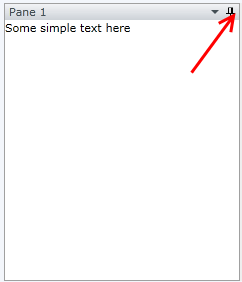
The same operation can be done in the code-behind. In order to do that, set the **CanUserClose** property on an instance of the **RadPane** class to **false**.
```C#
private void HideTheCloseButton()
{
radPane.CanUserClose = false;
}
```
```VB.NET
Private Sub HideTheCloseButton()
radPane.CanUserClose = False
End Sub
```
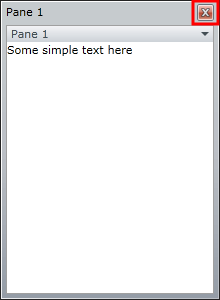
> Note that even the **CanUserClose** property is set to False, when you drag your pane so that you make it floatable. The window that contains the pane will still have a close button visible. **However, you won't be able to close if you try to click the "X" button.**
## Handling the PreviewClose Event
The second way to disable the close button is to handle the **PreviewClose** event. So if you take a look again at the initial RadDocking declaration, attach to the **PreviewClose** event of the **RadDocking** class.
```XAML
```
Switch to the code-behind and add the following code in the event handler:
```C#
private void radDocking_PreviewClose(object sender, Telerik.Windows.Controls.Docking.StateChangeEventArgs e)
{
e.Handled = true;
}
```
```VB.NET
Private Sub radDocking_PreviewClose(ByVal sender As Object, ByVal e As StateChangeEventArgs)
e.Handled = True
End Sub
```
Run your application. Note that the close button is now visible. However, if you try to click, the pane won't close. The same is valid when your window is floatable.
## See Also
* [Visual Structure](https://www.telerik.com/products/wpf/documentation/controls/raddocking/general-information/visual-structure)
* [How to Customize or Remove the RadPane's Menu](https://www.telerik.com/products/wpf/documentation/controls/raddocking/how-to/add-menu-items-to-the-radpanes-menu)
* [How to Add Buttons to the Pane Header](https://www.telerik.com/products/wpf/documentation/controls/raddocking/how-to/add-buttons-to-the-pane-headers)