# Tool Window
`ToolWindow` is the container control that hosts all panes that are in a floating state. Every time you drag a pane and undock it, a new instance of the class `Telerik.Windows.Controls.Docking.ToolWindow` is created to host that pane for you.
> The implementation of the `RadDocking` never requires you to work with ToolWindows directly, but with the Pane hosted inside it. For example, to make a ToolWindow not closable, just set the property `CanUserClose` of the hosted RadPane to **False**.
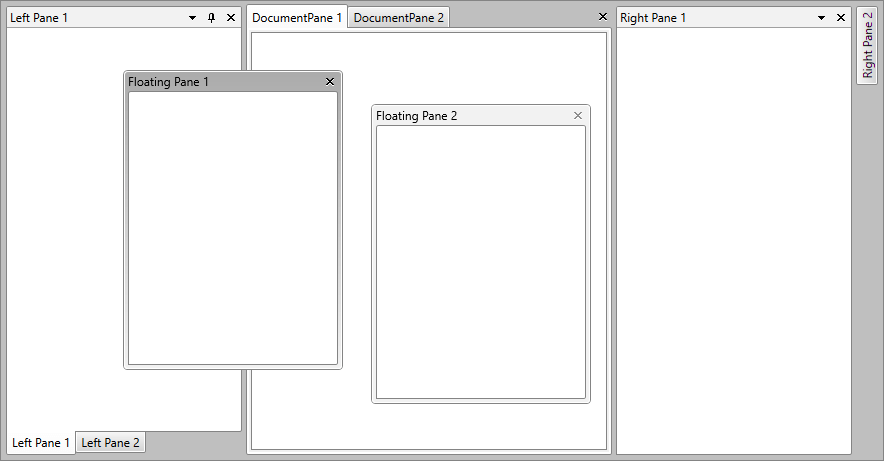
In the figure below you can see two ToolWindows with a floating pane inside of each one.
## Setting FloatingSize and FloatingLocation
RadDocking provides the ability to easily set the initial floating size and location of the ToolWindows. To do that, use the `RadDocking.FloatingSize` and `RadDocking.FloatingLocation` attached properties, as shown in the following example:
**Setting RadDocking.FloatingSize and RadDocking.FloatingLocation**
```XAML
```
## Setting the Draggable Area
The ToolWindow element allows you to change the threshold of its titlebar's draggable area. To do that, set the `CaptionHeight` property.
**Setting the CaptionHeight property via a Style**
```XAML
```
> important Changing the height of the titlebar will not automatically update the CaptionHeight property's value.
## Styling ToolWindow
To learn how to style the tool windows of your applications, read the [Styling the ToolWindow](https://www.telerik.com/products/wpf/documentation/controls/raddocking/styles-and-templates/styling-the-toolwindow) topic.
## See Also
* [Docked/Floating Panes](https://www.telerik.com/products/wpf/documentation/controls/raddocking/features/panes/docked-floating-panes)
* [Pane Groups](https://www.telerik.com/products/wpf/documentation/controls/raddocking/features/pane-groups)
* [Split Container](https://www.telerik.com/products/wpf/documentation/controls/raddocking/features/split-container)
* [Compass](https://www.telerik.com/products/wpf/documentation/controls/raddocking/features/compass)
* [Drag and Drop](https://www.telerik.com/products/wpf/documentation/controls/raddocking/features/drag-and-drop)
* [Document Host](https://www.telerik.com/products/wpf/documentation/controls/raddocking/features/document-host)
* [Styling the ToolWindow](https://www.telerik.com/products/wpf/documentation/controls/raddocking/styles-and-templates/styling-the-toolwindow)