# Overview
When building complex layout with **RadDocking,** the users will often expect to persist the layout from one session to another. This can be easily achieved with the advanced Save/Load layout mechanism of the **RadDocking**.
The purpose of this tutorial is to show how to use the Save/Load layout mechanism of the **RadDocking**. The following cases will be examined:
* [Saving layout](https://www.telerik.com/products/wpf/documentation/controls/raddocking/features/save-load-layout/overview#saving-layout)
* [Loading layout](https://www.telerik.com/products/wpf/documentation/controls/raddocking/features/save-load-layout/overview#load-layout)
* [Using events to manage the save/load process](https://www.telerik.com/products/wpf/documentation/controls/raddocking/features/save-load-layout/overview#events)
Create a new application and add the following initial **RadDocking** declaration.
```XAML
```
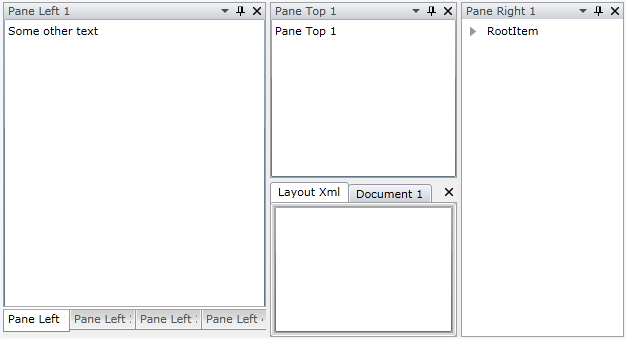
## Saving Layout
**RadDocking** gives you the ability to store the entire layout in a stream containing XML. In order to do that you need to use the **SaveLayout** method of an instance of the **RadDocking** control. Additionally, you can choose to save the stream elsewhere, in a textbox, or directly in the file system.
Perform the following steps:
Set the **RadDocking.SerializationTag** attached property for each one of the panes in your xaml declaration. If the SerializationTag is not set the Panes will be removed and new components will be created when the layout is loaded. If you want to preserve not only the Panes and load the same instances when the layout is loading you need to set the SerializationTag to all other components of RadDocking you want to preserve as well (RadPaneGroups, RadSplitContainers, RadPanes).
```XAML
```
Use the **SaveLayout** method of the **RadDocking** class. The following example demonstrates how to save the **RadDocking** layout in the IsolatedStorage. The generated XML is returned as well.
```C#
private string SaveLayout()
{
string xml;
// Save your layout for example in the isolated storage.
using (IsolatedStorageFile storage = IsolatedStorageFile.GetUserStoreForAssembly())
{
using (var isoStream = storage.OpenFile("RadDocking_Layout.xml", FileMode.Create))
{
this.radDocking.SaveLayout(isoStream);
isoStream.Seek(0, SeekOrigin.Begin);
StreamReader reader = new StreamReader(isoStream);
xml = reader.ReadToEnd();
}
}
// Return the generated XML
return xml;
}
```
```VB.NET
Private Function SaveLayout() As String
Dim xml As String
' Save your layout for example in the isolated storage.
Using storage As IsolatedStorageFile = IsolatedStorageFile.GetUserStoreForAssembly()
Using isoStream = storage.OpenFile("RadDocking_Layout.xml", FileMode.Create)
Me.radDocking.SaveLayout(isoStream)
isoStream.Seek(0, SeekOrigin.Begin)
Dim reader As New StreamReader(isoStream)
xml = reader.ReadToEnd()
End Using
End Using
' Return the generated XML
Return xml
End Function
```
Here is how the result XML will look like for the above example:
#### **XML**
```XML
```
> There are two steps you should perform in order to save your layout (and one more that is optional):
>
> 1. Mark all **RadPanes** with the **RadDocking.SerializationTag**.
> 2. Use the **SaveLayout** method of the **RadDocking** to save your layout in a stream.
> 3. (Optional) Save the stream in the isolated storage.
> When you load the layout, all the elements that are not marked with **SerializationTag** property are removed and new components are created instead. That is the reason why you should mark your panes with the **SerializationTag** attribute.
## Load Layout
In order to load the docking layout you need to do absolutely the same things but in reverse order.
* First, load the stream (e.g. from the isolated storage).
* Second, use the **LoadLayout** method of the **RadDocking** control.
```C#
private void LoadLayout()
{
// Load your layout from the isolated storage.
using (IsolatedStorageFile storage = IsolatedStorageFile.GetUserStoreForAssembly())
{
using (var isoStream = storage.OpenFile("RadDocking_Layout.xml", FileMode.Open))
{
this.radDocking.LoadLayout(isoStream);
}
}
}
```
```VB.NET
Private Sub LoadLayout()
' Load your layout from the isolated storage.
Using storage As IsolatedStorageFile = IsolatedStorageFile.GetUserStoreForAssembly()
Using isoStream = storage.OpenFile("RadDocking_Layout.xml", FileMode.Open)
Me.radDocking.LoadLayout(isoStream)
End Using
End Using
End Sub
```
## Events
The **RadDocking** API offers you six events for managing the save/load layout behavior:
* **ElementLoading** - raised when a docking element (**Pane**, **PaneGroup** or **SplitContainer**) is about to be loaded. The type of the passed event arguments is **LayoutSerializationLoadingEventArgs**.
* **LayoutSerializationLoadingEventArgs** - provides access to the **AffectedElement**, **AffectedElementSerializationTag**, **ElementProperties** properties and the **Cancel** property that determines whether the AffectedElement will be loaded.
* **ElementLoaded**- raised after a docking element (**Pane**, **PaneGroup** or **SplitContainer**) is loaded. The type of the passed event arguments is **LayoutSerializationEventArgs**.
* **ElementLayoutSaving** (introduced with R2 2016 of UI for WPF) - raised when a docking element (**Pane**, **PaneGroup** or **SplitContainer**) is about to be saved. The type of the passed event arguments is **LayoutSerializationSavingEventArgs**.
* **LayoutSerializationSavingEventArgs** - provides access to the **AffectedElement**, **AffectedElementSerializationTag**, **ElementProperties** properties and the **Cancel** property that determines whether the AffectedElement will be serialized.
* **ElementSaved** - raised after a docking element (**Pane**, **PaneGroup** or **SplitContainer**) is saved. The type of the passed event arguments is **LayoutSerializationEventArgs**.
* **ElementLayoutCleaning** (introduced with R2 2016 of UI for WPF) - raised when a docking element (**Pane**, **PaneGroup** or **SplitContainer**) is about to be cleaned. The type of the passed event arguments is **LayoutSerializationCleaningEventArgs**.
* **LayoutSerializationCleaningEventArgs** - provides access to the **AffectedElement**, **AffectedElementSerializationTag** properties and the **Cancel** property that determines whether the AffectedElement will be removed from the layout.
* **ElementCleaned**- raised after a docking element (**Pane**, **PaneGroup** or **SplitContainer**) is cleaned. The type of the passed event arguments is **LayoutSerializationEventArgs**.
* **CustomElementLoading**- raised when a custom docking element (that derives from **RadPane**, **RadPaneGroup** or **RadSplitContainer**) is about to be loaded. The type of the passed event arguments is **LayoutSerializationCustomLoadingEventArgs**.
The type of the event arguments for the **ElementLoaded**, **ElementSaved**, and **ElementCleaned** is: **Telerik.Windows.Controls.LayoutSerializationEventArgs.** Via both of the event arguments you get access to the following properties:
* **AffectedElement**- this is the currently loaded\saved pane.
* **AffectedElementSerializationTag**- this is the currently loaded\save serialization tag. In the previous example if you attach to any of the events, then the first time when the **AffectedElementSerializationTag** is fired, it will have the value "LayoutXml".
* **ElementProperties** - this is a Dictionary that contains the string representations of the DependencyPropertys of the AffectedElement that will be saved to the layout Xml of the RadDocking.
The event argument of the **CustomElementLoading** event is of type **LayoutSerializationCustomLoadingEventArgs** that derives from the **LayoutSerializationLoadingEventArgs** and adds the following additional properties:
* **CustomElementTypeName** - it gets the type name of the custom affected element.
* **Cancel** - determines whether the custom AffectedElement will be loaded.
> tip The **Telerik.Windows.Controls.LayoutSerializationLoadingEventArgs** allows you to point out an instance to be used as a newly loaded control. This could be useful if you need to create the instances yourself.
> You have the ability to "say" whether these event to be fired or not, when the **SerializationTag** is **not specified**. You should use the second overload of the **LoadLayout** and **SaveLayout** methods.
```C#
public void SaveLayout(Stream destination, bool raiseEventsIfNoSerializationTag)
{
}
```
```VB.NET
Public Sub SaveLayout(ByVal destination As Stream, ByVal raiseEventsIfNoSerializationTag As Boolean)
End Sub
```
> By default when you use the **SaveLayout** method only the layout (without the content) will be saved. That's why the most common use of the fourth events is to save (respectively load) the pane's content. In order to see how to do that take a look at the [Save/Load the Content of the Panes](https://www.telerik.com/products/wpf/documentation/controls/raddocking/features/save-load-layout/save-load-the-content-of-the-panes) topic.
## See Also
* [Pane Groups](https://www.telerik.com/products/wpf/documentation/controls/raddocking/features/pane-groups)
* [Split Container](https://www.telerik.com/products/wpf/documentation/controls/raddocking/features/split-container)
* [Tool Window](https://www.telerik.com/products/wpf/documentation/controls/raddocking/features/tool-window)
* [Save/Load the Content of the Panes](https://www.telerik.com/products/wpf/documentation/controls/raddocking/features/save-load-layout/save-load-the-content-of-the-panes)