# Pane Groups
Each **RadPane** provides built-in grouping functionality that allows you to place multiple panes inside a single container by organizing them in separate tab pages, similarly to the **RadTabControl**.
Each **RadPane** can be grouped along with other **RadPanes** inside of a single container like it is shown in the snapshot below.
> In order to group your panes, you should use the **Telerik.Windows.Controls.RadPaneGroup** class.
## Grouping Panes Run-time
You can group panes during run-time by simply [dragging](https://www.telerik.com/products/wpf/documentation/controls/raddocking/features/drag-and-drop) the pane to the desired container.
## Grouping Panes Programmatically
In order to group two or more panes, you should add them to the **RadPaneGroup**'s **Items** collection like in the example below.
**Example 1: Adding panes to a RadPaneGroup**
```XAML
```
The same operation can be done in the code-behind. You can group panes using the **RadPaneGroup**'s **Items** collection through procedural code:
**Example 2: Adding panes to a RadPaneGroup**
```C#
private void GroupPanes()
{
Telerik.Windows.Controls.RadPane pane3 = new Telerik.Windows.Controls.RadPane();
pane3.Header = "Properties";
Group1.Items.Add(pane3);
}
```
```VB.NET
Private Sub GroupPanes()
Dim pane3 As New Telerik.Windows.Controls.RadPane()
pane3.Header = "Properties"
Group1.Items.Add(pane3)
End Sub
```
## Reordering Panes Programmatically
To change the order of tabs through code, remove the pane from its owning `RadPaneGroup.Items` collection and insert it at the desired index. You do not need to enable `RadDocking.AllowDragReorder`. That property controls [mouse-driven tab reordering](https://www.telerik.com/products/wpf/documentation/controls/raddocking/features/dragreorder).
The following example moves the Details pane from the last tab to the first tab within the same group. All three panes are visible and pinned. Add this layout to a WPF window.
**Define a pane group and a button that changes the tab order**
```xml
```
Add the click handler to the window's code-behind. Collection indices are zero-based: `0` is the first position and `Items.Count - 1` is the last position. The target index describes the pane's final position after removal and insertion.
**Move the pane and restore the previously selected item**
```C#
private void MoveDetailsToFirst_Click(object sender, System.Windows.RoutedEventArgs eventArgs)
{
int targetIndex = 0;
int currentIndex = this.DocumentGroup.Items.IndexOf(this.DetailsPane);
if (currentIndex < 0 || currentIndex == targetIndex)
{
return;
}
var selectedItem = this.DocumentGroup.SelectedItem;
this.DocumentGroup.Items.Remove(this.DetailsPane);
this.DocumentGroup.Items.Insert(targetIndex, this.DetailsPane);
if (selectedItem != null && this.DocumentGroup.Items.Contains(selectedItem))
{
this.DocumentGroup.SelectedItem = selectedItem;
}
}
```
After the click, the tab order changes from Overview, Editor, Details to Details, Overview, Editor. The handler restores the previously selected pane because removal and insertion can change selection. Restoring selection does not suppress intermediate selection events or content load/unload operations.
This example reorders existing visible, pinned panes in one group. It does not handle hidden panes, auto-hidden panes, or moves between groups.
> note When you use [PanesSource](https://www.telerik.com/products/wpf/documentation/controls/raddocking/features/panes/panesource), a `Move` notification from the bound collection does not reorder the displayed tabs. Reorder the existing panes in their owning group's `Items` collection instead. Do not bind `RadPaneGroup.ItemsSource`. It is one of the [unsupported Docking properties](https://www.telerik.com/products/wpf/documentation/controls/raddocking/general-information/not-supported-properties#radpanegroup).
## Removing Panes Run-Time
In order to remove panes run-time you should either close the pane or remove the pane from the group via [drag and drop](https://www.telerik.com/products/wpf/documentation/controls/raddocking/features/drag-and-drop).
> tip If you want to restrict the user not to close panes, take a look at the [How to Disable the Close ("X") Button](https://www.telerik.com/products/wpf/documentation/controls/raddocking/how-to/disable-the-close-button) topic.
## Removing Panes Programmatically
You can remove panes using procedural code in two ways:
* Using the **RadPaneGroup**'s **Items** collection
**Example 3: Removing panes from a RadPaneGroup**
```C#
private void RemovePane(RadPane paneToRemove)
{
Group1.Items.Remove(paneToRemove);
}
```
```VB.NET
Private Sub RemovePane(ByVal paneToRemove As RadPane)
Group1.Items.Remove(paneToRemove)
End Sub
```
* Using the **RemoveFromParent** method of the **RadPane** class
**Example 4: Removing panes from a RadPaneGroup through the RemoveFromParent method**
```C#
private void RemovePane(RadPane paneToRemove)
{
paneToRemove.RemoveFromParent();
}
```
```VB.NET
Private Sub RemovePane(ByVal paneToRemove As RadPane)
paneToRemove.RemoveFromParent()
End Sub
```
## Hiding All Panes
The **RadPaneGroup** class exposes **HideAllPanes** method, which allows you to hide all visible panes belonging to the group.
**Example 5: Hiding all group panes**
```C#
private void HideAllPanes()
{
Group1.HideAllPanes();
}
```
```VB.NET
Private Sub HideAllPanes()
Group1.HideAllPanes()
End Sub
```
> **HideAllPanes** method works only when all of the objects are constructed and added to the object tree. Which means that you should invoke it after the **Loaded** event of the **RadDocking** control has been fired.
## Showing All Panes
The **RadPaneGroup** class exposes **ShowAllPanes** method, which allows you to show all hidden panes belonging to the group.
**Example 6: Show all group panes**
```C#
private void ShowAllPanes()
{
Group1.ShowAllPanes();
}
```
```VB.NET
Private Sub ShowAllPanes()
Group1.ShowAllPanes()
End Sub
```
> **ShowAllPanes** method works only when all of the objects are constructed and added to the object tree. Which means that you should invoke it after the **Loaded** event of the **RadDocking** control has been fired.
> tip If you need information about the events fired when showing and hiding panes, take a look at the [Events](https://www.telerik.com/products/wpf/documentation/controls/raddocking/events/overview) topic.
## Pinning All Panes
The **RadPaneGroup** class exposes **PinAllPanes** method, which allows you to pin all panes belonging to the group.
**Example 7: Pin all group panes**
```C#
private void PinAllPanes()
{
Group1.PinAllPanes();
}
```
```VB.NET
Private Sub PinAllPanes()
Group1.PinAllPanes()
End Sub
```
> **PinAllPanes** method works only when all of the objects are constructed and added to the object tree. Which means that you should invoke it after the **Loaded** event has been fired.
## Unpining All Panes
The **RadPaneGroup** class exposes **UnpinAllPanes** method, which allows you to unpin all panes belonging to the group.
**Example 7: Unpin all group panes**
```C#
private void UnpinAllPanes()
{
Group1.UnpinAllPanes();
}
```
```VB.NET
Private Sub UnpinAllPanes()
Group1.UnpinAllPanes()
End Sub
```
> **UnpinAllPanes** method works only when all of the objects are constructed and added to the object tree. Which means that you should invoke it after the **Loaded** event of the **RadDocking** control has been fired.
> tip If you need information about the events fired when pinning and unpining panes, take a look at the [Events](https://www.telerik.com/products/wpf/documentation/controls/raddocking/events/overview) topic.
## Persist Content with the IsContentPreserved Property
For performance optimization, the control template of the RadPaneGroup defines a single **ContentPresenter** which holds only the currently selected RadPane's content. Therefore each time the selection is changed, the content of the last active pane is unloaded in order to load the content of the newly-selected pane. Since the load/unload operations involve add/remove actions in the visual tree, the content does not keep its state.
You can, however, change this behavior by setting the **IsContentPreserved** property of the RadPaneGroup to **True**.
**Example 8: Persist panes' content**
```C#
Group1.IsContentPreserved = true;
```
```VB.NET
Group1.IsContentPreserved = True
```
## Set Relative Size to the RadPaneGroup
The sizes of the **RadPaneGroups** that are not directly set in the **RadDocking** control, are set relatively. You can set relative size to a **RadPaneGroup** by setting the **PropertionalStackPanel.RelativeSize** attached property. By using this property you can proportionally divide the width or the hight occupied by two or more **RadPaneGroups** docked to the same position. For example, if you have two pane groups docked to the top, the first one should occupy 1/3 of the available width and the second - the remaining 2/3, you have to set this proportion (1:2) in their widths as it is shown in the code snippet below.
**Example 9: Set relative size**
```XAML
```
**Figure 1** illustrates the result.
> caption Pane groups with proportional sizes
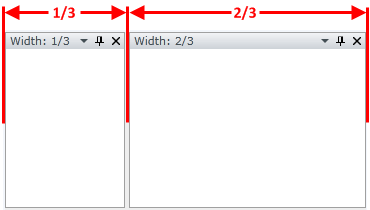
As you can see, the first pane group occupies 1/3 of the available width, while the second occupies the rest 2/3. The height specified is ignored because the groups have the same height as the **RadSplitContainer** in which they are hosted.
## Set (Min/Max)Width and (Min/Max)Height
Since version **R2 2017**, you can set fixed sizes to a **RadPaneGroup** by setting the following attached properties of the **ProportionalStackPanel** class:
* **ElementWidth**
* **ElementMinWidth**
* **ElementMaxWidth**
* **ElementHeight**
* **ElementMinHeight**
* **ElementMaxHeight**
**Example 10: Setting ProportionalStackPanel.ElementWidth**
```XAML
```
As can be seen on **Figure 2**, even when pane groups with fixed sizes are present, the remaining groups with proportional sizes will still resize accordingly.
> caption Pane group with fixed size among groups with proportional sizes

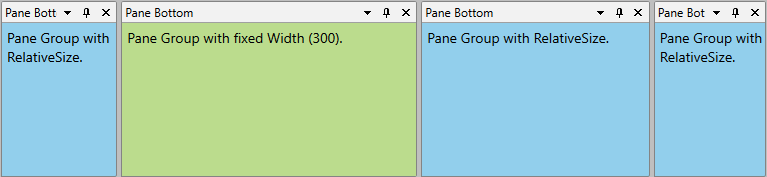
> important When the **Orientation** of the parent **RadSplitContainer** is set to **Vertical**, only the **(Min/Max)Height** properties are taken into account. Similarly, when the orientation is **Horizontal**, the container uses only the **(Min/Max)Width** attached properties.
> When both fixed and proportional sizes are set for a given group, the fixed size will take precedence.
## Other Properties and Methods Exposed by the RadPaneGroup class
* **IsInDocumentHost**: Read-only boolean property. Returns whether the current **RadPaneGroup** is placed in [DocumentHost](https://www.telerik.com/products/wpf/documentation/controls/raddocking/features/document-host).
* **IsInToolWindow**: Read-only boolean property. Returns whether the current **RadPaneGroup** is in [Tool Window](https://www.telerik.com/products/wpf/documentation/controls/raddocking/features/tool-window).
* **IsPaneHeaderVisible**: Read-only boolean property. Returns whether the pane's header is visible.
* **SelectedPane**: Returns the currently selected pane within the group.
* **EnumeratePanes()**: Returns **IEnumeratble** of **RadPane** objects. These are all the panes that currently belonging to the group.
* **PropagateItemDataContextToContent**: Specifies whether the DataContext of the RadPane should be assigned as the DataContext of its content when the selection changes. The default value of this property is **True**.
## Styling the RadPaneGroup
To learn how to style the **RadPaneGroup** in your applications take a look at the [Styling the RadPaneGroup](https://www.telerik.com/products/wpf/documentation/controls/raddocking/styles-and-templates/styling-the-radpanegroup) topic.
## See Also
* [Split Container](https://www.telerik.com/products/wpf/documentation/controls/raddocking/features/split-container)
* [Tool Window](https://www.telerik.com/products/wpf/documentation/controls/raddocking/features/tool-window)
* [Compass](https://www.telerik.com/products/wpf/documentation/controls/raddocking/features/compass)
* [Document Host](https://www.telerik.com/products/wpf/documentation/controls/raddocking/features/document-host)
* [Styling the RadPaneGroup](https://www.telerik.com/products/wpf/documentation/controls/raddocking/styles-and-templates/styling-the-radpanegroup)