# Selection
**RadDiagram** gives you the ability to select **RadDiagramItems** in XAML, code behind, with data binding, interactively or by invoking **RadDiagramCommand**.
The following tutorial will show you how select items, work with different selection modes and set up selection commands and events.
> Please note that the examples in this tutorial are showcasing Telerik Windows8 theme. In the [Setting a Theme](http://www.telerik.com/help/wpf/common-styling-apperance-setting-theme-wpf.html#Setting_Application-Wide_Built-In_Theme_in_the_Code-Behind) article you can find more information on how to set an application-wide theme.
## Selection Modes
**RadDiagram** has four different **Selection Modes** which determine the way a user performs selection:
* **Single** - the user can select only one item.
* **None** - the user cannot select any items.
* **Extended** - the user can select/deselect multiple items using the combinations (Ctrl Key+ Mouse Left Button) or (Ctr + Key A). This is the default **SelectionMode**'s Value
* **Multiple** - the user can select/deselect multiple items using only Left Button or the combinations (Ctrl Key+ Mouse Left Button) and (Ctr + Key A)
In order to change the way the **Selection Adorner Rectangle** behaves, you can use the **RectSelectionMode** property:
* **Full** - the user selects item(s) only when the selection rectangle covers it(them) completely.
* **Partial** - the user selects all items that are completely or partially covered by the selection rectangle.
## Selection In XAML
In order to select items in XAML, you only need to set their **IsSelected** property to true:
```XAML
```
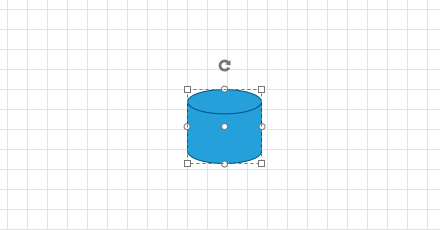
When multiple items are selected, they are automatically added in one Selection Adorner:
```XAML
```
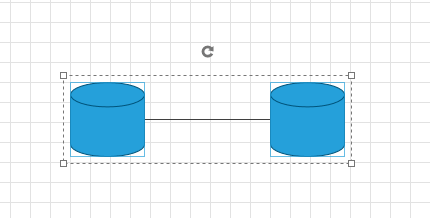
You may also want to use the **SelectedIndex** or the **SelectedItem** property of the **RadDiagram**:
```XAML
```
Or
```XAML
```
Below is the result of the code snippets above: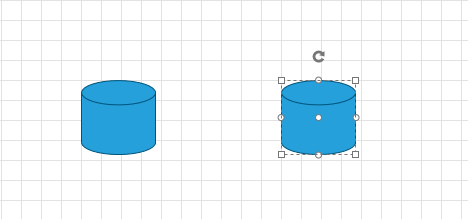
## Binding the IsSelected
When the **RadDiagram** is bound to collection of business objects or ViewModels, you can bind the **IsSelected** property of an item via **Style Bindings**.
For example, you can have Selected property in your ViewModel and bind it to the Shape's **IsSelected** like so:
```XAML
```
## SelectAll
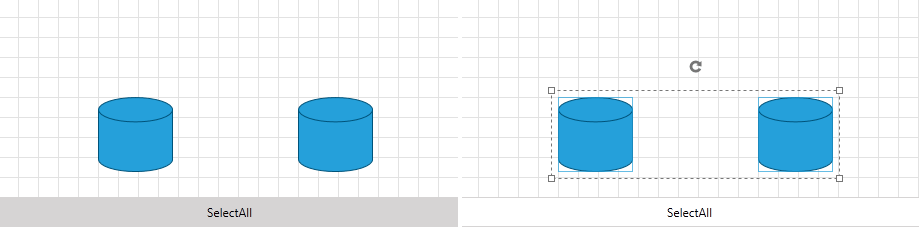
You are able to select all **RadDiagramItems** interactively (by Mouse or by pressing Ctrl + A), programmatically (via the **SelectAll()** method), set IsSelected to every Shape and Connection via StyleBindings, or with Command. Below is shown how you can use the **SelectAll** command:
```XAML
```
## Selection Events
**RadDiagram** provides the following Selection events:
* **PreviewSelectionChanged** - occurs when the selection of the diagram starts changing.
* **SelectionChanged** - fires when a selection operations has just been performed.
* **SelectionBoundsChanged** - fires when the SelectionRectangle's bounds have just been changed.
## See Also
* [Structure](https://www.telerik.com/products/wpf/documentation/controls/raddiagram/structure)
* [Getting Started](https://www.telerik.com/products/wpf/documentation/controls/raddiagram/getting-started)
* [Populating with Data](https://www.telerik.com/products/wpf/documentation/controls/raddiagram/populating-with-data/data-overview)
* [Shapes](https://www.telerik.com/products/wpf/documentation/controls/raddiagram/diagram-items/shape/raddiagrams-features-shapes)
* [Connections](https://www.telerik.com/products/wpf/documentation/controls/raddiagram/diagram-items/raddiagrams-features-connections)
* [Items Editing](https://www.telerik.com/products/wpf/documentation/controls/raddiagram/items-manipulation/raddiagrams-features-edit)
* [Rotation](https://www.telerik.com/products/wpf/documentation/controls/raddiagram/items-manipulation/raddiagrams-features-rotation)
* [Resizing](https://www.telerik.com/products/wpf/documentation/controls/raddiagram/items-manipulation/raddiagrams-features-resizing)
* [ZOrder](https://www.telerik.com/products/wpf/documentation/controls/raddiagram/items-manipulation/raddiagrams-features-zorder)