# Items Editing
**RadDiagram** gives you the ability to edit the Content of its items. You can double-click items in order to edit them or use **DiagramCommands**. **RadDiagramShape** and **RadDiagramConnection** also provide **EditTemplates** and **EditTemplateSelectors**. Please note that through the examples in the tutorial, **Telerik Windows8 theme** is applied as an Application Theme.
> Please note that the examples in this tutorial are showcasing Telerik Windows8 theme. In the [Setting a Theme](http://www.telerik.com/help/wpf/common-styling-apperance-setting-theme-wpf.html#Setting_Application-Wide_Built-In_Theme_in_the_Code-Behind) article you can find more information on how to set an application-wide theme.
## Enable/Disable Items Editing
By default, the **RadDiagramItems** are enabled for editing. In order to disable this functionality, you can use the **IsEditable** property:
```XAML
```
## Start Editing by Using Keyboard
Once the edit behavior is enabled, you can start the editing process by selecting the item and pressing the **F2** key.
## Controlling Editing In Code Behind
In order to start/end editing a **RadDiagramItem** , you can set **IsInEditMode** property to True/False.
**RadDiagramItem** also provides four editing events:
* **PreviewBeginEdit** - fires when a RadDiagramItem is about to be edited.
* **BeginEdit** - fires when a RadDiagramItem has just entered in edit mode.
* **PreviewEndEdit** - fires when a RadDiagramItem is about to leave the edit mode.
* **EndEdit** - fires when a RadDiagramItem is has just left the edit mode.
## Edit Using Commands
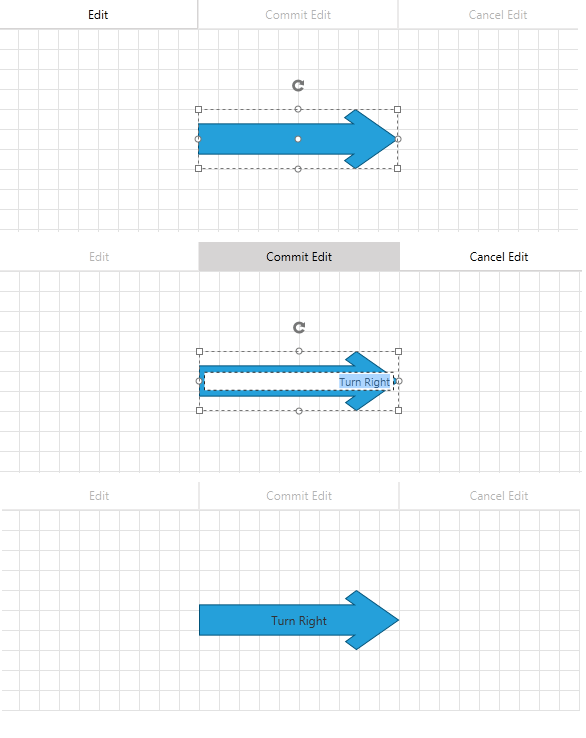
**RadDiagram** provides three predefined commands for editing the selected item - **BeginEdit**, **CommitEdit** and **CancelEdit**.
Consider the following code:
```XAML
```
In the picture below you can see a shape being edited:
## EditTemplates and EditTemplateSelectors
**RadDiagram** provides the following EditTemplates and EditTemplateSelectors:
* **ShapeEditTemplate** - applies as EditTemplate of the Shapes.
* **ShapeEditTemplateSelector** - could be used in order to apply different EditTemplates to different Shapes.
* **ConnectionEditTemplate** - applies as EditTemplate of the Connections.
* **ConnectionEditTemplateSelector** - could be used in order to apply different EditTemplates to different Connections.
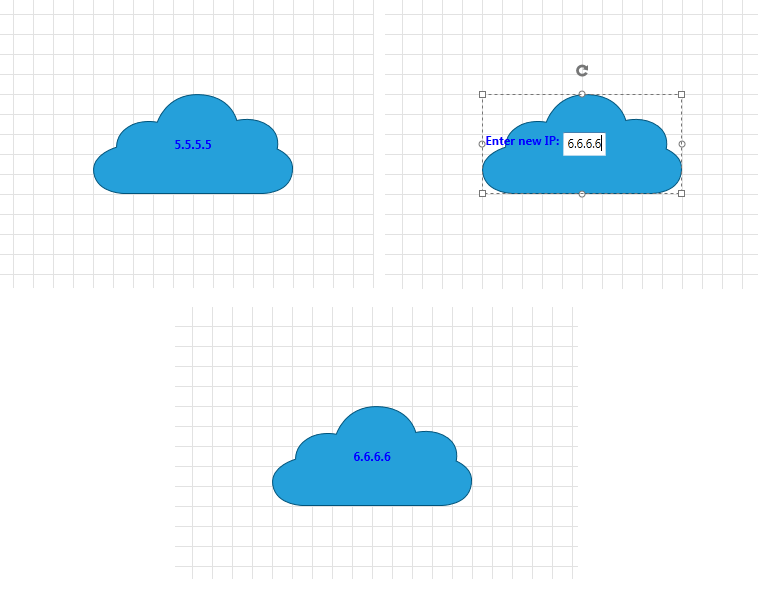
Below you can find example of basic EditTemplate of a Shape. Suppose we have a sample business object called DataItem:
```C#
public class DataItem : ViewModelBase
{
private string ipAddress;
public string IpAddress
{
get { return ipAddress; }
set
{
ipAddress = value;
this.OnPropertyChanged("IpAddress");
}
}
}
```
```VB.NET
Public Class DataItem
Inherits ViewModelBase
Private m_ipAddress As String
Public Property IpAddress() As String
Get
Return m_ipAddress
End Get
Set
m_ipAddress = value
Me.OnPropertyChanged("IpAddress")
End Set
End Property
End Class
```
```C#
this.shape.DataContext = new DataItem() { IpAddress = "5.5.5.5" };
```
```VB.NET
Me.shape.DataContext = New DataItem() With { .IpAddress = "5.5.5.5" }
```
Now you can define **ContentTemplate** and **EditTemplate** like so:
```XAML
```
In the picture below you can see the result of successful edit of the shape:
## See Also
* [Structure](https://www.telerik.com/products/wpf/documentation/controls/raddiagram/structure)
* [Getting Started](https://www.telerik.com/products/wpf/documentation/controls/raddiagram/getting-started)
* [Populating with Data](https://www.telerik.com/products/wpf/documentation/controls/raddiagram/populating-with-data/data-overview)
* [Shapes](https://www.telerik.com/products/wpf/documentation/controls/raddiagram/diagram-items/shape/raddiagrams-features-shapes)
* [Connections](https://www.telerik.com/products/wpf/documentation/controls/raddiagram/diagram-items/raddiagrams-features-connections)