# Drag Items from a Custom Databound DiagramToolbox
This tutorial describes how to implement a drag/drop operation between a custom data-bound **RadDiagramToolbox** and a **RadDiagram**.
> Please note that the examples in this tutorial are showcasing Telerik Windows8 theme. In the [Setting a Theme](http://www.telerik.com/help/wpf/common-styling-apperance-setting-theme-wpf.html#Setting_Application-Wide_Built-In_Theme_in_the_Code-Behind) article you can find more information on how to set an application-wide theme.
For the purpose of this tutorial we will create e sample **Grid** with two columns - the first one holding a **RadDiagramToolbox** and the second one - a **RadDiagram**.
```XAML
```
> tip You can find the **DataContext** implementation and the **Resources** section of the **Grid** in the [DiagramToolbox - How to Populate RadDiagramToolbox with Custom Data Items](https://www.telerik.com/products/wpf/documentation/controls/raddiagram/extensions/toolbox#how-to-populate-raddiagramtoolbox-with-custom-data-items) section.
If you run the application at this stage, you will be able to drag shapes from the toolbox and drop them onto the diagramming surface. This is due to the built-in support for drag/drop operations between the **RadDiagramToolbox** and the **RadDiagram** components. As the **RadDiagramToolboxItems** are marked as draggable by default, as soon as a drag operation is initiated, the **DragDropManager DragInitialize** event is fired. The **Diagramming Framework** handles this event internally and creates a **DiagramDropInfo** object that describes the dragged shapes. This process is further described in the [DragDrop Support](https://www.telerik.com/products/wpf/documentation/controls/raddiagram/features/raddiagrams-drag-drop#drag-and-drop-support) section of the **RadDiagramToolbox** article.
Once a **RadDiagram** instance receives a drop of a **DiagramDropInfo** object, it uses the [SerializationService](https://www.telerik.com/products/wpf/documentation/controls/raddiagram/features/services#serializationservice) to retrieve the settings of the dragged **RadDiagramItem** and to create a new item in its **Items** or **GraphSource** collection.

However, please note that the dragged shapes don't keep their original **Geometry** once dropped. Instead the drop operation creates a rectangular shape in the **RadDiagram**. This is due to the fact that the **SerializaionService** does not serialize the **Geometry** property of a **RadDiagram(Container)Shape**. Instead, you need to manually serialize the property and retrieve it after the drop operation.
For that purpose, we need to first attach an event handler for the default **SerializationService ItemSerializing** event. The default **SerializationService** is the one internally handling the serialization of the dragged toolbox shapes and once you attach a handler for the **ItemSerializing** event, you will be able to plug into that serialization and serialize more properties of the **RadDiagram(Container)Shapes**.
```C#
public void ToolboxDragDropExample()
{
InitializeComponent();
SerializationService.Default.ItemSerializing += Default_ItemSerializing;
}
void Default_ItemSerializing(object sender, SerializationEventArgs e)
{
if (e.Entity is RadDiagramShape)
{
e.SerializationInfo["MyGeometry"] = (e.Entity as RadDiagramShape).Geometry.ToString(CultureInfo.InvariantCulture);
}
}
```
```VB.NET
Public Sub New()
InitializeComponent()
AddHandler SerializationService.[Default].ItemSerializing, AddressOf Default_ItemSerializing
End Sub
Private Sub Default_ItemSerializing(sender As Object, e As SerializationEventArgs(Of IDiagramItem))
If TypeOf e.Entity Is RadDiagramShape Then
e.SerializationInfo("MyGeometry") = TryCast(e.Entity, RadDiagramShape).Geometry.ToString(CultureInfo.InvariantCulture)
End If
End Sub
```
Next we need to deserialize the **Geometry** property after the end of the drop operation. As the **RadDiagram** receives a **DiagramDropInfo** object, it knows that there is a serialization information that has to be processed. This is why a drop operation originating from a **RadDiagramToolbox** fires the **RadDiagram ShapeDeserialized** event. And you can attach a handler for it in the **RadDiagram** definition and deserialize any set of custom properties that you have manually serialized.
```XAML
```
```C#
private void RadDiagram_ShapeDeserialized(object sender, ShapeSerializationRoutedEventArgs e)
{
if (e.Shape as RadDiagramShape != null)
{
(e.Shape as RadDiagramShape).Geometry = GeometryParser.GetGeometry(e.SerializationInfo["MyGeometry"].ToString());
}
}
```
```VB.NET
Private Sub RadDiagram_ShapeDeserialized(sender As Object, e As ShapeSerializationRoutedEventArgs)
If TryCast(e.Shape, RadDiagramShape) IsNot Nothing Then
TryCast(e.Shape, RadDiagramShape).Geometry = GeometryParser.GetGeometry(e.SerializationInfo("MyGeometry").ToString())
End If
End Sub
```
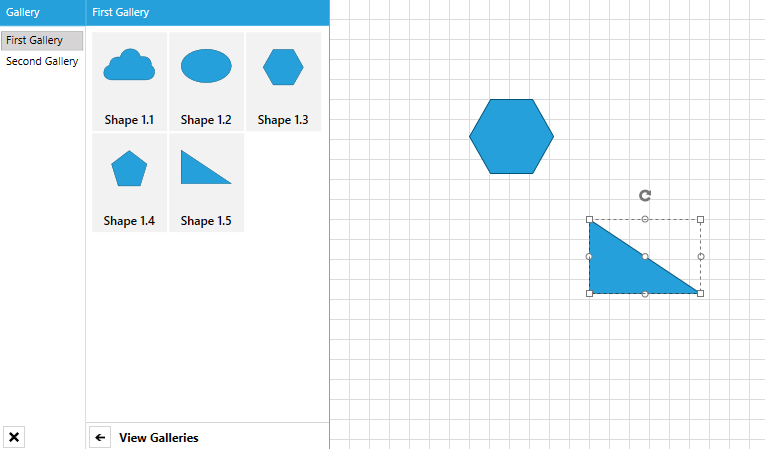
Now that we have configured the **Geometry** property serialization, we can go ahead and serialize more properties of the dragged shapes. For instance, in this example, the **RadDiagramToolbox** is populated with **MyShape** business items. The **Header** of these items is displayed underneath each shape in the toolbox and we can serialize it to use it as a **Content** of the dropped shape on the diagramming surface.
```C#
void Default_ItemSerializing(object sender, SerializationEventArgs e)
{
if (e.Entity is RadDiagramShape)
{
e.SerializationInfo["MyGeometry"] = (e.Entity as RadDiagramShape).Geometry.ToString(CultureInfo.InvariantCulture);
if ((e.Entity as RadDiagramShape).DataContext is MyShape)
e.SerializationInfo["DataContent"] = ((e.Entity as RadDiagramShape).DataContext as MyShape).Header;
}
}
private void RadDiagram_ShapeDeserialized(object sender, ShapeSerializationRoutedEventArgs e)
{
if (e.Shape as RadDiagramShape != null)
{
(e.Shape as RadDiagramShape).Geometry = GeometryParser.GetGeometry(e.SerializationInfo["MyGeometry"].ToString());
(e.Shape as RadDiagramShape).Content = e.SerializationInfo["DataContent"].ToString();
}
}
```
```VB.NET
Private Sub Default_ItemSerializing(sender As Object, e As SerializationEventArgs(Of IDiagramItem))
If TypeOf e.Entity Is RadDiagramShape Then
e.SerializationInfo("MyGeometry") = TryCast(e.Entity, RadDiagramShape).Geometry.ToString(CultureInfo.InvariantCulture)
If TypeOf TryCast(e.Entity, RadDiagramShape).DataContext Is MyShape Then
e.SerializationInfo("DataContent") = TryCast(TryCast(e.Entity, RadDiagramShape).DataContext, MyShape).Header
End If
End If
End Sub
Private Sub RadDiagram_ShapeDeserialized(sender As Object, e As ShapeSerializationRoutedEventArgs)
If TryCast(e.Shape, RadDiagramShape) IsNot Nothing Then
TryCast(e.Shape, RadDiagramShape).Geometry = GeometryParser.GetGeometry(e.SerializationInfo("MyGeometry").ToString())
TryCast(e.Shape, RadDiagramShape).Content = e.SerializationInfo("DataContent").ToString()
End If
End Sub
```
If you run the project now, you will be able to drag shapes from the toolbox and drop them in the diagram. The shapes will keep their **Geometry** and they will display the original **Header** data property as their **Content**.

> tip Find a runnable project of the previous example in the [WPF Samples GitHub repository](https://github.com/telerik/xaml-sdk/tree/master/Diagram/CustomToolboxDragDrop).
## See Also
* [Drag and Drop Support](https://www.telerik.com/products/wpf/documentation/controls/raddiagram/features/raddiagrams-drag-drop)
* [DiagramToolbox](https://www.telerik.com/products/wpf/documentation/controls/raddiagram/extensions/toolbox)
* [Use MVVM in RadDiagram](https://www.telerik.com/products/wpf/documentation/controls/raddiagram/howto/raddiagrams-mvvm)
* [Serialize a Databound Diagram](https://www.telerik.com/products/wpf/documentation/controls/raddiagram/howto/raddiagrams-serialize-databound-diagram)