# Commands
`RadDiagram` provides a vast set of `RoutedUICommands` that help you work easily with the control and its items to build better MVVM applications.
* [RadDiagram Commands](https://www.telerik.com/products/wpf/documentation/controls/raddiagram/features/raddiagrams-commands#raddiagram-commands)
* [ExtensionsCommands](https://www.telerik.com/products/wpf/documentation/controls/raddiagram/features/raddiagrams-commands#extensionscommands)
* [Using Diagram Commands](https://www.telerik.com/products/wpf/documentation/controls/raddiagram/features/raddiagrams-commands#using-diagram-commands)
* [Overriding Commands](https://www.telerik.com/products/wpf/documentation/controls/raddiagram/features/raddiagrams-commands#overriding-commands)
## RadDiagram Commands
The static `DiagramCommands` class is located in **Telerik.Windows.Controls.Diagrams** assembly and defines the following RoutedUICommands:
* `Align`—Aligns the selected shapes.[(Read more)](https://www.telerik.com/products/wpf/documentation/controls/raddiagram/features/raddiagrams-snap)
* `Snap`—Snaps the selected shapes.[(Read more)](https://www.telerik.com/products/wpf/documentation/controls/raddiagram/features/raddiagrams-snap)
* `AutoFit`—Centers and zooms the diagram to display all items.
* `Layout`—Organizes the diagram automatically.[(Read more)](https://www.telerik.com/products/wpf/documentation/controls/raddiagram/features/diagram-layout)
* `Copy`—Copies selected diagram items.[(Read More)](https://www.telerik.com/products/wpf/documentation/controls/raddiagram/items-manipulation/raddiagrams-features-clipboard)
* `Paste`—Pastes selected diagram items.[(Read More)](https://www.telerik.com/products/wpf/documentation/controls/raddiagram/items-manipulation/raddiagrams-features-clipboard)
* `Delete`—Deletes selected diagram items.[(Read More)](https://www.telerik.com/products/wpf/documentation/controls/raddiagram/items-manipulation/raddiagrams-features-delete)
* `Cut`—Cut selected diagram items.[(Read More)](https://www.telerik.com/products/wpf/documentation/controls/raddiagram/items-manipulation/raddiagrams-features-clipboard)
* `Duplicate`—Duplicates selected item/s.
* `Undo`—Undoes the last action.[(Read More)](https://www.telerik.com/products/wpf/documentation/controls/raddiagram/features/raddiagrams-undo-redo)
* `Redo`—Redoes the last action.[(Read More)](https://www.telerik.com/products/wpf/documentation/controls/raddiagram/features/raddiagrams-undo-redo)
* `BringToFront`—Brings to front selected diagram items.[(Read More)](https://www.telerik.com/products/wpf/documentation/controls/raddiagram/items-manipulation/raddiagrams-features-zorder)
* `BringForward`—Brings forward selected diagram items.[(Read More)](https://www.telerik.com/products/wpf/documentation/controls/raddiagram/items-manipulation/raddiagrams-features-zorder)
* `SendToBack`—Sends to back selected diagram items.[(Read More)](https://www.telerik.com/products/wpf/documentation/controls/raddiagram/items-manipulation/raddiagrams-features-zorder)
* `SendBackward`—Sends backward selected diagram items.[(Read More)](https://www.telerik.com/products/wpf/documentation/controls/raddiagram/items-manipulation/raddiagrams-features-zorder)
* `Save`—Saves the current diagram.[(Read More)](https://www.telerik.com/products/wpf/documentation/controls/raddiagram/features/raddiagrams-serialization)
* `Clear`—Clears the diagram.[(Read More)](https://www.telerik.com/products/wpf/documentation/controls/raddiagram/items-manipulation/raddiagrams-features-delete)
* `Open`—Opens a saved diagram.[(Read More)](https://www.telerik.com/products/wpf/documentation/controls/raddiagram/features/raddiagrams-serialization)
* `BeginEdit`—Begins editing diagram item.[(Read More)](https://www.telerik.com/products/wpf/documentation/controls/raddiagram/items-manipulation/raddiagrams-features-edit)
* `CommitEdit`—Commit the edited changes.[(Read More)](https://www.telerik.com/products/wpf/documentation/controls/raddiagram/items-manipulation/raddiagrams-features-edit)
* `CancelEdit`—Cancel the edited changes.[(Read More)](https://www.telerik.com/products/wpf/documentation/controls/raddiagram/items-manipulation/raddiagrams-features-edit)
* `SelectAll`—Selects all shapes in the diagram.[(Read More)](https://www.telerik.com/products/wpf/documentation/controls/raddiagram/items-manipulation/raddiagrams-features-selection)
* `Nudge`—Moves selected item/s in a specific direction. You can pass more specifics about the nudge operation through the `CommandParameter`.
This parameter can be a single string representing the direction of the nudge:
* **"Left"**
* **"Right"**
* **"Up"**
* **"Down"**
It can also be a string in the form of **"direction; amount"**, the **'direction'** being a value from the above list of direction strings. The **'amount'** options are:
* **"Small"**—if RadDiagram's `IsSnapToGridEnabled` property is set to **true** then this amount would mean that the nudge should happen once to the appointed direction using the **SnapX/Y** value as a step. The snap settings can be applied in the RadDiagram\_\_ definition. If the RadDiagram IsSnapToGridEnabled property is **false**, a **"Small"** amount indicates a step of **5** pixels;
* **"Large"**—if RadDiagram's `IsSnapToGridEnabled` property is set to **true** then this amount would mean that the nudge should happen once to the appointed direction using **5\*SnapX/Y** value as a step. The snap settings can be applied in the RadDiagram definition. If the RadDiagram IsSnapToGridEnabled property is false, a **"Large"** amount indicates a step of **10** pixels;
* **any number**—if you provide a number in the `CommandParameter`, this number would indicate the number of pixels to be used as a step for the `Nudge` command. In order for the number to be taken into account, the `IsSnapToGridEnabled` property has to be set to **false**.
* `Group`— Groups the selected items.[(Read More)](https://www.telerik.com/products/wpf/documentation/controls/raddiagram/features/grouping)
* `Ungroup`—Ungroups the selected groups.[(Read More)](https://www.telerik.com/products/wpf/documentation/controls/raddiagram/features/grouping)
* `SwitchGridVisibility`—Hides or shows the background grid.
* `Load`—Loads a diagram.
* `Export`—Exports a diagram.[(Read More)](https://www.telerik.com/products/wpf/documentation/controls/raddiagram/features/image-export)
## ExtensionsCommands
In the **Telerik.Windows.Controls.Diagrams.Extensions** namespace you can find another set of commands described in the `ExtensionsCommands` class. This class describes the `Print` command that allows you to print a diagramming structure. You can use this command in XAML to print the content of a RadDiagram instance as follows:
```XAML
```
## Using Diagram Commands
A possible way to use `DiagramCommands` in **XAML** is to bind the `Command` property of a `RadButton` to a DiagramCommand and set the RadDiagram as a `CommandTarget` of the button:
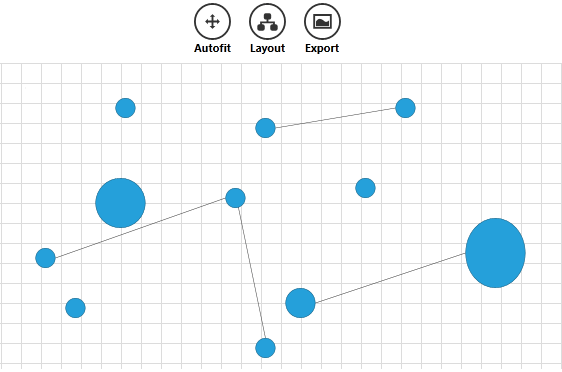
Below is shown how you can use some of the Diagram Commands in an application Note that this syntax is common for every Diagram Command.
```XAML
```
**Commands Parameters**
You can customize the functionality of the Delete, Export and Align Commands currently.
* `Align`—you can pass Top, Left, Right, Center, Middle, Bottom as CommandParameter.
* `Export`—you can pass Bmp or Png. The default export format is Png.
* `Delete`—you can pass the item you wish to delete.
## Overriding Commands
You can see how to replace the default behavior of a command in the [Override Diagram Command](https://www.telerik.com/products/wpf/documentation/controls/raddiagram/howto/raddiagrams-override-command) help article.
## See Also
* [Getting Started](https://www.telerik.com/products/wpf/documentation/controls/raddiagram/getting-started)
* [Populating with Data](https://www.telerik.com/products/wpf/documentation/controls/raddiagram/populating-with-data/data-overview)
* [Shapes](https://www.telerik.com/products/wpf/documentation/controls/raddiagram/diagram-items/shape/raddiagrams-features-shapes)
* [Connections](https://www.telerik.com/products/wpf/documentation/controls/raddiagram/diagram-items/raddiagrams-features-connections)
* [Keyboard Support](https://www.telerik.com/products/wpf/documentation/controls/raddiagram/features/raddiagrams-shortcuts)
* [Selection](https://www.telerik.com/products/wpf/documentation/controls/raddiagram/items-manipulation/raddiagrams-features-selection)
* [Pan and Zoom](https://www.telerik.com/products/wpf/documentation/controls/raddiagram/features/raddiagrams-pan-zoom)
* [Removing Items](https://www.telerik.com/products/wpf/documentation/controls/raddiagram/items-manipulation/raddiagrams-features-delete)
* [Clipboard Operations](https://www.telerik.com/products/wpf/documentation/controls/raddiagram/items-manipulation/raddiagrams-features-clipboard)
* [Align and Snap ](https://www.telerik.com/products/wpf/documentation/controls/raddiagram/features/raddiagrams-snap)
* [Diagram Events](https://www.telerik.com/products/wpf/documentation/controls/raddiagram/events/raddiagrams-diagram)
* [Items Events](https://www.telerik.com/products/wpf/documentation/controls/raddiagram/events/raddiagrams-item)