# Text Tool
This article describes the **TextTool** that was exposed with the Q1 2013 release.
The **TextTool** allows you to enter the edit mode of a **RadDiagramItem** as soon as you click on it. Furthermore, you can use this tool to draw text shapes. As it isn't active by default, you can use the **RadDiagram ActiveTool** property to activate it in XAML:
**Example 1: Setting the ActiveTool property in XAML**
```XAML
```
or in code-behind:
**Example 2: Setting the ActiveTool property in code-behind**
```C#
xDiagram.ActiveTool = Telerik.Windows.Diagrams.Core.MouseTool.TextTool;
```
```VB.NET
xDiagram.ActiveTool = Telerik.Windows.Diagrams.Core.MouseTool.TextTool
```
Let's consider the following sample **RadDiagram** definition:
**Example 3: A diagram with a single shape**
```XAML
```
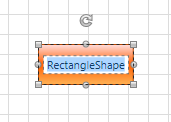
In it we have one shape and a TextTool activated by default. This is why as soon as you click on the shape, you will enter its edit mode. This way you can easily modify its content.
> caption Modifying the content of a shape with the text tool
And what is more, as soon as you activate the **TextTool**, you can dynamically create a text shape by dragging a rectangle on the diagramming surface:
> caption Creating text shapes by dragging on the diagram's surface
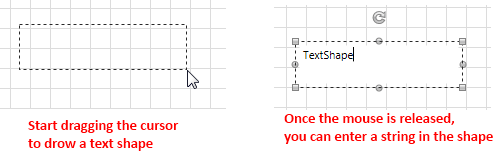
The shape created when using the text tool in such a manner is of type **RadDiagramTextShape**.
As this class does not inherit from **RadDiagramShape**, you need to also create a style for it when binding the control through its [GraphSource](https://www.telerik.com/products/wpf/documentation/controls/raddiagram/populating-with-data/data-databinding).
**Example 4: Style for the RadDiagramTextShape when in a data-binding scenario**
```XAML
```
## See Also
* [Tools Overview](https://www.telerik.com/products/wpf/documentation/controls/raddiagram/diagram-tools/radoverview)
* [Mouse Tools](https://www.telerik.com/products/wpf/documentation/controls/raddiagram/diagram-tools/raddiagrams-features-mouse-tools)
* [Drawing Tools](https://www.telerik.com/products/wpf/documentation/controls/raddiagram/diagram-tools/features-drawing)