# WPF DateTimePicker Overview
Thank you for choosing **Telerik RadDateTimePicker**!
**RadDateTimePicker** is a convenient way to get rid of the boring date and time parsing and data validation. **RadDateTimePicker** is an easy and simple, but yet essential way to improve end-user experience. By setting the **InputMode** property you can use **RadDateTimePicker** as a **DatePicker**, **TimePicker** or **both**. Moreover, you can control the layout of the popups that show time and/or date values as well as use the rich data model in WPF to populate content dynamically.
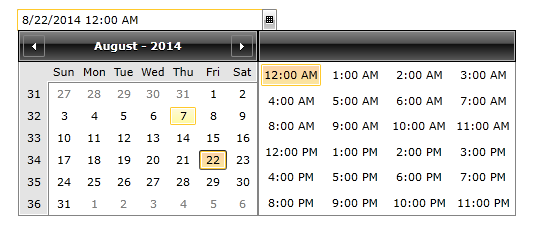
## Key Features
This is a list with short descriptions of the top-of-the-line features of the Telerik **RadDateTimePicker** control:
* **DatePicker and TimePicker controls**: **DatePicker** and **TimePicker** are both incorporated in the **RadDateTimePicker** control. You can choose to use either one or both. [Read more](https://www.telerik.com/products/wpf/documentation/controls/raddatetimepicker/features/input-modes)
* **Display Modes**: You can display the **DateTimePicker** in four different views - **Months**, **Years**, **Decades** and **Centuries**. Thus, you can adjust the date-time-picker component to meet your very own business needs. [Read more](https://www.telerik.com/products/wpf/documentation/controls/raddatetimepicker/features/date-selection-modes)
* **Powerful Databinding**: The WPF **DateTimePicker** control by Telerik can be bound to various datasource types, such as Object, XML and WCF services.
* **Keyboard Navigation**: **RadDateTimePicker** supports the standard browser navigation paradigm. Once the control has focus, you can press the **Down Arrow** key to show the calendar. The users can go forward/backward over the individual days by pressing the arrow keys. Pressing the **Tab** key will move the focus to the time-picker where you can once again navigate. Tabbing again will focus the **Close** button which will close the picker. [Read more](https://www.telerik.com/products/wpf/documentation/controls/raddatetimepicker/features/keyboard-support)
* **Advanced Parser**: You can enter any number or string in the input field of **RadDateTimePicker** and the entered value will be transformed to a valid date. For example, if you type "1", the first day of the month will be shown after leaving the input field. [Read more](https://www.telerik.com/products/wpf/documentation/controls/raddatetimepicker/features/militaryparsing)
* **Styling and Appearance**: Telerik WPF **RadDateTimePicker** can be fully customized using Expression Blend. There are also several pre-defined themes that can be used to style the control. See [Editing Control Templates](https://www.telerik.com/products/wpf/documentation/styling-and-appearance/styling-apperance-editing-control-templates) and [Customizing the Calendar and Clock](https://www.telerik.com/products/wpf/documentation/controls/raddatetimepicker/customizing-calendar-and-clock).
* **Enhanced Routed Events Framework**: To help your code become even more elegant and concise, we implemented an Enhanced Routed Events Framework for the controls from the **UI for WPF** suite. This gives you more freedom when you design your applications since you can write instance handlers as well as class handlers for the routed events of our controls. [Read more](https://www.telerik.com/products/wpf/documentation/controls/raddatetimepicker/events)
* **Watermark**: The **DateTimePicker** control allows the user to define and use watermarks in the date and time fields. [Read more](https://www.telerik.com/products/wpf/documentation/controls/raddatetimepicker/features/watermark)
> tip Get started with the control with its [Getting Started](https://www.telerik.com/products/wpf/documentation/controls/raddatetimepicker/getting-started) help article that shows how to use it in a basic scenario.
> Check out the RadDateTimePicker demos at:
## Telerik UI for WPF Support and Learning Resources
* [Telerik UI for WPF DateTimePicker Homepage](https://www.telerik.com/products/wpf/datetimepicker.aspx)
* [Get Started with the Telerik UI for WPF DateTimePicker](https://www.telerik.com/products/wpf/documentation/controls/raddatetimepicker/getting-started)
* [Telerik UI for WPF API Reference](https://docs.telerik.com/devtools/wpf/api/)
* [Getting Started with Telerik UI for WPF Components](https://www.telerik.com/products/wpf/documentation/getting-started/first-steps-nuget)
* [Telerik UI for WPF Virtual Classroom (Training Courses for Registered Users)](https://learn.telerik.com/learn/course/external/view/elearning/16/telerik-ui-for-wpf)
* [Telerik UI for WPF DateTimePicker Forums](https://www.telerik.com/forums/wpf)
* [Telerik UI for WPF Knowledge Base](https://docs.telerik.com/devtools/wpf/knowledge-base)
## See Also
* [Visual Structure](https://www.telerik.com/products/wpf/documentation/controls/raddatetimepicker/visual-structure)
* [Getting Started](https://www.telerik.com/products/wpf/documentation/controls/raddatetimepicker/getting-started)
* [Customizing the Calendar and Clock](https://www.telerik.com/products/wpf/documentation/controls/raddatetimepicker/customizing-calendar-and-clock)
* [Events](https://www.telerik.com/products/wpf/documentation/controls/raddatetimepicker/events)