# Clock Items
You can limit the time items available in the clock view of your **RadDateTimePicker** control in several ways. This topic explains how to achieve this, going through the following features:
* [Using the StartTime, EndTime and TimeInterval features](https://www.telerik.com/products/wpf/documentation/controls/raddatetimepicker/features/clock-items#using-the-starttime-endtime-and-timeinterval-features)
* [Setting a custom ClockItemsSource for the clock view](https://www.telerik.com/products/wpf/documentation/controls/raddatetimepicker/features/clock-items#setting-a-custom-clockitemssource-for-the-clock-view)
## Using the StartTime, EndTime and TimeInterval features
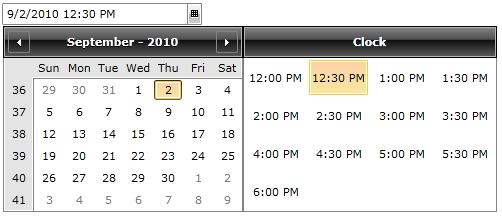
If you want to slightly change the default time items in the **RadDateTimePicker** control's view you can use the following properties:
* **StartTime** - it is of type **TimeSpan** and represents the starting time of the clock's items.
* **EndTime** - it is also of type **TimeSpan** and corresponds to the time of the last clock item.
The default value for the **StartTime** property is equal to 12:00AM and the value for the **EndTime** is 11:00PM. The default time interval is equal to one hour. You can change its default value by setting the value of the **TimeInterval** property.
Here is demonstrated how to change these properties in XAML:
```XAML
```
> The **TimeInterval** property is also of type **TimeSpan**. In this example you set its value to 30 minutes, this is why you need to set the **TimeInterval** to 0:30, meaning 0 hours and 30 minutes. You can also achieve the same result in code-behind.
```
```
## Setting a custom ClockItemsSource for the clock view
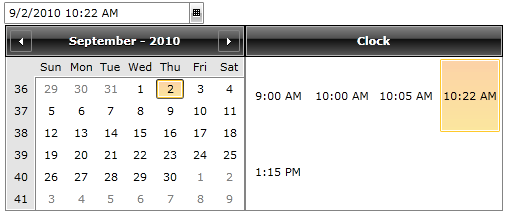
If you want to completely change the set of clock items you can use the **ClockItemsSource** property. It provides you with a simple way to specify the clock's items. Like with any other **ItemsControls** you can use data binding to provide your set of items.
For the purpose of the next example the **ClockItemsSource** property is set in the code behind. However, you can also set it through binding.
```C#
public ClockItemsSample()
{
InitializeComponent();
this.radDateTimePicker.ClockItemsSource = this.LoadDataObjects();
}
public ObservableCollection LoadDataObjects()
{
ObservableCollection times = new ObservableCollection()
{
new TimeSpan(9,0,0),
new TimeSpan(10,0,0),
new TimeSpan(10,5,0),
new TimeSpan(10,22,0),
new TimeSpan(13,15,0)
};
return times;
}
```
```VB.NET
Public Sub New()
InitializeComponent()
Me.radDateTimePicker.ClockItemsSource = Me.LoadDataObjects()
End Sub
Public Function LoadDataObjects() As ObservableCollection(Of TimeSpan)
Dim times As New ObservableCollection(Of TimeSpan)() From {
New TimeSpan(9, 0, 0),
New TimeSpan(10, 0, 0),
New TimeSpan(10, 5, 0),
New TimeSpan(10, 22, 0),
New TimeSpan(13, 15, 0)
}
Return times
End Function
```
## See Also
* [Overview](https://www.telerik.com/products/wpf/documentation/controls/raddatetimepicker/overview)
* [Visual Structure](https://www.telerik.com/products/wpf/documentation/controls/raddatetimepicker/visual-structure)
* [Date Items](https://www.telerik.com/products/wpf/documentation/controls/raddatetimepicker/features/date-items)
* [Selection](https://www.telerik.com/products/wpf/documentation/controls/raddatetimepicker/features/selection)
* [Formatting](https://www.telerik.com/products/wpf/documentation/controls/raddatetimepicker/features/formatting)