# AutoCommit Settings
**RadDataForm** exclusively relies on data binding, so **changes are actually committed when the respective bindings push the changes back** to their sources, so that the term **“Commit”** actually refers to a confirmation that processed data has passed all the validation checks and the user is willing to end the editing operation, persisting edited item’s current state. On the other hand **“Cancel”** (when it is available) would make the state revert to item’s initial one. This article describes RadDataForm’s two alternating behaviors of committing pending changes.
## AutoCommit Is True
The default value of RadDataForm’s **AutoCommit** property is **True**. In this mode RadDataForm automatically commits any changes on the current item, when a command different from Delete or Cancel is carried out. Here is an example:
> caption DataForm with AutoCommit set to true and in view mode
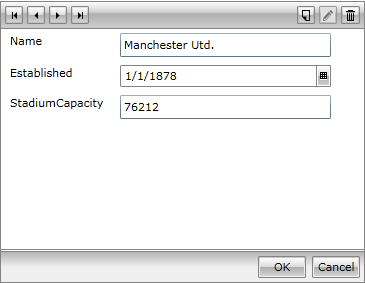
When entering edit mode (i.e. when the **AutoCommit is True), all commands, but BeginEdit are enabled**.
> caption DataForm with AutoCommit set to true and in edit mode
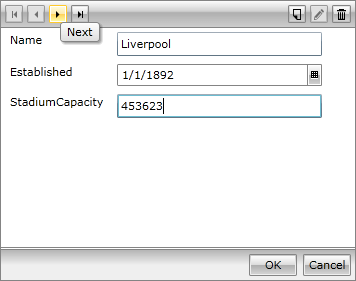
**Applying changes** on the current item keeps the commands enabled. **Moving to the next item** will automatically commit the current edit operation.
**Example 1: Setting AutoCommit to True in XAML**
```XAML
```
This XAML configuration keeps `AutoCommit` enabled with the default value.
**Example 2: Setting AutoCommit to True in Code**
```C#
this.radDataForm.AutoCommit = true;
```
```VB.NET
Me.radDataForm.AutoCommit = True
```
Use this configuration when you want **RadDataForm** to commit pending changes automatically while the user navigates through items or executes commands other than Delete and Cancel.
## AutoCommit Is False
**Please, be advised that the following changes regarding AutoCommit = false are available after the 2012 Q1 Service Pack version of the RadControls.** RadDataForm requires its business type to implement **INotifyPropertyChanged**, in order to utilize this mode properly. In case the mentioned interface is not implemented, the control falls back to its default behavior. RadDataForm with AutoCommit = false mode forces its users to commit any changes, by using the CommitEdit command (the Ok button). The commands for Cancel, Delete and OK are enabled if there are any present uncommitted changes. In that case all the other commands are disabled. And here comes the example:
> caption DataForm with AutoCommit set to false and in view mode
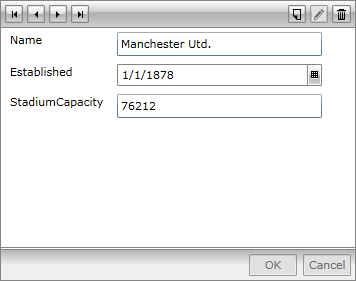
When entering edit mode, the **Commit and Cancel commands are initially disabled**, as there are no pending changes to commit or cancel. On the other hand, **all the other commands are enabled**.
> caption DataForm with AutoCommit set to false and in edit mode
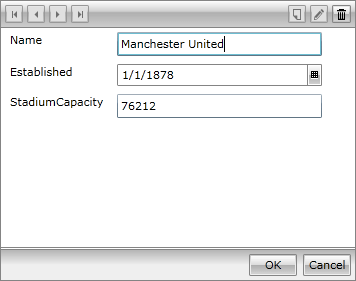
**When changes are applied, the Navigation and AddNew commands get disabled**, until the editing operation is committed, or cancelled.
**Example 3: Setting AutoCommit to False in XAML**
```XAML
```
Set `AutoCommit` to `False` in XAML when the edit operation must remain pending until the user confirms it.
**Example 4: Setting AutoCommit to False in Code**
```C#
this.radDataForm.AutoCommit = false;
```
```VB.NET
Me.radDataForm.AutoCommit = False
```
Use this mode when you need the user to confirm or cancel the current edit operation explicitly before moving to another item.
> note As TextBox’s Text property binding is triggered on control’s LostFocus, **any UI initiated modifications are considered changes**, even before the respective property value is updated.
> Users’ experience should not vary when different AutoEdit options are used alongside with any of the AutoCommit modes.
## See Also
* [Edit Modes](https://www.telerik.com/products/wpf/documentation/controls/raddataform/features/edit-modes)
* [Events](https://www.telerik.com/products/wpf/documentation/controls/raddataform/events)
* [Customize Commands](https://www.telerik.com/products/wpf/documentation/controls/raddataform/features/customize-commands)