# Binding to ADO.NET Data Service
The purpose of this tutorial is to show you how to populate a `RadComboBox` with data from an ADO.NET Data Service in two ways:
* [Using plain methods call in the code-behind](https://www.telerik.com/products/wpf/documentation/controls/radcombobox/populating-with-data/binding-adonet#using-plain-methods-call-in-the-code-behind)
* [Using MVVM approach](https://www.telerik.com/products/wpf/documentation/controls/radcombobox/populating-with-data/binding-adonet#using-mvvm-approach)
> This tutorial uses the [Northwind database](https://github.com/Microsoft/sql-server-samples/tree/master/samples/databases/northwind-pubs).
Before proceeding further with this tutorial you need to create a new application and a `RadComboBox` declaration in your XAML.
```XAML
```
## Using Plain Methods Call in the Code-Behind
1. Add a reference to your ADO.NET Data Service.
2. Switch to the code-behind and add a reference to the `NorthwindEntities` object.
```C#
NorthwindEntities dbContext = new NorthwindEntities(new Uri("Enter your service address here"));
```
```VB.NET
Dim dbContext As New NorthwindEntities(New Uri("Enter your service address here"))
```
> tip For more information about how to add a reference to an ADO.NET Data Service and how to create a new instance of the exposed entity, take a look at the [Consuming ADO.NET Data Service](https://www.telerik.com/products/wpf/documentation/common-information/consuming-data/ado-net-data-service) topic.
3. The ComboBoxs control will be populated with all **Products** from the **Northwind** database. In the drop-down list the `ProductName` and the `UnitPrice` properties will be displayed. Add the following code which will make the initial load of the objects.
```C#
private void BeginRequest()
{
DataServiceQuery query = dbContext.CreateQuery("Products");
query.BeginExecute(RequestCompleted, query);
}
private void RequestCompleted(IAsyncResult asyncResult)
{
DataServiceQuery query = asyncResult.AsyncState as DataServiceQuery;
var products = query.EndExecute(asyncResult).ToList();
this.radComboBox.ItemsSource = products;
}
```
```VB.NET
Private Sub BeginRequest()
Dim query As DataServiceQuery(Of Products) = dbContext.CreateQuery(Of Products)("Products")
query.BeginExecute(RequestCompleted, query)
End Sub
Private Sub RequestCompleted(ByVal asyncResult As IAsyncResult)
Dim query As DataServiceQuery(Of Products) = TryCast(asyncResult.AsyncState, DataServiceQuery(Of Products))
Dim products = query.EndExecute(asyncResult).ToList()
Me.radComboBox.ItemsSource = products
End Sub
```
```C#
this.radComboBox.ItemsSource = dbContext.Products.Execute();
```
```VB.NET
Me.radComboBox.ItemsSource = dbContext.Products.Execute()
```
4. You need to declare a custom **DataTemplate** to determine how the items in the drop-down will look like. Add the following **DataTemplate** declaration in your XAML resources.
```XAML
```
5. Find your **RadComboBox** declaration and set the just declared **DataTemplate** to its **ItemTemplate** property.
```XAML
```
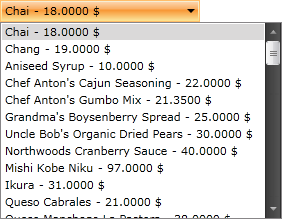
> caption The end result with the data fetched from the service
## Using MVVM Approach
This section will show you how to populate your `RadComboBox` control in a MVVM manner. The ComboBox will be bound to a data source object, that has a property `Products`. When the control is loaded all products from the **Products** table in the Northwind database are loaded asynchronously.
1. Create a new class named `NorthwindDataSource`.
```C#
public class NorthwindDataSource
{
private static NorthwindEntities northwindEntity;
public NorthwindDataSource()
{
northwindEntity = new NorthwindEntities(new Uri("Enter your service address here"));
this.Products = new ObservableCollection();
}
public ObservableCollection Products
{
get;
set;
}
}
```
```VB.NET
For Each p As Products In northwindEntity.Products.Execute()
Me.Products.Add(p)
Next
```
2. Add a reference to your ADO.NET Data Service.
3. In the `NorthwindDataSource` class add a reference to an `ObservableCollection` of `Product`.
4. In the `NorthwindDataSource` class add a reference to the `NorthwindEntities` object:
```C#
public class NorthwindDataSource
{
private static NorthwindEntities northwindEntity;
public NorthwindDataSource()
{
northwindEntity = new NorthwindEntities(new Uri("Enter your service address here"));
this.Products = new ObservableCollection();
}
public ObservableCollection Products
{
get;
set;
}
}
```
```VB.NET
For Each p As Products In northwindEntity.Products.Execute()
Me.Products.Add(p)
Next
```
5. Add the following code in the constructor of the `NorthwindDataSource`. It will make the initial load of all **Products** from the database:
```C#
public class NorthwindDataSource
{
private static NorthwindEntities northwindEntity;
public NorthwindDataSource()
{
northwindEntity = new NorthwindEntities(new Uri("Enter your service address here"));
this.Products = new ObservableCollection();
}
public ObservableCollection Products
{
get;
set;
}
}
```
```VB.NET
For Each p As Products In northwindEntity.Products.Execute()
Me.Products.Add(p)
Next
```
6. Declare the `NorthwindDataSource` object as a resource in your application.
```XAML
```
7. Declare a custom `DataTemplate` to determine how the items in the drop-down will look like.
```XAML
```
8. Update your `RadComboBox` declaration - set the `ItemsSource` and `ItemTemplate` properties.
```XAML
```
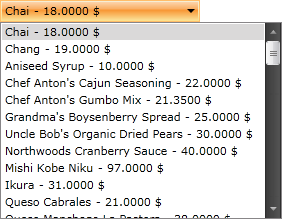
> caption The end result with the data fetched from the service
## See Also
* [Binding to Object](https://www.telerik.com/products/wpf/documentation/controls/radcombobox/populating-with-data/binding-to-object)
* [Binding to WCF Service](https://www.telerik.com/products/wpf/documentation/controls/radcombobox/populating-with-data/binding-to-wcf)