# Getting Started with WPF Chat
This topic will guide you through the process of creating a sample application containing **RadChat**.
## Adding Telerik Assemblies Using NuGet
To use **RadChat** when working with NuGet packages, install the `Telerik.Windows.Controls.ConversationalUI.for.Wpf.Xaml` package. The [package name may vary](https://www.telerik.com/products/wpf/documentation/installation/manual-setup-guides/nuget/available-packages) slightly based on the Telerik dlls set - [Xaml or NoXaml](https://www.telerik.com/products/wpf/documentation/styling-and-appearance/xaml-vs-noxaml).
Read more about NuGet installation in the [Installing UI for WPF from NuGet Package](https://www.telerik.com/products/wpf/documentation/installation/manual-setup-guides/nuget/nuget-installation) article.
The speech-to-text button displayed in the chat area requires you to explicitly install also the [Microsoft.Web.WebView2](https://www.nuget.org/packages/Microsoft.Web.WebView2) package. Without this dependency, the default speech recognizer of the button throws an exception when the button initializes.
## Adding Assembly References Manually
If you are not using NuGet packages, you can add a reference to the following assemblies:
* **Telerik.Licensing.Runtime**
* **Telerik.Windows.Controls**
* **Telerik.Windows.Controls.Input**
* **Telerik.Windows.Controls.Navigation**
* **Telerik.Windows.Controls.ConversationalUI**
* **Telerik.Windows.Controls.GridView**
* **Telerik.Windows.Controls.FileDialogs**
* **Telerik.Windows.Controls.Data**
## Adding RadChat to the Project
Before proceeding with adding **RadChat** to your project, make sure the required assembly references are added to the project.
You can add **Conversational UI** manually by writing the XAML code below. You can also add the control by dragging it from the Visual Studio Toolbox and dropping it over the XAML view.
**Adding RadChat in XAML**
```XAML
```
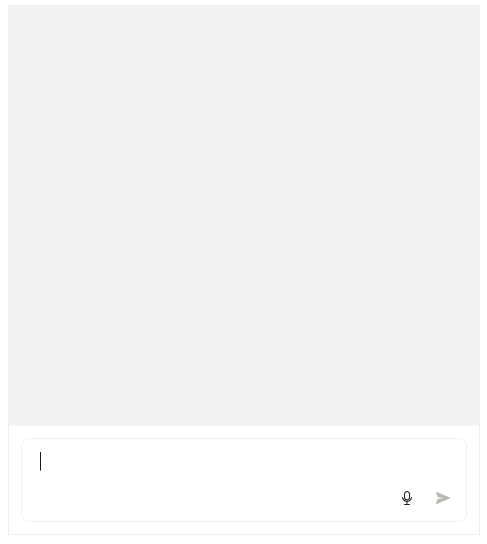
Running the application at this state will result in an empty chat.
> caption Empty chat example
## Adding Authors to RadChat
Two authors will be defined for this example. Note, that the **CurrentAuthor** property of **RadChat** must be set.
**Adding Authors to RadChat**
```C#
public partial class MainWindow : Window
{
private Author currentAuthor;
private Author otherAuthor;
public MainWindow()
{
InitializeComponent();
currentAuthor = new Author("Peter");
otherAuthor = new Author("Steven");
this.chat.CurrentAuthor = currentAuthor;
}
}
```
```VB.NET
Partial Public Class MainWindow
Inherits Window
Private currentAuthor As Author
Private otherAuthor As Author
Public Sub New()
InitializeComponent()
currentAuthor = New Author("Peter")
otherAuthor = New Author("Steven")
Me.chat.CurrentAuthor = currentAuthor
End Sub
End Class
```
## Handling the Sent Message
The user's input can be handled by hooking up to the **SendMessage** event of **RadChat**. The event arguments are of type **RoutedEventArgs** which are extended by the **Message** property.
**Subscribing to the SendMessage event**
```XAML
```
**SendMessage event handler**
```C#
private void RadChat_SendMessage(object sender, SendMessageEventArgs e)
{
// We will handle the event in order to add a new message manually
e.Handled = true;
var updatedMessageText = "[Updated from event handler] " + (e.Message as TextMessage).Text;
this.chat.AddMessage(this.chat.CurrentAuthor, updatedMessageText);
}
```
```VB.NET
Private Sub RadChat_SendMessage(ByVal sender As Object, ByVal e As SendMessageEventArgs)
' We will handle the event in order to add a new message manually
e.Handled = True
Dim updatedMessageText = "[Updated from event handler] " & (TryCast(e.Message, TextMessage)).Text
Me.chat.AddMessage(Me.chat.CurrentAuthor, updatedMessageText)
End Sub
```
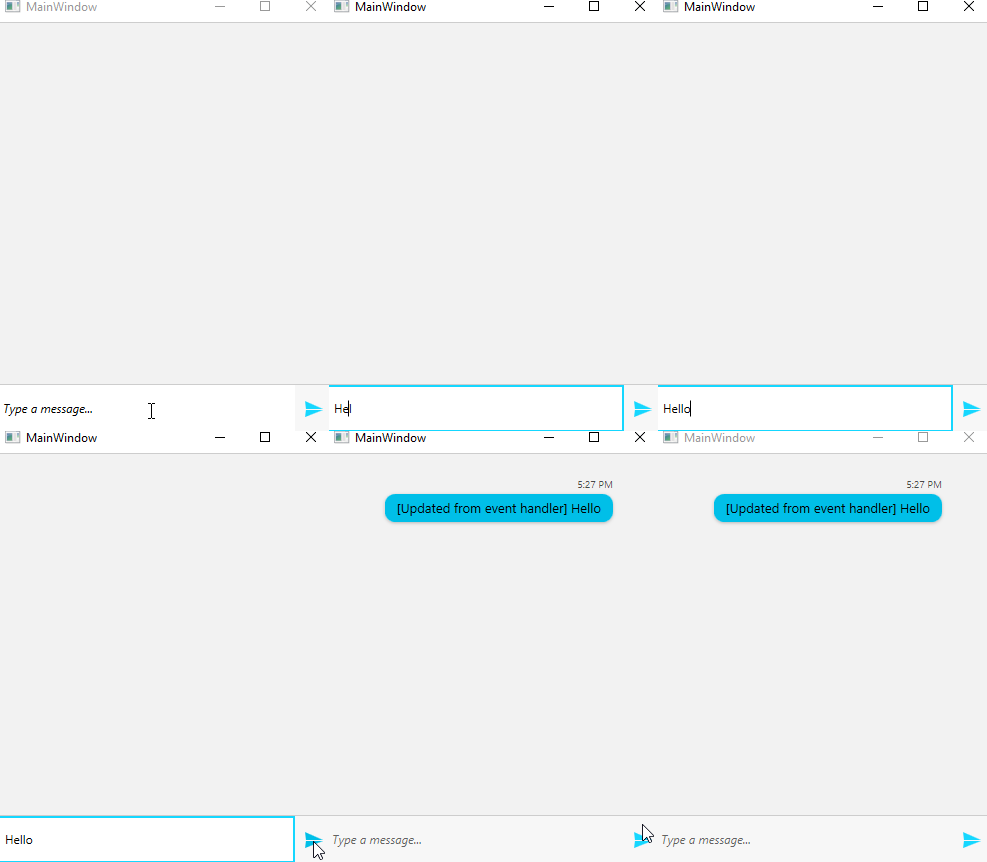
This setup will have the following result.
> caption RadChat with messages
## Telerik UI for WPF Learning Resources
* [Telerik UI for WPF ConversationalUI Component](https://www.telerik.com/products/wpf/conversational-ui.aspx)
* [Getting Started with Telerik UI for WPF Components](https://www.telerik.com/products/wpf/documentation/getting-started/first-steps-nuget)
* [Telerik UI for WPF Installation](https://www.telerik.com/products/wpf/documentation/installation/manual-setup-guides/installation-guide)
* [Telerik UI for WPF and WinForms Integration](https://www.telerik.com/products/wpf/documentation/common-information/winforms-integration/overview)
* [Telerik UI for WPF Visual Studio Templates](https://www.telerik.com/products/wpf/documentation/installation/manual-setup-guides/visual-studio-templates)
* [Setting a Theme with Telerik UI for WPF](https://www.telerik.com/products/wpf/documentation/styling-and-appearance/styling-apperance-setting-a-theme-overview)
* [Telerik UI for WPF Virtual Classroom (Training Courses for Registered Users)](https://learn.telerik.com/learn/course/external/view/elearning/16/telerik-ui-for-wpf)
* [Telerik UI for WPF License Agreement](https://www.telerik.com/purchase/license-agreement/wpf-dlw-s)
## See Also
* [Overview](https://www.telerik.com/products/wpf/documentation/controls/radchat/overview)
* [Messages Overview](https://www.telerik.com/products/wpf/documentation/controls/radchat/messages/overview)