# Styling the Point Marks
The easiest approach that you can use in order to style the point marks is to use the complex **Appearance** property of the **ISeriesDefinition** interface. This interface is implemented by all of the series definitions available in the **RadChart** control. The **Appearance** property exposes another complex property - **PointMark**. It exposes the following shortcut visual properties:
* **Fill** - gets or sets the brush that describes the fill of the point mark.
* **Stroke** - gets or sets the brush that describes the stroke of the point mark.
* **StrokeThickness** - gets or sets the stroke thickness of the point mark.
* **Shape**- gets or sets the shape of the point mark, which corresponds to a value of the **Telerik.Windows.Controls.Charting.MarkerShape** enumerator.
> Currently, changing the point marks appearance could be done only via the provided API. Declarative customizations are not supported.
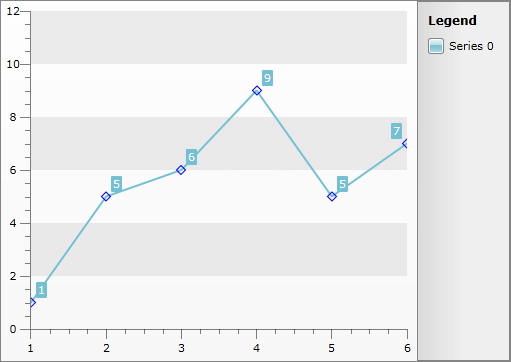
For example, you can change the appearance of the point marks for a **LineSeries** in the following way.
```C#
LineSeriesDefinition l = new LineSeriesDefinition();
l.Appearance.PointMark.Stroke = new SolidColorBrush(Colors.Blue);
l.Appearance.PointMark.StrokeThickness = 1;
l.Appearance.PointMark.Fill = new SolidColorBrush(Colors.Transparent);
l.Appearance.PointMark.Shape = MarkerShape.Diamond;
this.radChart.DefaultSeriesDefinition = l;
```
```VB.NET
Dim l As New LineSeriesDefinition()
l.Appearance.PointMark.Stroke = New SolidColorBrush(Colors.White)
l.Appearance.PointMark.StrokeThickness = 1
l.Appearance.PointMark.Fill = New SolidColorBrush(Colors.Transparent)
l.Appearance.PointMark.Shape = MarkerShape.Diamond
Me.radChart.DefaultSeriesDefinition = l
```
Here is the result.
**Customize Scatter/Bubble Series**
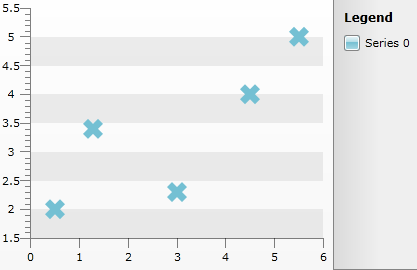
Changing the shape of the pointmark can be done by retemplating the Scatter/Point control (the class that represents 1 point on the screen). You can create a custom style for your scatter points as shown below and apply it to the series via **ItemStyle** property:
```XAML
```
The result is shown below:
## See Also
* [Styling the Chart Series](https://www.telerik.com/products/wpf/documentation/controls/radchart/styles-and-templates/styling-and-appearance-styling-chart-series)
* [Styling the Chart Area](https://www.telerik.com/products/wpf/documentation/controls/radchart/styles-and-templates/styling-and-appearance-styling-chart-area)
* [Styling the Chart Legend](https://www.telerik.com/products/wpf/documentation/controls/radchart/styles-and-templates/styling-and-appearance-styling-chart-legend)