# Animations
When the **RadCallout** is placed inside a Popup element, you can add animations. Through the **CalloutPopupSettings** class, you can animate the showing and/or closing effect of the Popup. You can choose from a variety of built-in animations or create your custom animation effect so that you can add an additional look to the RadCallout. To add animation to the Popup, you just need to set the **ShowAnimationType** and /or **CloseAnimationType** property of the settings class.
The complete customization of the RadCallout animation is done from the **CalloutPopupSettings** class. Several properties can be used for this purpose.
* **ShowAnimationDuration**: A property of type **double** that gets or sets a duration of the animation when shown, in seconds.
* **CloseAnimationDuration**: A property of type **double** that gets or sets a duration of the animation when closed, in seconds.
* **ShowAnimationEasing**: A property of type **IEasingFunction** that gets or sets the easing function of the shown animation.
* **CloseAnimationEasing**: A property of type **IEasingFunction** that gets or sets the easing function of the close animation.
* **ShowAnimationDelay**: A property of type **double** that gets or sets a delay of the animation when shown, in seconds.
* **CloseAnimationDelay**: A property of type **double** that gets or sets a delay of the animation when closed, in seconds.
For this tutorial, we are going to show the RadCallout inside a Popup on a button click and animate its opening and closing state. First, we need to define our RadButton control and subscribe to its **Click** event.
**Example 1: Defining RadButton**
```XAML
```
In the click event handler, we can declare our RadCallout control. To show the control, we need to use the CalloutPopupService.Show() static method. The third parameter (not required) of this method accepts CalloutPopupSettings object. You can use these settings, for example, to change the position of the **Popup**, add animation, etc.
**Example 2: Setting RadCallout in code behind**
```C#
private void RadButton_Click(object sender, RoutedEventArgs e)
{
RadCallout callout = new RadCallout() { Background = Brushes.DeepSkyBlue, Content = "My Callout" };
CalloutPopupSettings settings = new CalloutPopupSettings()
{
Placement = System.Windows.Controls.Primitives.PlacementMode.Top,
ShowAnimationType = CalloutAnimation.Move,
CloseAnimationType = CalloutAnimation.Scale,
};
CalloutPopupService.Show(callout, sender as FrameworkElement, settings);
}
```
> caption Popup animation

## Animation Types
Several different built-in animations can be used to animate RadCallout placed inside Popup. You can customize the duration, delay and easing function of each animation. The easing functions make the animation much more realistic and smoother. There is a set of predefined easing functions in WPF, and you are allowed to create custom ones, too.
> To learn more about the easing functions you can take a look at this \[MSDN help article]\(
).
**Example 3: Show and Close Animation with Easing functions applied**
```C#
private void RadButton_Click1(object sender, RoutedEventArgs e)
{
RadCallout callout = new RadCallout() { Background = Brushes.DeepSkyBlue, Content = "My Callout" };
CalloutPopupSettings settings = new CalloutPopupSettings()
{
Placement = System.Windows.Controls.Primitives.PlacementMode.Top,
ShowAnimationDuration = 0.55d,
ShowAnimationEasing = new BounceEase() { EasingMode = EasingMode.EaseOut, Bounces = 20, Bounciness = 5 },
CloseAnimationEasing = new CircleEase() { EasingMode = EasingMode.EaseOut, },
CloseAnimationDuration = 0.3d,
ShowAnimationType = CalloutAnimation.Move,
CloseAnimationType = CalloutAnimation.Scale,
};
CalloutPopupService.Show(callout, sender as FrameworkElement, settings);
}
```
> caption Animated popup with easing functions

### Fade Animation
The **CalloutAnimation.Fade** animation fades the Popup control opening/closing effect.
**Example 4: Setting Fade Animation**
```C#
private void RadButton_Click2(object sender, RoutedEventArgs e)
{
RadCallout callout = new RadCallout() { Background = Brushes.DeepSkyBlue, Content = "My Callout", CalloutType = CalloutType.Cloud };
CalloutPopupSettings settings = new CalloutPopupSettings()
{
Placement = System.Windows.Controls.Primitives.PlacementMode.Top,
ShowAnimationDuration = 0.55d,
ShowAnimationEasing = new BounceEase() { EasingMode = EasingMode.EaseOut, Bounces = 20, Bounciness = 5 },
CloseAnimationEasing = new CircleEase() { EasingMode = EasingMode.EaseOut, },
CloseAnimationDuration = 0.3d,
ShowAnimationType = CalloutAnimation.Fade,
CloseAnimationType = CalloutAnimation.Fade,
};
CalloutPopupService.Show(callout, sender as FrameworkElement, settings);
}
```
> caption Fade animation for opening and closing state

### Move Animation
The **CalloutAnimation.Move** animation adds a moving effect to the opening/closing state of the Popup.
**Example 5: Setting Move Animation**
```C#
private void RadButton_Click3(object sender, RoutedEventArgs e)
{
RadCallout callout = new RadCallout() { Background = Brushes.DeepSkyBlue, Content = "My Callout", CalloutType = CalloutType.Ellipse };
CalloutPopupSettings settings = new CalloutPopupSettings()
{
Placement = System.Windows.Controls.Primitives.PlacementMode.Top,
ShowAnimationDuration = 0.55d,
ShowAnimationEasing = new BounceEase() { EasingMode = EasingMode.EaseOut, Bounces = 20, Bounciness = 5 },
CloseAnimationEasing = new CircleEase() { EasingMode = EasingMode.EaseOut, },
CloseAnimationDuration = 0.3d,
ShowAnimationType = CalloutAnimation.Move,
CloseAnimationType = CalloutAnimation.Move,
};
CalloutPopupService.Show(callout, sender as FrameworkElement, settings);
}
```
> caption Move animation for opening and closing state

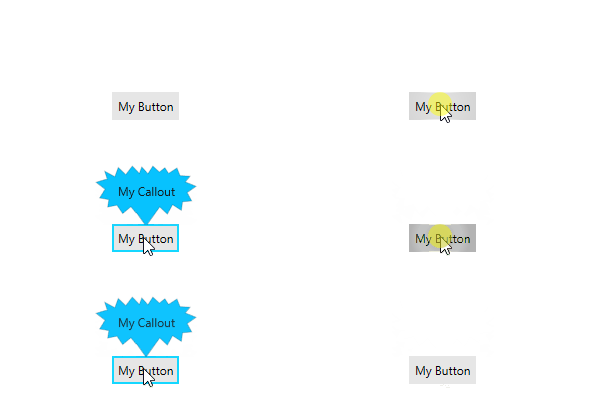
### FadeAndMove Animation
The **CalloutAnimation.FadeAndMove** animation is represented by a combination of **Fade** and **Move** animations.
**Example 6: Setting FadeAndMove Animation**
```C#
private void RadButton_Click4(object sender, RoutedEventArgs e)
{
RadCallout callout = new RadCallout() { Background = Brushes.DeepSkyBlue, Content = "My Callout", CalloutType = CalloutType.Kaboom };
CalloutPopupSettings settings = new CalloutPopupSettings()
{
Placement = System.Windows.Controls.Primitives.PlacementMode.Top,
ShowAnimationDuration = 0.55d,
ShowAnimationEasing = new BounceEase() { EasingMode = EasingMode.EaseOut, Bounces = 20, Bounciness = 5 },
CloseAnimationEasing = new CircleEase() { EasingMode = EasingMode.EaseOut, },
CloseAnimationDuration = 0.3d,
ShowAnimationType = CalloutAnimation.FadeAndMove,
CloseAnimationType = CalloutAnimation.FadeAndMove,
};
CalloutPopupService.Show(callout, sender as FrameworkElement, settings);
}
```
> caption FadeAndMove animation for opening and closing state
### Reveal Animation
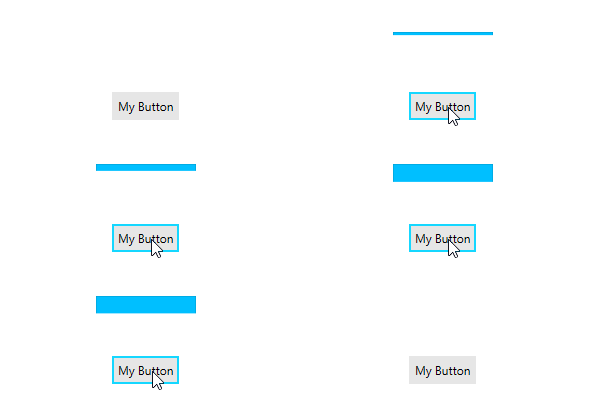
The **CalloutAnimation.Reveal** animation animates the clipping effect to the control.
**Example 7: Setting Reveal Animation**
```C#
private void RadButton_Click5(object sender, RoutedEventArgs e)
{
RadCallout callout = new RadCallout() { Background = Brushes.DeepSkyBlue, Content = "My Callout", CalloutType = CalloutType.Rectangle };
CalloutPopupSettings settings = new CalloutPopupSettings()
{
Placement = System.Windows.Controls.Primitives.PlacementMode.Top,
ShowAnimationDuration = 0.55d,
ShowAnimationEasing = new BounceEase() { EasingMode = EasingMode.EaseOut, Bounces = 20, Bounciness = 5 },
CloseAnimationEasing = new CircleEase() { EasingMode = EasingMode.EaseOut, },
CloseAnimationDuration = 0.3d,
ShowAnimationType = CalloutAnimation.Reveal,
CloseAnimationType = CalloutAnimation.Reveal,
};
CalloutPopupService.Show(callout, sender as FrameworkElement, settings);
}
```
> caption Reveal animation for opening and closing state
### FadeAndReveal Animation
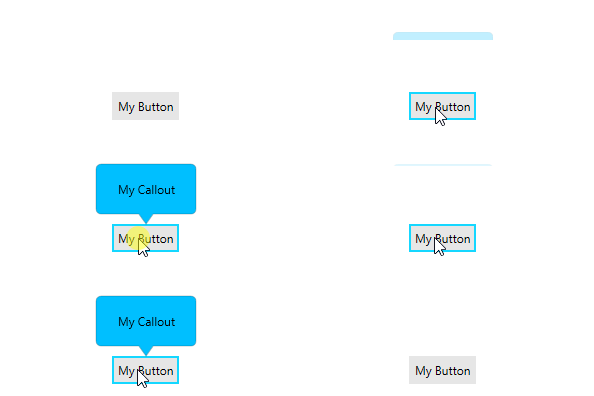
The **CalloutAnimation.FadeAndReveal** animation is represented by a combination of **Fade** and **Reveal** animations.
**Example 8: Setting FadeAndReveal Animation**
```C#
private void RadButton_Click6(object sender, RoutedEventArgs e)
{
RadCallout callout = new RadCallout() { Background = Brushes.DeepSkyBlue, Content = "My Callout", CalloutType = CalloutType.RoundedRectangle };
CalloutPopupSettings settings = new CalloutPopupSettings()
{
Placement = System.Windows.Controls.Primitives.PlacementMode.Top,
ShowAnimationDuration = 0.55d,
ShowAnimationEasing = new BounceEase() { EasingMode = EasingMode.EaseOut, Bounces = 20, Bounciness = 5 },
CloseAnimationEasing = new CircleEase() { EasingMode = EasingMode.EaseOut, },
CloseAnimationDuration = 0.3d,
ShowAnimationType = CalloutAnimation.FadeAndReveal,
CloseAnimationType = CalloutAnimation.FadeAndReveal,
};
CalloutPopupService.Show(callout, sender as FrameworkElement, settings);
}
```
> caption FadeAndReveal animation for opening and closing state
### Scale Animation
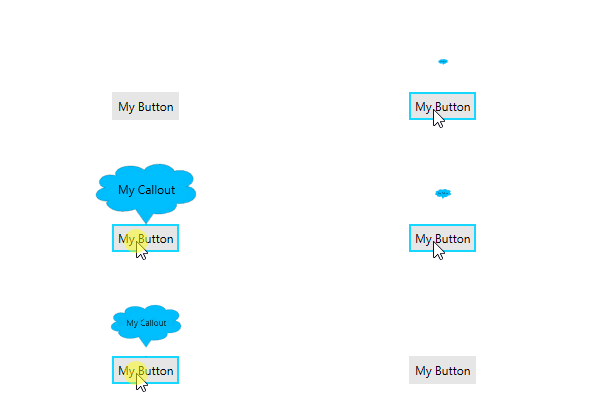
The **CalloutAnimation.Scale** animation controls the scale of the object. This animation uses the center point of the control for scaling.
**Example 9: Setting Scale Animation**
```C#
private void RadButton_Click7(object sender, RoutedEventArgs e)
{
RadCallout callout = new RadCallout() { Background = Brushes.DeepSkyBlue, Content = "My Callout", CalloutType = CalloutType.Cloud };
CalloutPopupSettings settings = new CalloutPopupSettings()
{
Placement = System.Windows.Controls.Primitives.PlacementMode.Top,
ShowAnimationDuration = 0.55d,
ShowAnimationEasing = new BounceEase() { EasingMode = EasingMode.EaseOut, Bounces = 20, Bounciness = 5 },
CloseAnimationEasing = new CircleEase() { EasingMode = EasingMode.EaseOut, },
CloseAnimationDuration = 0.3d,
ShowAnimationType = CalloutAnimation.Scale,
CloseAnimationType = CalloutAnimation.Scale,
};
CalloutPopupService.Show(callout, sender as FrameworkElement, settings);
}
```
> caption Scale animation for opening and closing state
### FadeAndScale Animation
The **CalloutAnimation.FadeAndScale** animation is represented by a combination of **Fade** and **Scale** animations.
**Example 10: Setting FadeAndScale Animation**
```C#
private void RadButton_Click8(object sender, RoutedEventArgs e)
{
RadCallout callout = new RadCallout() { Background = Brushes.DeepSkyBlue, Content = "My Callout", CalloutType = CalloutType.Ellipse };
CalloutPopupSettings settings = new CalloutPopupSettings()
{
Placement = System.Windows.Controls.Primitives.PlacementMode.Top,
ShowAnimationDuration = 0.55d,
ShowAnimationEasing = new BounceEase() { EasingMode = EasingMode.EaseOut, Bounces = 20, Bounciness = 5 },
CloseAnimationEasing = new CircleEase() { EasingMode = EasingMode.EaseOut, },
CloseAnimationDuration = 0.3d,
ShowAnimationType = CalloutAnimation.FadeAndScale,
CloseAnimationType = CalloutAnimation.FadeAndScale,
};
CalloutPopupService.Show(callout, sender as FrameworkElement, settings);
}
```
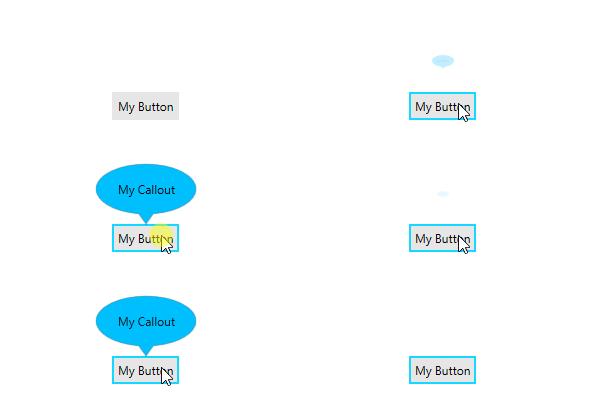
> caption FadeAndScale animation for opening and closing state
## Disable Animation
To globally disable the animation for all Popups elements holding RadCallout controls, CalloutPopupService.IsAnimationEnabled static property can be set to false.
**Example 11: Disable Animation**
```C#
CalloutPopupService.IsAnimationEnabled = false;
```
## See Also
* [Getting Started](https://www.telerik.com/products/wpf/documentation/controls/radcallout/getting-started)
* [CalloutPopupService](https://www.telerik.com/products/wpf/documentation/controls/radcallout/features/popupusage/calloutpopupservice)