# How to Customize the Calendar Buttons
Customizing the buttons in **RadCalendar** could easily be achieved by creating a custom StyleSelector and setting it to the **DayButtonStyleSelector** property of the control.
This tutorial will go through on how to:
* Create a custom DayButtonStyleSelector
* Customize the CalendarButton Style
* Set the DayButtonStyleSelector of RadCalendar
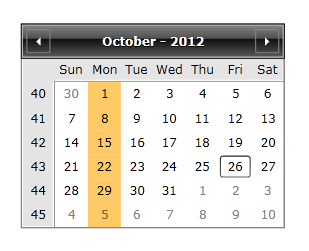
The next example shows how to create a custom **DayButtonStyleSelector** in order to change the Background color of every Monday in the calendar.
1. First you will need to create a DayButtonStyleSelector that inherits StyleSelector class:
```C#
public class DayButtonStyleSelector : StyleSelector
{
}
```
2. Create a property of type **Style**:
```C#
public class DayButtonStyleSelector : StyleSelector
{
public Style SpecialStyleMonday { get; set; }
}
```
3. Override the **SelectStyle()** method:
```C#
public class DayButtonStyleSelector : StyleSelector
{
public Style SpecialStyleMonday { get; set; }
public override Style SelectStyle(object item, DependencyObject container)
{
CalendarButtonContent content = item as CalendarButtonContent;
if (content != null)
{
if (content.Date.DayOfWeek == DayOfWeek.Monday && content.ButtonType == CalendarButtonType.Date)
{
return SpecialStyleMonday;
}
}
return base.SelectStyle(item, container);
}
}
```
4. Add the following namespaces in the xaml:
```XAML
```
5. Create a StaticResource for the DayButtonStyleSelector and the SpecialStyleMonday Style:
```XAML
```
6. Set the **DayButtonStyleSelector** property of the control:
```XAML
```
7. The last step is to set the **DayButtonStyle** to null in order for the custom DayButtonStyleSelector to be used:
```XAML
```
The next screenshot shows the final result: