# Install using NuGet Packages
The following video introduces installation with NuGet packages. For written instructions instead of the video, choose an installation source from the list below and follow the corresponding section.
This article explains how to install the Telerik UI for WinForms suite using NuGet packages. You can obtain the NuGet packages in one of the following ways:
* [Download Telerik UI for WinForms packages from NuGet.org (Recommended)](https://www.telerik.com/products/winforms/documentation/installation-and-upgrades/install-using-nuget#download-from-nuget-org)
* [Download Telerik UI for WinForms packages from the Telerik NuGet server](https://www.telerik.com/products/winforms/documentation/installation-and-upgrades/install-using-nuget#download-from-the-telerik-nuget-server)
* [Download Telerik UI for WinForms packages from a local NuGet feed](https://www.telerik.com/products/winforms/documentation/installation-and-upgrades/install-using-nuget#manually-download-nuget-packages-from-a-local-nuget-feed)
## How to Choose the NuGet Installation Source
All three installation methods are fully supported, so you are free to choose the one that best fits your preferences and project requirements. The following guidance can help you decide.
* Use **NuGet.org** for current Telerik UI for WinForms releases (**Q3 2026 and later**). NuGet.org is the default package source in Visual Studio and the .NET CLI, so it requires the least configuration and avoids unnecessary package-source ambiguity.
* Use the **Telerik NuGet server** when you need package versions released before Q3 2026, or when your organization already standardizes on the Telerik private feed. All new release versions are also available on the Telerik NuGet server.
* Use a **local NuGet feed** when you need offline installation, reproducible restores inside a controlled network, or a mirrored package source for build agents.
## Download from NuGet.org
Starting with **Q3 2026**, Telerik UI for WinForms NuGet packages are also available on NuGet.org. You can find and install the Telerik packages directly from NuGet.org without configuring the private Telerik NuGet feed.
This is the recommended installation path for new development. Both Visual Studio and the .NET CLI use NuGet.org by default.
## Download from the Telerik NuGet server
This method allows you to install Telerik UI for WinForms packages directly from the official Telerik NuGet server. To use this approach, you need to configure Visual Studio to connect to the Telerik NuGet server (****) as a package source.
```text
https://nuget.telerik.com/v3/index.json
```
1. First open the **Options** window. Right-click on the project, from the menu choose **Manage NuGet Packages...**:

2. **Configure the package source**. Click the **Settings** (gear) icon, then select **Package Sources**. Add a new package source with the following details:
* **Name**: Telerik NuGet Feed (or any descriptive name)
* **Source**: `https://nuget.telerik.com/v3/index.json`

3. Click **Update** and then **OK** to save the configuration. You have successfully added the Telerik NuGet feed as a Package source!
4. **Authenticate with the Telerik NuGet server**. When you select the Telerik NuGet Feed as the package source, Visual Studio will prompt you to authenticate. Enter the following credentials:
* **Username**: `api-key`
* **Password**: Your generated NuGet API key from your Telerik account

> note To generate an API key, see [Generate an API Key](https://www.telerik.com/products/winforms/documentation/installation-and-upgrades/install-using-nuget#generate-an-api-key). The API key is specific to your licensed account and provides access to the packages you are entitled to use.
5. In the Package Manager, browse the Telerik NuGet feed for **UI.for.WinForms.AllControls** package. You will see all Telerik packages available to your licensed account.
6. Select the target framework version. Choose the package version that matches your project's target framework (.NET Framework 4.8, .NET 6.0, .NET 8.0, .NET 9.0 or later) and click **Install**:

## Generate an API Key
As the Telerik NuGet server requires authentication, the first step is to obtain an API key that you will use instead of a password. Using an API key instead of a password is a more secure approach, especially when working with [.NET CLI](https://docs.telerik.com/devtools/winforms/visual-studio-integration/install-nuget-keys#using-only-cli-commands) or the [NuGet.Config file](https://docs.telerik.com/devtools/winforms/visual-studio-integration/install-nuget-keys#using-a-nugetconfig-file-with-your-projects).
1. Go to the [API Keys](https://www.telerik.com/account/downloads/api-keys) page in your Telerik account.
2. Click **Generate New Key +**.

1. In the **Key Note** field, add a note that describes the API key.
2. Click **Generate Key**.
3. Select **Copy and Close**. Once you close the window, you can no longer copy the generated key. For security reasons, the **API Keys** page displays only a portion of the key.
4. Store the generated NuGet API key as you will need it in the next steps. Whenever you need to authenticate your system with the Telerik NuGet server, use `api-key` as the username and your generated API key as the password.
> important API keys expire after two years. Telerik will send you an email when a key is about to expire, but we recommend that you set your own calendar reminder with information about where you used that key: file paths, project links, AzDO and GitHub Action variable names, and so on.
### Reset Stored Credentials
If you have previously stored credentials for the Telerik NuGet server, you need to update them with a new API key. Or if you encounter some authentication issues, follow these steps to reset the stored credentials:
1. Remove any saved credentials from the [Windows Credential Manager](https://support.microsoft.com/en-us/windows/credential-manager-in-windows-1b5c916a-6a16-889f-8581-fc16e8165ac0). Look for entries named `nuget.telerik.com` or `VSCredentials_nuget.telerik.com` entries.
2. Remove the Telerik NuGet package source from Visual Studio.
3. Clear .NET CLI configuration (if applicable). If you have configured the Telerik package source using the .NET CLI, remove it by running these commands:
* [dotnet nuget list source](https://learn.microsoft.com/en-us/dotnet/core/tools/dotnet-nuget-list-source)
* [dotnet nuget remove source](https://learn.microsoft.com/en-us/dotnet/core/tools/dotnet-nuget-remove-source)
4. Verify that no credentials are stored in `%AppData%\NuGet\NuGet.Config`. If you find any Telerik-related entries, remove them manually.
5. Try to reset the Visual Studio user data by [forcing NuGet to ask for authentication](https://stackoverflow.com/questions/43550797/how-to-force-nuget-to-ask-for-authentication-when-connecting-to-a-private-feed).
6. Close and restart Visual Studio to ensure all cached credentials are cleared.
7. If you are using the Telerik NuGet feed in a .NET Core application, use a [NuGet API key in the NuGet.Config file](https://docs.telerik.com/devtools/winforms/visual-studio-integration/install-nuget-keys#using-a-nugetconfig-file-with-your-projects).
## Manually Download NuGet Packages from a local NuGet feed
1. First you need to log in using your licensed account. This way you will be able to download the packages:
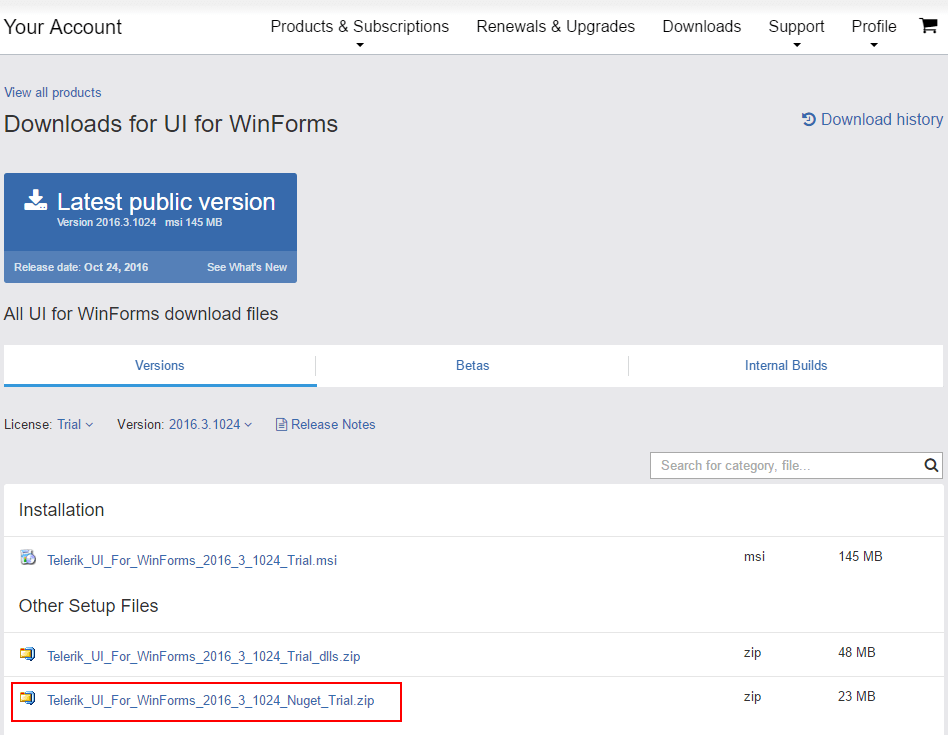
> tip The following article shows where you can find the downloads section [Download Product Files](https://docs.telerik.com/devtools/winforms/installation-and-upgrades/download-product-files)
2. Then you need to add packages to Visual Studio. Open the NuGet manager and then click the options button:

3. Add new package source. The **Source** should point to the folder with the NuGets:

4. The final step is to select and install the desired packages. Please note that there are several versions, corresponding to the target framework used in the project, one for .NET 4.0, one for 4.8, one for .NET 6.0 or newer.

## See Also
* [Installing On Your Computer](https://www.telerik.com/products/winforms/documentation/installation-and-upgrades/installing-on-your-computer)
* [How to Upgrade a Telerik UI for WinForms Project](https://www.telerik.com/products/winforms/documentation/knowledge-base/how-to-upgrade-a-project)
* [Restore Telerik NuGet packages in CI with API keys](https://www.telerik.com/products/winforms/documentation/visual-studio-integration/install-nuget-keys)