# Understanding RadDock
| RELATED VIDEOS | |
| -------------------------------------------------------------------------------------------------------------------------------------------------------------------------------------------------------------------------------------------------------------------------------------------------------------------------------------------------------------------------------------------------------------------------------------------------------------------------------------------------------------------------------------------------------------------------------------------------------------------------------------------------------------------------------------------------------------------------------------- | -------------------------------------------------------------------------------------------------------------------------------------------------------------------------------------------------------------------------------------------------------------------------------------------------------------------------------------------------------------------------------------------------------------------------------------------------------------------------------------------------------------------------------------------------------------------------------------------------------------------------------------------------------------------------------------------------------------------------------------------------------------------------------------- |
| The new and improved RadDock for WinForms has landed and this is your opportunity to get a first look. Join Developer Evangelist John Kellar as he shows you how quickly you can get up and running with the new version of RadDock. John will cover the new features so you know what to expect and how you can use RadDock in your applications once it is officially released. (Runtime: 32:54)
[Introducing the new RadDock for WinForms ](http://www.telerik.com/videos/winforms/introducing-the-new-raddock-for-winforms) | In this video, you will learn how to get started with the run-time and design-time features in the new RadDock for WinForms. You will see the rich RadDock run-time features in action and you will see how easy it is to get started with RadDock in Visual Studio. You will also be introduced to the new Advanced Layout Designer for RadDock, a design-time tool that makes it easy to customize your RadDock layouts. (Runtime: 09:42)
[Getting Started with RadDock for WinForms ](http://www.telerik.com/videos/winforms/getting-started-with-raddock-for-winforms) |
## Structure of RadDock
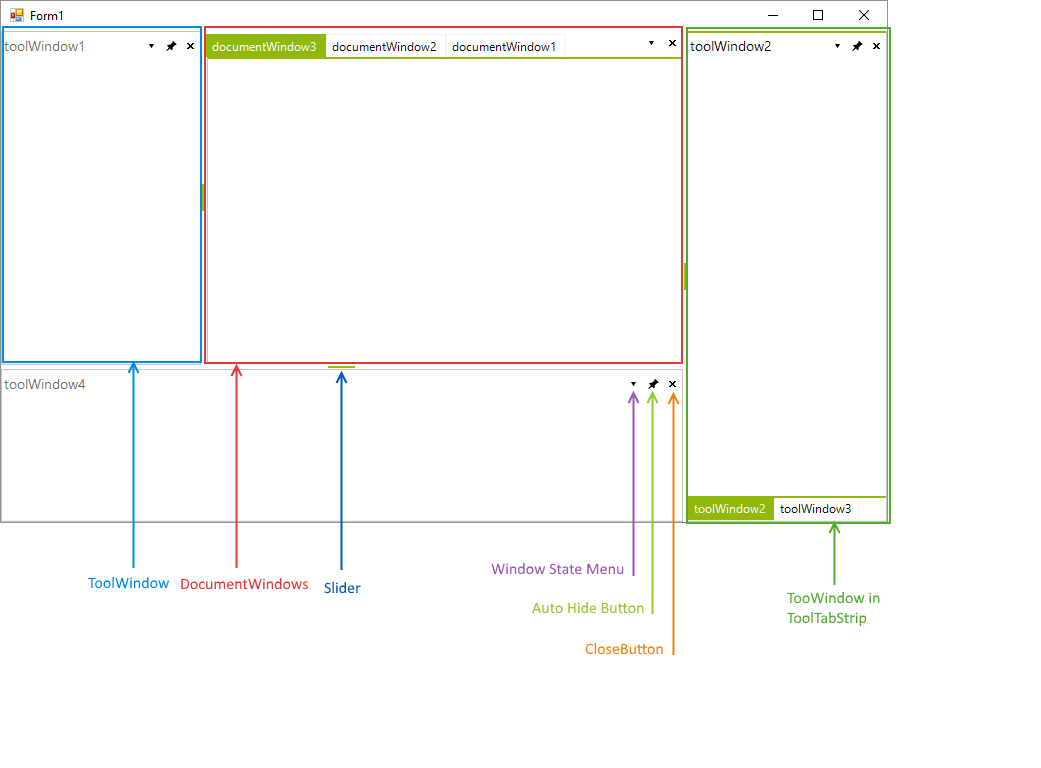
**RadDock** provides the end user a great deal of control over the placement of dockable objects in your application and provide that control with drag-and-drop ease. The control tree that **RadDock** forms, consists of the following elements:
* **DocumentContainer** contains **DocumentTabStrips** (containers of **DocumentWindows**). Each **RadDock** has only one **DocumentContainer** and this container cannot be deleted by design. By default, the **DocumentContainer** is visible even if you do not have any documents opened. This behavior is similar to the Visual Studio behavior.
* **RadSplitContainer** corresponds to Microsoft’s **SplitContainer**, but it offers not just two, but a list of Panels. Actually, **RadDock** inherits **RadSplitContainer** thus inheriting all the logic of displaying split windows. **RadSplitContainer** uses **RadSplitter** which allows you to resize your dock containers by drag and drop operations. [**RadSplitContainer**](https://www.telerik.com/products/winforms/documentation/controls/splitcontainer/overview) is also available as a separate control.
* **ToolTabStrip** is a control that displays the tabs to switch to different tool windows docked in the same container. **ToolWindow**, as you probably have guessed, is the actual container for all the controls you wish to add and drag around.
* **DocumentTabStrip** is a control that displays the tabs to switch to different document windows docked in the same container. **DocumentTabStrip** hosts **DocumentWindows** which from their side can host your controls.
* **DocumentWindows** are tabbed documents that cannot be dragged outside of their container. **DocumentWindows** can be dragged and repositioned within their container.
* **ToolWindows** are tool window style panels that can be undocked and dragged off the form or to other docking containers. **ToolWindows** can be pinned open or unpinned and auto-hidden (i.e. collapsed against the nearest side of the **RadDock**). **ToolWindow** can be dragged onto **DocumentWindow** containers as well, but it retains its identity as a **ToolWindow** so it can be docked back in **ToolWindow** containers by its context menu (*Dockable* option)."
* **HostWindows** host your **UserControls** and when you dock a **HostWindow** in **RadDock**, it is interpreted as a **ToolWindow**.
* **Auto-HideTabStrips** are shown at the edges of **RadDock** when you have an Auto-Hide windows.
* **RadSplitters** are shown between dock containers (ToolTabStrips, DocumentTabStrips) to allow you to resize these containers.
Both, **ToolWindow** and **DocumentWindow** host other controls and provide two different approaches to managing layout.
> caption Figure 1: RadDock elements.
## Document Outline tool
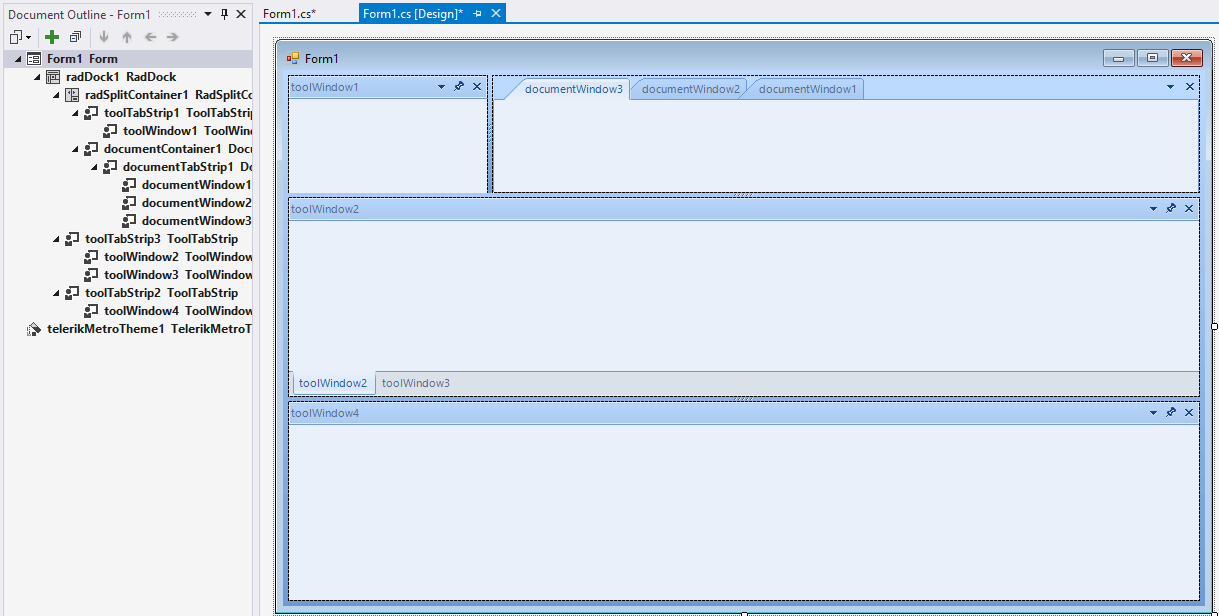
You can inspect the hierarchy of the elements at design-time by using the Visual Studio **Document Outline** tool. In order to use it, simply go to View >> Other Windows >> Document Outline or press Ctrl+Alt+T. The screenshot below represents a **RadDock** instance at design-time and its corresponding hierarchy of elements in the **Document Outline** tool:
> caption Figure 2: The document outline window in Visual Studio.
## Context Menus
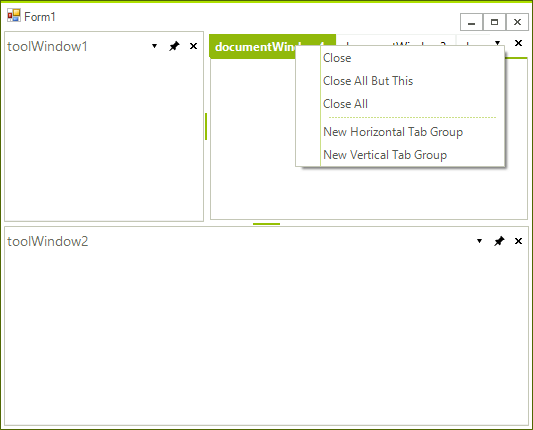
Differences in the behavior of **DocumentWindow** vs. **ToolWindow** are reflected in their context menus. **DocumentWindow** has commands for closing windows, creating new horizontal and vertical tab groups and for moving windows between groups.
> caption Figure: 3 DocumentWindow context menu
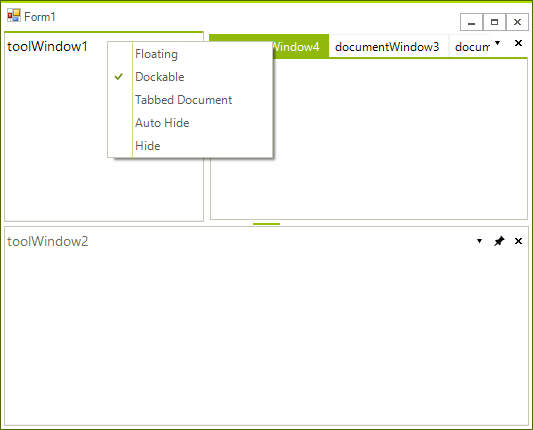
The **ToolWindow** context menu has commands that allow the panel to be **Floating** away from the form, **Dockable** (causes the panel to dock) or **Tabbed Document**. If a **Tabbed Document** is selected the **ToolWindow** becomes hosted in a **DocumentTabStrip** container along with the tabbed documents. **Auto Hide** causes the panel to be unpinned and collapsed against the nearest edge of **RadDock** (see the diagram in "Structure of RadDock" above). **Hide** makes the panel invisible. By default, hidden **ToolWindows** are still part of the [RadDock](https://www.telerik.com/products/winforms/documentation/controls/dock/object-model/raddock-properties-and-methods) ToolWindows collection.
> caption Figure 4: ToowWindow context menu
## See Also
* [Using the CommandManager](https://www.telerik.com/products/winforms/documentation/controls/dock/architecture-and-features/using-the-commandmanager)
* [Using the ContextMenuService](https://www.telerik.com/products/winforms/documentation/controls/dock/architecture-and-features/using-the-contextmenuservice)
* [Using the DragDropService](https://www.telerik.com/products/winforms/documentation/controls/dock/architecture-and-features/using-the-dragdropservice)
* [Document Manager](https://www.telerik.com/products/winforms/documentation/controls/dock/architecture-and-features/document-manager)