# Tutorial on Web Service Binding
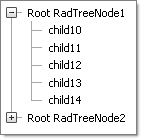
The following tutorial demonstrates how to create a web service that can be consumed by the **RadTreeView** load-on-demand feature.
> caption
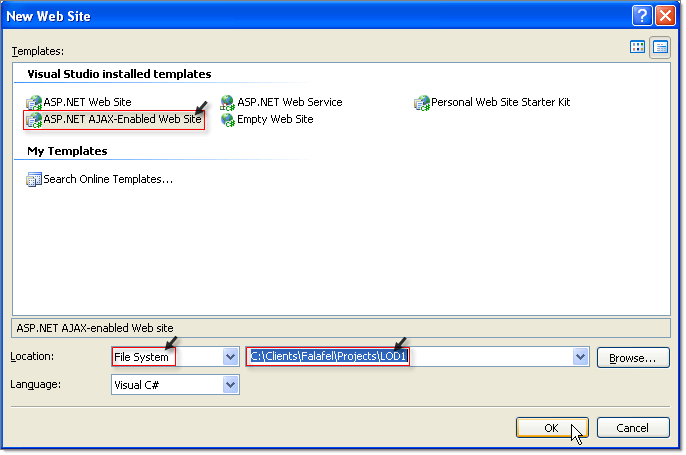
1. Create an AJAX-Enabled Web Site by selecting the Visual Studio menu **File | New | Web Site.**
2. Select the **ASP.NET AJAX-Enabled Web Site** option, set the **Location** to **File System** and enter a path for the web site. Click OK to close the New Web Site dialog.
3. Drop a **RadTreeView** control from the Toolbox to the default page.
```ASPNET
```
4. In the Solution Explorer, right click the project and select **Add ASP.NET Folder | App_Code** from the context menu.
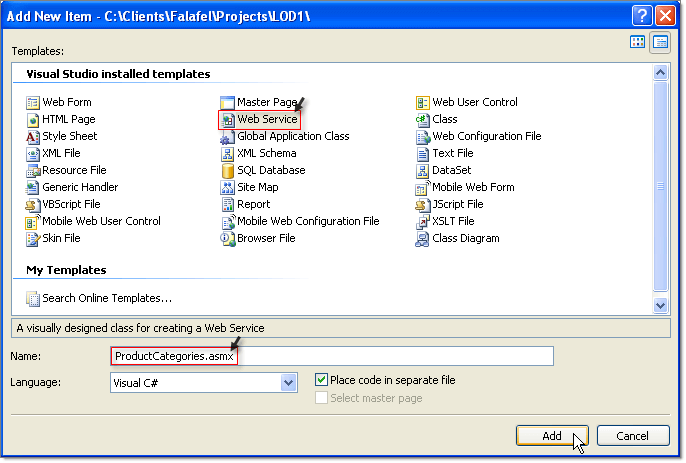
5. In the Solution Explorer, right click the project and select **Add New Item** from the context menu. From the **Add New Item** dialog Select **Web Service,** name the service "ProductCategories.asmx" and click **Add** to close the dialog.
6. In Solution Explorer, locate ProductCategories.cs in the App_Code folder. Replace the code with the code below.
```C#
public RadTreeNodeData[] GetTreeViewCategories(RadTreeNodeData node, object context)
{
node.Text; //returns the node's text
node.Value; //returns node's value
DataTable productCategories = GetProductCategories(node.Value);
List result = new List();
foreach (DataRow row in productCategories.Rows)
{
RadTreeNodeData itemData = new RadTreeNodeData();
itemData.Text = row["Title"].ToString();
itemData.Value = row["CategoryId"].ToString();
if (Convert.ToInt32(row["ChildrenCount"]) > 0)
{
itemData.ExpandMode = TreeNodeExpandMode.WebService;
}
result.Add(itemData);
}
return result.ToArray();
}
```
```VB.NET
Public Function GetTreeViewCategories(ByVal node As RadTreeNodeData, ByVal context As Object) As RadTreeNodeData()
node.Text 'returns the node's text
node.Value 'returns node's value
Dim productCategories As DataTable = GetProductCategories(node.Value)
Dim result As New List(Of RadTreeNodeData)()
For Each row As DataRow In productCategories.Rows
Dim itemData As New RadTreeNodeData()
itemData.Text = row("Title").ToString()
itemData.Value = row("CategoryId").ToString()
If Convert.ToInt32(row("ChildrenCount")) > 0 Then
itemData.ExpandMode = TreeNodeExpandMode.WebService
End If
result.Add(itemData)
Next
Return result.ToArray()
End Function
```
> note You can access the **Text** and **Value** of the node, which is being expanded, from the **RadTreeNodeData** parameter passed to the web method.
1. In Solution Explorer, right click the default page and select **Set as Start Page** from the context menu.
2. Press F5 to run the web site. Click OK to enable debugging.