# XLSX and DOCX formats
This help article describes the specifics of exporting a **RadPivotGrid** control to **XLSX** and **DOCX** format, introduced by Microsoft in Office 2007. Both formats are supported since Q3 2014 and are based on the [Telerik document processing libraries](https://www.telerik.com/products/aspnet-ajax/documentation/getting-started/installation/included-assemblies). In order to use XLSX export formats, you have to set the **ExportSettings-Excel-Format** property to **Xlsx**, while **DOCX** format does not require applying a property.
## How to use it
The only thing that you need to do when you want to export RadPivotGrid in excel is to call its server side ExportToExcel method:
**RadPivotGrid1.ExportToExcel();**
The same way you can export RadPivotGrid to Word but you need to call its server side ExportToWord method:
**RadPivotGrid1.ExportToWord();**
## Common properties
**XLSX** and **DOCX** formats are using the same properties as **Biff** format.The **ExportSettings** group exposes several common properties which:
* **IgnorePaging** - by default this property is **false**. If it is set to true the entire data into the PivotGrid will be exported. Otherwise only the current page is exported.
* **OpenInNewWindow** - by default, the exported file will be handled by the program associated with the appropriate file type. If you prefer to give the user the option to choose whether to save, open (inline) or cancel you should enable this property.
> note Even if you set OpenInNewWindow="false", that doesn't guarantee that the file will be opened inside the browser window\.The way the exported file will be displayed inline depends on the OS/browser settings. The end-user could manage the file extensions with programs like[NirSoft's FileTypesMan](http://www.nirsoft.net/utils/file_types_manager.html). For browsers, other than Internet Explorer, you should use the built-in settings.
* **FileName** - this is helpful when you want to give a predefined name for your file.Please note that the file name can't be longer than 256 symbols. Unicode names are not supported out-of-the-box for **Internet Explorer6** and **7**. Of course you can manually encode the file name and it will be shown properly in the "**Save**" dialog **(OpenInNewWindow="true").HttpUtility.UrlEncode ("unicode string", System.Text.Encoding.UTF8)**;
> note Internet Explorer ignores the FileName property when **OpenInNewWindow** is set to **false** .
**Events**
The RadPivotGrid exposes three events which can be used for customizing the exported file:
* **PivotGridExporting event** - this event is usable when you want to access the binary data of the exported document.
* **PivotGridInfrastructureExporting event** - this event is useable in many scenarios when you want to modify the output file - for example you may want to add some custom information above RadPivotGrid or when you want to remove/add/replace parts of the content. Also into this event you have as argument the entire **ExportStructure**. It allows you to add additional table into the structure which will be exported as different sheet into the excel file.
* **PivotGridCellExporting event** – this event is usable when you want to add formatting and styling options to the exported cell.
## Modifying exported excel’ cells formatting and applying styles to them
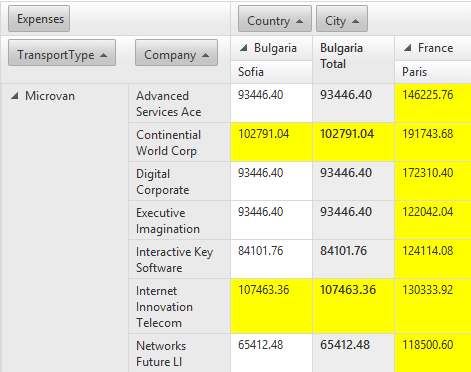
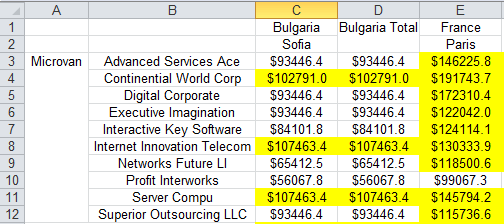
In order to apply formatting to the exported excel cells or to apply some styles to them you need to handle thePivotGridCellExporting event and to change the ExportedCell formatting or styles. For example the following code snippet adds currency format to all decimal cell, set width and if the value is bigger than 100000 sets yellow background:
```C#
protected void RadPivotGrid1_PivotGridCellExporting(object sender, PivotGridCellExportingArgs e)
{
PivotGridBaseModelCell modelDataCell = e.PivotGridModelCell as PivotGridBaseModelCell;
if (modelDataCell != null)
{
if (modelDataCell.Data != null && modelDataCell.Data.GetType() == typeof(decimal))
{
decimal value = Convert.ToDecimal(modelDataCell.Data);
if (value > 100000)
{
e.ExportedCell.Style.BackColor = Color.Yellow;
}
e.ExportedCell.Format = "$0.0";
e.ExportedCell.Table.Columns[e.ExportedCell.ColIndex].Width = 11D;
}
}
}
```
```VB.NET
Protected Sub RadPivotGrid1_PivotGridCellExporting(sender As Object, e As PivotGridCellExportingArgs)
Dim modelDataCell As PivotGridBaseModelCell = TryCast(e.PivotGridModelCell, PivotGridBaseModelCell)
If modelDataCell IsNot Nothing Then
If modelDataCell.Data IsNot Nothing AndAlso modelDataCell.Data.[GetType]() = GetType(Decimal) Then
Dim value As Decimal = Convert.ToDecimal(modelDataCell.Data)
If value > 100000 Then
e.ExportedCell.Style.BackColor = Color.Yellow
End If
e.ExportedCell.Format = "$0.0"
e.ExportedCell.Table.Columns(e.ExportedCell.ColIndex).Width = 11.0
End If
End If
End Sub
```
> note The **Format** property of the **ExportedCell** object is the excel based cell format. For example:
The other parameter which is passed into the **PivotGridCellExporting** is the model cell from which the export structure cells are built.The PivotGridBaseModelCell class contains information related with the PivotGrid cells:
* **Field** - Gets the pivot grid field related with this cell
* **Data** - Get the object to which the PivtoGrid cell is bound
* **GroupLevel** - Gets the cell group level
* **IsCollapsed** - Gets whether the cell's group is collapsed
* **HasChildren** - Gets whether the cell's group has children groups
* **IsTotalCell** - Gets whether the cell is total cell
* **IsGrandTotalCell** - Gets whether the cell is grand total cell
* **CellType** - Gets the type of data cell
* **TableCellType** - Gets the type of cell
Since Q1 2015 version of UI for ASP.NET AJAX you can also access the **PivotGridCell** object from the **PivotGridCellExporting** arguments. You can cast the object to the appropriate type and use all its properties which will help you to change the text apply different styles etc.
Additionally since Q1 2015 version you are able to style the elements of **RadPivotGrid** by using the the built-in styles such as **RowHeaderCellStyle**, **ColumnTotalCellStyle** etc. It is important to note that you have to enable the**UseItemStyle** property in order the applied styles to be exported. This property gives you the ability to apply the item styles to theexported file.
```ASPNET
```
Another new approach is to hook **CellDataBound** event handler and apply the styles in code behind. Note that styling via CSS classes is not possible. This approach requires **UseItemStyles** to be enabled as well.
```C#
protected void RadPivotGrid1_CellDataBound(object sender, PivotGridCellDataBoundEventArgs e)
{
if (e.Cell is PivotGridRowHeaderCell)
{
e.Cell.BackColor = Color.Blue;
}
else if(e.Cell is PivotGridColumnHeaderCell)
{
e.Cell.ForeColor = Color.Violet;
}
else if (e.Cell is PivotGridDataCell)
{
e.Cell.BackColor = Color.Gray;
e.Cell.ForeColor = Color.Pink;
}
}
```
```VB.NET
Protected Sub RadPivotGrid1_CellDataBound(sender As Object, e As PivotGridCellDataBoundEventArgs)
If TypeOf e.Cell Is PivotGridRowHeaderCell Then
e.Cell.BackColor = Color.Blue
ElseIf TypeOf e.Cell Is PivotGridColumnHeaderCell Then
e.Cell.ForeColor = Color.Violet
ElseIf TypeOf e.Cell Is PivotGridDataCell Then
e.Cell.BackColor = Color.Gray
e.Cell.ForeColor = Color.Pink
End If
End Sub
```
## Modifying the Output
This is the most interesting and flexible functionality the new export brings to the table. Simply put, you have to handle the **PivotGridBiffExporting** event and then make the desired modification to the structure (accessible via the **e.ExportStructure** propertyof the event arguments), generated by RadPivotGrid.
```C#
//Adding new worksheet
xls.Table newSheet = new xls.Table("NEW SHEET");
e.ExportStructure.Tables.Add(newSheet);
newSheet.Cells[1, 1].Value = "NEW CELL";
```
```VB.NET
'Adding new worksheet
Dim newSheet As New xls.Table("NEW SHEET")
e.ExportStructure.Tables.Add(newSheet)
newSheet.Cells(1, 1).Value = "NEW CELL"
```
## Modifying the Output
This is the most interesting and flexible functionality the new export brings to the table. Simply put, you have to handle the **PivotGridInfrastructureExporting** event and then make the desired modification to the structure (accessible via the **e.ExportStructure** property of the event arguments), generated by RadPivotGrid.
```C#
//Adding new worksheet
xls.Table newSheet = new xls.Table("NEW SHEET");
e.ExportStructure.Tables.Add(newSheet);
newSheet.Cells[1, 1].Value = "NEW CELL";
```
```VB.NET
'Adding new worksheet
Dim newSheet As New xls.Table("NEW SHEET")
e.ExportStructure.Tables.Add(newSheet)
newSheet.Cells(1, 1).Value = "NEW CELL"
```
## Limitations
* No automatic column/row resizing.
* Large amounts of data can cause `Timeout` or `OutOfMemory` exceptions. Exporting is a resource intensive operation and if you get such issues, you can look into reducing the amount of data to be exported.
## See Also
* [Biff Export Format](https://www.telerik.com/products/aspnet-ajax/documentation/controls/pivotgrid/functionality/export/excel)