# Custom Edit Forms
When the **EditMode** property of a table view is "EditForms" or "PopUp", the table view's **EditFormSettings** property lets you configure the edit form. One of the **EditFormSettings** sub-properties is **EditFormType**, which lets you specify whether you want to use the built-in edit form or substitute your own custom edit form.
There are three possible settings for **EditFormType**:
* **AutoGenerated**: When **EditFormType** is "AutoGenerated", the table view uses the built-in edit form.
* **WebUserControl**: When **EditFormType** is "WebUserControl", you can supply a **UserControl** that the table view uses as an edit form.
* **Template**: When **EditFormType** is "Template", you can supply a template that the table view uses to generate the edit form.
> caution Please note that all settings related to the edit form are applied only if the EditFormType is "AutoGenerated". Otherwise a caption is not rendered automatically by RadGrid, however, you can add a custom caption in the edit form template or user control edit form.
## WebUserControl
When **EditFormType** is "WebUserControl", you can supply a **UserControl** to act as a custom edit form.
## Referring to the UserControl from the grid
If you need a reference to the **UserControl** from an event handler of your **RadGrid** control, (for example, when the "Update" button is pressed), you must take into account that the **UserControl** is a **Container** that is placed inside another **Container** (the **EditFormCell**). The following example shows how you can access the custom **UserControl**:
```C#
UserControl MyUserControl = editFormItem.FindControl(GridEditFormItem.EditFormUserControlID) as UserControl;
```
```VB
Dim MyUserControl As UserControl = CType(editFormItem.FindControl(GridEditFormItem.EditFormUserControlID), UserControl)
```
## Accessing the edited grid item from the user control
When **RadGrid** loads the **UserControl** Edit Form, the **UserControl** has full access to the properties of the grid item in which it is loaded. Inside the **UserControl**, you can access the grid item using the **Parent.NamingContainer** property:
```C#
GridEditableItem editedItem = this.Parent.NamingContainer;
```
```VB
Dim editedItem As GridEditableItem = Me.Parent.NamingContainer
```
Once you have a reference to the **GridEditableItem** object, you can access any of its properties, such as cell text values, the **DataItem** object (available in **DataBinding** event handler), and so on.
## Accessing the page from the user control
You can use the **Page** property of the user control to access the Web page that holds the grid instance:
```C#
MyPageClassName myPage = this.Page;
```
```VB
Dim myPage As MyPageClassName = Me.Page
```
## Binding controls inside the UserControl
When implementing a **UserControl** to act as a custom edit form, there are three ways you can handle exchanging data between the **RadGrid** control and your **UserControl** implementation:
* Using **DataBinder** expressions to bind directly to a data item from the **RadGrid** instance.
* Declaring a **DataItem** property and binding controls in the **UserControl** from this property's value.
* Setting control properties directly without using any binding expressions.
## Binding directly to a data item
To access data from the object that the custom edit form is binding to, the binding expression used in controls inside the **UserControl** should be implemented in a slightly different way than usual. This is because the controls are not directly inside the binding container: they are inside the **UserControl**, which is in turn inside the binding container. The controls must bind to **GridEditFormItem** instead of **UserControl.** Therefore, the binding expression needs to calculate properties for the parent's binding container.
Here is an example declaration of a **TextBox** server control inside a **UserControl** that is bound to the **Region** property of the **DataItem** in **RadGrid**:
```ASP.NET
```
## Using the DataItem Property
If you prefer to use simpler binding expressions when implementing a **UserControl** to act as a custom edit form, implement a property with the name **DataItem**. This property must be public and assignable from the type of object that constructs the data source for **RadGrid**.
For example, if you bind **RadGrid** to a **DataSet**, the **DataItem** property can be declared as:
```C#
private object _dataItem = null;
public object DataItem
{
get
{
return this._dataItem;
}
set
{
this._dataItem = value;
}
}
```
```VB
Private _dataItem As Object = Nothing
Public Property DataItem As Object
Get
Return Me._dataItem
End Get
Set(ByVal value As Object)
Me._dataItem = value
End Set
End Property
```
The **DataItem** property should be declared as of type object. After loading the **UserControl**, **RadGrid** tries to assign the value of the **DataItem** property.
Once your **UserControl** has a **DataItem** property, you can use binding expressions such as the following:
```ASP.NET
```
## Setting properties without using binding expressions
You can handle the **ItemDataBound** event of the grid to access the controls in your **UserControl** and set their properties when the control is bound. In the **ItemDataBound** handler,
1. Check whether the type of item is **GridEditFormItem** and whether the item is in edit mode.
2. Locate the user control inside the **GridEditFormItem** and make the modifications you wish.
Here is an example that sets the text for a **TextBox** that resides inside the user control:
```C#
private void RadGrid1_ItemDataBound(object sender, Telerik.Web.UI.GridItemEventArgs e)
{
if (e.Item is GridEditFormItem && e.Item.IsInEditMode)
{
UserControl MyUserControl = e.Item.FindControl(GridEditFormItem.EditFormUserControlID) as UserControl;
GridDataItem parentItem = (e.Item as GridEditFormItem).ParentItem;
TextBox box = (TextBox)MyUserControl.FindControl("TextBox1");
box.Text = parentItem["Country"].Text;
}
}
```
```VB
Private Sub RadGrid1_ItemDataBound(ByVal sender As Object, ByVal e As Telerik.Web.UI.GridItemEventArgs) Handles RadGrid1.ItemDataBound
If (TypeOf e.Item Is GridEditFormItem AndAlso e.Item.IsInEditMode) Then
Dim MyUserControl As UserControl = CType(e.Item.FindControl(GridEditFormItem.EditFormUserControlID), UserControl)
Dim parentItem As GridDataItem = CType(e.Item, GridDataItem).ParentItem
Dim box As TextBox = CType(MyUserControl.FindControl("TextBox1"), TextBox)
box.Text = parentItem("Country").Text
End If
End Sub
```
## Binding selected values for drop-down lists
To select the proper item in a drop-down list inside your **UserControl**, handle the **DataBinding** event of the user control. Inside the event handler, bind the drop-down list and set its **SelectedIndex** accordingly:
```C#
private void MyEditForm_DataBinding(object sender, System.EventArgs e)
{
String[] tocs = new string[] { "Dr.", "Mr.", "Mrs.", "Ms." };
ddlTOC.DataSource = tocs;
ddlTOC.DataBind();
ddlTOC.SelectedIndex = tocs.IndexOf(DataBinder.Eval(DataItem, "TitleOfCourtesy").ToString());
ddlTOC.DataSource = null;
}
```
```VB
Private Sub MyEditForm_DataBinding(ByVal sender As Object, ByVal e As System.EventArgs) Handles Me.DataBinding
Dim tocs As String() = New String() {"Dr.", "Mr.", "Mrs.", "Ms."}
ddlTOC.DataSource = tocs
ddlTOC.DataBind()
ddlTOC.SelectedIndex = tocs.IndexOf(DataBinder.Eval(DataItem, "TitleOfCourtesy").ToString())
ddlTOC.DataSource = Nothing
End Sub
```
> tip An important detail is to assign *empty data source* for the drop-down list to prevent binding it again at a later stage (when the rest of the edited item content is bound). The same conventions stand for nested user controls inside WebUserControl custom edit form or other controls such as listboxes, radiobutton lists, checkbox lists, and so on.
For a live example that shows a custom edit form implemented using a UserControl, see [User control edit form](https://demos.telerik.com/aspnet-ajax/Grid/Examples/DataEditing/UserControlEditForm/DefaultVB.aspx).
## Template
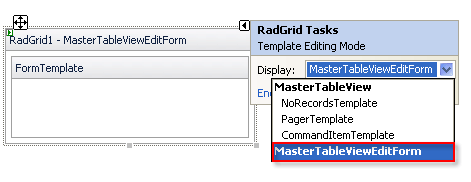
When **EditFormType** is "Template", you can supply a template that the table view uses to generate the edit form. To generate the template at design time, choose **Edit Templates** from the **RadGrid** Smart Tag. If the **EditFormType** for the table view has been set to "Template", the **EditFormTemplate** appears in the drop-down list of available templates. When you select that item, you can use the Template design surface to generate your template:
> caption
## Binding controls inside the template
When using a template to implement a custom edit form, you can bind the items using **DataBinder** expressions:
```C#
You can use traditional data binding
Which require you to handle the updates yourself
When using automatic updates, you can use the Bind method
```
For a live example that shows a custom edit form implemented using a template, see [Form template edit form](https://demos.telerik.com/aspnet-ajax/Grid/Examples/DataEditing/TemplateFormUpdate/DefaultCS.aspx).
> tip When using [Automatic DataSource operations](https://www.telerik.com/products/aspnet-ajax/documentation/controls/grid/data-editing/automatic-datasource-operations), use the **Bind()** syntax to bind template controls. This allows the grid to extract updated values and pass them to the data source with no additional code on your part.
## Setting properties without using binding expressions
Just like with the **UserControl**, when using a template form for a custom edit form, you can handle the **ItemDataBound** event of the grid to access the controls in edit form and set their properties when the control is bound. In the **ItemDataBound** handler,
1. Check whether the type of item is **GridEditFormItem** and whether the item is in edit mode.
2. Locate the user control inside the **GridEditFormItem** and make the modifications you wish.
Here is an example that sets the text for a **TextBox** that resides inside the form template:
```C#
private void RadGrid1_ItemDataBound(object sender, Telerik.Web.UI.GridItemEventArgs e)
{
if (e.Item is GridEditFormItem && e.Item.IsInEditMode)
{
GridEditFormItem editFormItem = e.Item as GridEditFormItem;
GridDataItem parentItem = editFormItem.ParentItem;
TextBox box = editFormItem.FindControl("TextBox1") as TextBox;
box.Text = parentItem["Country"].Text;
}
}
```
```VB
Private Sub RadGrid1_ItemDataBound(ByVal sender As Object, ByVal e As Telerik.Web.UI.GridItemEventArgs) Handles RadGrid1.ItemDataBound
If (TypeOf e.Item Is GridEditFormItem AndAlso e.Item.IsInEditMode) Then
Dim editFormItem As GridEditFormItem = CType(e.Item, GridEditFormItem)
Dim parentItem As GridDataItem = editFormItem.ParentItem
Dim box As TextBox = CType(editFormItem.FindControl("TextBox1"), TextBox)
box.Text = parentItem("Country").Text
End If
End Sub
```
## Creating FormTemplate custom edit form programmatically
You can create and assign the edit form template at runtime in the code-behind. To do this, you must design a class that implements the **IBindableTemplate** interface and assign an instance of that class to the **EditFormSettings.FormTemplate** property of the table view. As an added touch, you can add an **ExtractValues** method to facilitate extracting values from the edit form.
The following example illustrates this approach:
```C#
protected void Page_Init(object sender, EventArgs e)
{
RadGrid grid1 = new RadGrid();
grid1.DataSourceID = "SqlDataSource1";
grid1.MasterTableView.EditFormSettings.EditFormType = GridEditFormType.Template;
grid1.MasterTableView.EditFormSettings.FormTemplate = new MyEditFormTemplate();
grid1.MasterTableView.Columns.Add(new GridEditCommandColumn());
grid1.MasterTableView.DataKeyNames = new string[] { "ProviderName" };
grid1.UpdateCommand += new GridCommandEventHandler(grid1_UpdateCommand);
placeholder1.Controls.Add(grid1);
}
private void grid1_UpdateCommand(object source, GridCommandEventArgs e)
{
GridEditableItem ei = ((GridEditableItem)(e.Item));
Hashtable t1 = new Hashtable();
ei.ExtractValues(t1);
}
public class MyEditFormTemplate : IBindableTemplate
{
public void InstantiateIn(Control container)
{
GridEditFormItem item = ((GridEditFormItem)(container.NamingContainer));
Button btn1 = new Button();
btn1.CommandName = "Update";
TextBox tb1 = new TextBox();
tb1.ID = "MyTextBox";
tb1.Text = item.ParentItem.OwnerTableView.DataKeyValues[((GridDataItem)(item.ParentItem)).ItemIndex]["ProviderName"].ToString();
container.Controls.Add(tb1);
container.Controls.Add(btn1);
}
public System.Collections.Specialized.IOrderedDictionary ExtractValues(System.Web.UI.Control container)
{
OrderedDictionary od = new OrderedDictionary();
od.Add("ProviderName", ((TextBox)(((GridEditFormItem)(container)).FindControl("MyTextBox"))).Text);
return od;
}
}
```
```VB
Protected Sub Page_Init(ByVal sender As Object, ByVal e As EventArgs)
Dim grid1 As RadGrid = New RadGrid()
grid1.DataSourceID = "SqlDataSource1"
grid1.MasterTableView.EditFormSettings.EditFormType = GridEditFormType.Template
grid1.MasterTableView.EditFormSettings.FormTemplate = New MyEditFormTemplate()
grid1.MasterTableView.Columns.Add(New GridEditCommandColumn())
grid1.MasterTableView.DataKeyNames = New String() {"ProviderName"}
AddHandler grid1.UpdateCommand, AddressOf grid1_UpdateCommand
placeholder1.Controls.Add(grid1)
End Sub
Private Sub grid1_UpdateCommand(ByVal source As Object, ByVal e As GridCommandEventArgs)
Dim ei As GridEditableItem = (DirectCast((e.Item), GridEditableItem))
Dim t1 As New Hashtable()
ei.ExtractValues(t1)
End Sub
Public Class MyEditFormTemplate Implements IBindableTemplate
Public Sub InstantiateIn(ByVal container As Control)
Dim item As GridEditFormItem = (DirectCast((container.NamingContainer), GridEditFormItem))
Dim btn1 As New Button()
btn1.CommandName = "Update"
Dim tb1 As New TextBox()
tb1.ID = "MyTextBox"
tb1.Text = item.ParentItem.OwnerTableView.DataKeyValues((DirectCast((item.ParentItem), GridDataItem)).ItemIndex)("ProviderName").ToString()
container.Controls.Add(tb1)
container.Controls.Add(btn1)
End Sub
Public Function ExtractValues(ByVal container As System.Web.UI.Control) As System.Collections.Specialized.IOrderedDictionary
Dim od As New OrderedDictionary()
od.Add("ProviderName", (DirectCast(((DirectCast((container), GridEditFormItem)).FindControl("MyTextBox")), TextBox)).Text)
Return od
End Function
End Class
```
## See Also
* [Edit forms](https://www.telerik.com/products/aspnet-ajax/documentation/controls/grid/data-editing/edit-mode/edit-forms)
* [Updating values using a UserControl and FormTemplate](https://www.telerik.com/products/aspnet-ajax/documentation/controls/grid/data-editing/update-records/updating-values-using-usercontrol-and-formtemplate)