# Phone Layout Toolbar Configuration
This article explains some basic configuration options that will enable you to rearrange the tools and tabs shown in **RadEditor**'s **[ToolZone](https://www.telerik.com/products/aspnet-ajax/documentation/controls/editor/mobile-support/phone-layout/elements-structure)**:
* [Configuring Header Tools](https://www.telerik.com/products/aspnet-ajax/documentation/controls/editor/mobile-support/phone-layout/toolbar-configuration#configuring-header-tools)
* [Configuring Tabs and Tools](https://www.telerik.com/products/aspnet-ajax/documentation/controls/editor/mobile-support/phone-layout/toolbar-configuration#configuring-tabs-and-tools)
* [Configuring Contextual Tabs](https://www.telerik.com/products/aspnet-ajax/documentation/controls/editor/mobile-support/phone-layout/toolbar-configuration#configuring-contextual-tabs)
## Configuring Header Tools
The header tools can be controlled via the **HeaderTools** collection of **RadEditor**. This collection can contain plain built-in or custom tools, by adding them as **EditorHeaderTool** item. The header tools are extended with an additional **Position** property that instructs the tool to be shown either in the left- or the right-hand side tool group. If a position is not configured, it will show in the left tool group by default.
> caption Figure 1: Customized header tools collection. The output from **Example 1**, **Example 2** or **Example 3**.

> caption Example 1: Rearranging header tools via markup.
```ASP.NET
```
> caption Example 2: Rearranging header tools from the code behind.
```ASP.NET
```
```C#
RadEditor1.HeaderTools.Add(new EditorHeaderTool("Undo", EditorHeaderToolPosition.Left));
RadEditor1.HeaderTools.Add(new EditorHeaderTool("Redo", EditorHeaderToolPosition.Left));
RadEditor1.HeaderTools.Add(new EditorHeaderTool("MobileEdit", EditorHeaderToolPosition.Right));
RadEditor1.HeaderTools.Add(new EditorHeaderTool("ToggleScreenMode", EditorHeaderToolPosition.Right));
```
```VB
RadEditor1.HeaderTools.Add(New EditorHeaderTool("Undo", EditorHeaderToolPosition.Left))
RadEditor1.HeaderTools.Add(New EditorHeaderTool("Redo", EditorHeaderToolPosition.Left))
RadEditor1.HeaderTools.Add(New EditorHeaderTool("MobileEdit", EditorHeaderToolPosition.Right))
RadEditor1.HeaderTools.Add(New EditorHeaderTool("ToggleScreenMode", EditorHeaderToolPosition.Right))
```
> caption Example 3: Rearranging header tools from the ToolsFile.
```ASP.NET
```
```XML
...
```
You can find a full list of the built-in tools in the [Toolbars Overview](https://www.telerik.com/products/aspnet-ajax/documentation/controls/editor/functionality/toolbars/overview), and a full list of the elements and attributes for the ToolsFile's xml schema in [Using ToolsFile.xml](https://www.telerik.com/products/aspnet-ajax/documentation/controls/editor/functionality/toolbars/using-toolsfile.xml).
## Configuring Tabs and Tools
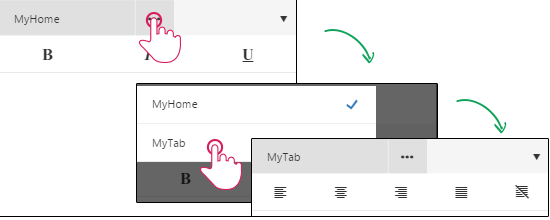
In **Examples 2-6** you can see how you can configure the **ToolZone** of the **Phone Layout** with additional **Tabs** and **Tools**.
> caption Figure 2: The tabs and tools generated from the code in **Example 4**, **Example 5** or **Example 6**.
> caption Example 4: Configuring Tabs and Tools via markup.
```ASP.NET
```
> caption Example 5: Configuring Tabs and Tools from the code behind.
```ASP.NET
```
```C#
EditorToolGroup myHome = new EditorToolGroup();
myHome.Tab = "MyHome";
myHome.Tools.Add(new EditorTool("Bold"));
myHome.Tools.Add(new EditorTool("Italic"));
myHome.Tools.Add(new EditorTool("Underline"));
EditorToolGroup myTab = new EditorToolGroup();
myTab.Tab = "MyTab";
myTab.Tools.Add(new EditorTool("JustifyLeft"));
myTab.Tools.Add(new EditorTool("JustifyCenter"));
myTab.Tools.Add(new EditorTool("JustifyRight"));
myTab.Tools.Add(new EditorTool("JustifyFull"));
myTab.Tools.Add(new EditorTool("JustifyNone"));
RadEditor1.Tools.Add(myHome);
RadEditor1.Tools.Add(myTab);
```
```VB
Dim myHome As New EditorToolGroup()
myHome.Tab = "MyHome"
myHome.Tools.Add(New EditorTool("Bold"))
myHome.Tools.Add(New EditorTool("Italic"))
myHome.Tools.Add(New EditorTool("Underline"))
Dim myTab As New EditorToolGroup()
myTab.Tab = "MyTab"
myTab.Tools.Add(New EditorTool("JustifyLeft"))
myTab.Tools.Add(New EditorTool("JustifyCenter"))
myTab.Tools.Add(New EditorTool("JustifyRight"))
myTab.Tools.Add(New EditorTool("JustifyFull"))
myTab.Tools.Add(New EditorTool("JustifyNone"))
RadEditor1.Tools.Add(myHome)
RadEditor1.Tools.Add(myTab)
```
> caption Example 6: Configuring Tabs and Tools via ToolsFile.
```ASP.NET
```
```XML
```
As shown, you can add tabs and tools with the same approach used for the desktop-oriented **RadEditor** ([Add Standard Buttons](https://www.telerik.com/products/aspnet-ajax/documentation/controls/editor/functionality/toolbars/buttons/add-standard-buttons)). Additionally, you should define the `Tab` property in order to configure a title for the **Tab**.
You can find a full list of the built-in tools in the [Toolbars Overview](https://www.telerik.com/products/aspnet-ajax/documentation/controls/editor/functionality/toolbars/overview), and a full list of the elements and attributes for the ToolsFile's xml schema in [Using ToolsFile.xml](https://www.telerik.com/products/aspnet-ajax/documentation/controls/editor/functionality/toolbars/using-toolsfile.xml).
## Configuring Contextual Tabs
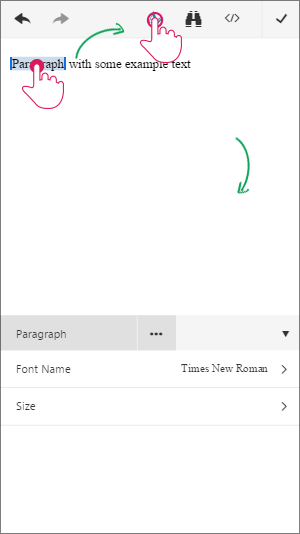
Contextual tabs can be created by [adding a Tab](https://www.telerik.com/products/aspnet-ajax/documentation/controls/editor/mobile-support/phone-layout/toolbar-configuration#configuring-tabs-and-tools). Next, set a **CSS selector** value to the **Context** property of the **EditorToolGroup**. By that, when the user selects an element that fits the requirement of the given selector, the tab will be automatically selected and when the **ToolZone** is shown, the tools from this tab will be shown.
> caption Figure 3: The contextual tab behavior implemented in **Example 7**, **Example 8** or **Example 9**.
> caption Example 7: Adding a contextual tab via markup.
```ASP.NET
...
Paragraph with some example text
```
> caption Example 8: Adding a contextual tab from the code behind.
```ASP.NET
Paragraph with some example text
```
```C#
EditorToolGroup home = new EditorToolGroup();
home.Tab = "MyHome";
// Add tools to the Home tab.
EditorToolGroup paragraphTab = new EditorToolGroup();
paragraphTab.Tab = "Paragraph";
paragraphTab.Context = "p, div";
paragraphTab.Tools.Add(new EditorTool("FontName"));
paragraphTab.Tools.Add(new EditorTool("FontSize"));
RadEditor1.Tools.Add(home);
RadEditor1.Tools.Add(paragraphTab);
```
```VB
Dim home As New EditorToolGroup()
home.Tab = "MyHome"
' Add tools to the Home tab.
Dim paragraphTab As New EditorToolGroup()
paragraphTab.Tab = "Paragraph"
paragraphTab.Context = "p, div"
paragraphTab.Tools.Add(New EditorTool("FontName"))
paragraphTab.Tools.Add(New EditorTool("FontSize"))
RadEditor1.Tools.Add(home)
RadEditor1.Tools.Add(paragraphTab)
```
> caption Example 9: Adding a contextual tab via ToolsFile.
```ASP.NET
Paragraph with some example text
```
```XML
...
```
## See Also
* [Phone Layout Elements Structure](https://www.telerik.com/products/aspnet-ajax/documentation/controls/editor/mobile-support/phone-layout/elements-structure)
* [Phone Layout Getting Started](https://www.telerik.com/products/aspnet-ajax/documentation/controls/editor/mobile-support/phone-layout/getting-started)
* [Toolbars Overview](https://www.telerik.com/products/aspnet-ajax/documentation/controls/editor/functionality/toolbars/overview)
* [Using ToolsFile.xml](https://www.telerik.com/products/aspnet-ajax/documentation/controls/editor/functionality/toolbars/using-toolsfile.xml)