# Phone Layout Getting Started
This article showcases the basic steps needed to get started with the **Phone Layout** of **RadEditor** in your project.
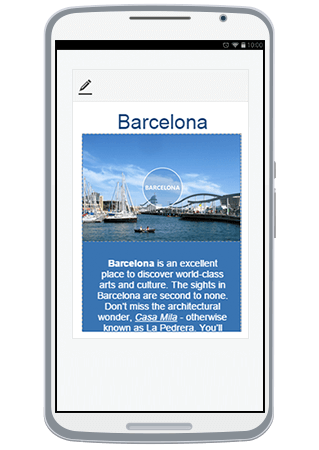
>caption Figure 1: Preview mode of RadEditor with Phone Layout under a mobile device.
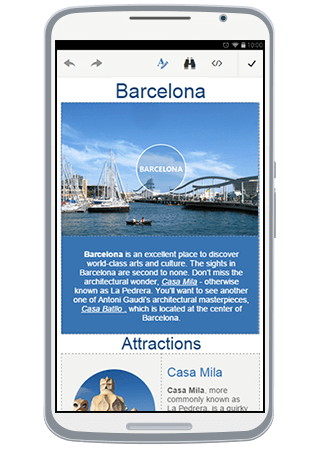
>caption Figure 2: Full screen (editable) mode of RadEditor with Phone Layout.
> important **Phone Layout** is supported only under browsers where [Flex Model](https://developer.mozilla.org/en-US/docs/Web/Guide/CSS/Flexible_boxes) is available.
You can utilize the **Phone Layout** by following these steps:
1. Set up **RadEditor** on an ASP.NET page by following the general [Getting Started](https://www.telerik.com/products/aspnet-ajax/documentation/controls/editor/getting-started/overview) article.
2. Set the RenderMode property of RadEditor either to Auto or Mobile
(*You can find out more about the differences of these two options in the [Render Modes](https://www.telerik.com/products/aspnet-ajax/documentation/controls/editor/mobile-support/render-modes) help article*);
3. Adjust the viewport of your page by putting this meta tag in the `` element of the page:
```
```
(*You can read more about why this is needed in MDN's [Using the viewport meta tag to control layout on mobile browsers](https://developer.mozilla.org/en-US/docs/Web/HTML/Reference/Elements/meta/name/viewport) article*)
4. Run the created page under your phone's browser.
Initially, the **RadEditor** will load in **Preview** mode (**Figure 1**). Clicking the **Edit Content** button () will enable editing and the **Phone Layout** will switch to full screen mode(**Figure 2**).
You can find further details about using the **Phone Layout** as end-user in the [End User Experience](https://www.telerik.com/products/aspnet-ajax/documentation/controls/editor/mobile-support/phone-layout/end-user-experience) article.
You can continue reading the [Toolbar Configuration](https://www.telerik.com/products/aspnet-ajax/documentation/controls/editor/mobile-support/phone-layout/toolbar-configuration) article to learn how to rearrange, add or remove tools regarding **Phone Layout**.
## See Also
* [Phone Layout Overview](https://www.telerik.com/products/aspnet-ajax/documentation/controls/editor/mobile-support/phone-layout/overview)
* [Element Structure](https://www.telerik.com/products/aspnet-ajax/documentation/controls/editor/mobile-support/phone-layout/elements-structure)
* [End User Experience](https://www.telerik.com/products/aspnet-ajax/documentation/controls/editor/mobile-support/phone-layout/end-user-experience)
* [Basic Configurations](https://www.telerik.com/products/aspnet-ajax/documentation/controls/editor/mobile-support/phone-layout/toolbar-configuration)