# Using RibbonBar Toolbar
In this article you can see how to configure the **RibbonBar** toolbar of **RadEditor**.
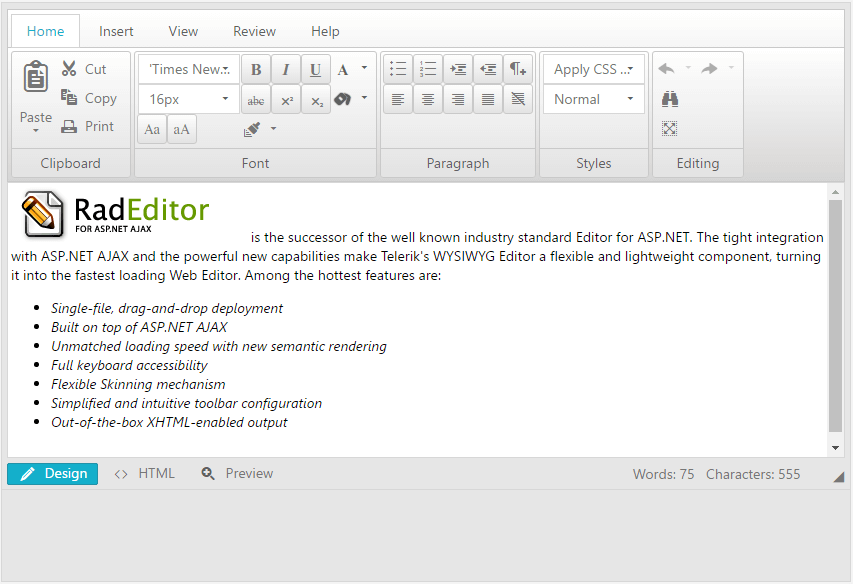
> caption Figure 1: The default RibbonBar toolbar of RadEditor.
## Enabling RibbonBar Modes
In order to enable the RibbonBar toolbar, you need to set the `ToolbarMode` property to one of the following values: `RibbonBar`, `RibbonBarFloating`, `RibbonBarPageTop` or `RibbonBarShowOnFocus`.
> caption Example 1: Enabling RibbonBar toolbar
```ASP.NET
```
## Changing Tools in RibbonBar
You can use the same ways to change the tools in the RibbonBar that you use in the [Default toolbar](https://www.telerik.com/products/aspnet-ajax/documentation/controls/editor/functionality/toolbars/buttons/add-standard-buttons). With **RibbonBar** it is essential to setup properly the `Tab` and `Tag` properties as these properties define the tabs and the sections to be rendered.
> caption Example 2: Changing tools in RibbonBar in the markup
```ASP.NET
```
> caption Example 3: Changing tools in RibbonBar by using ToolsFile.xml file
```ASP.NET
```
```XML
```
To examine more of the XML configuration options available refer to the [RadEditor with RibbonBar demo](https://demos.telerik.com/aspnet-ajax/controls/examples/integration/ribbonbarandeditor/defaultcs.aspx?product=editor) or the [RibbonBar - Populating from Xml demo](https://demos.telerik.com/aspnet-ajax/ribbonbar/examples/populatingfromxml/defaultcs.aspx).
> caption Example 4: Changing tools in RibbonBar from the code behind
```ASP.NET
```
```C#
// Add new section group in Home tab
EditorToolGroup fontGroup = new EditorToolGroup();
// Define the place of the new toolgroup via the Tab property.
fontGroup.Tab = "Home";
// And the group by using the Tag property.
fontGroup.Tag = "Font";
fontGroup.Tools.Add(new EditorTool("FontName"));
fontGroup.Tools.Add(new EditorTool("RealFontSize"));
RadEditor1.Tools.Add(fontGroup);
EditorToolGroup paragraphGroup = new EditorToolGroup();
paragraphGroup.Tab = "Home";
paragraphGroup.Tag = "Paragraph";
paragraphGroup.Tools.Add(new EditorTool("InsertUnorderedList"));
paragraphGroup.Tools.Add(new EditorTool("InsertOrderedList"));
RadEditor1.Tools.Add(paragraphGroup);
EditorToolGroup tablesGroup = new EditorToolGroup();
tablesGroup.Tab = "Insert";
tablesGroup.Tag = "Tables";
// Add tool with large size
EditorTool tableLight = new EditorTool("InsertTableLight");
tableLight.Attributes["size"] = "Large";
tablesGroup.Tools.Add(tableLight);
tablesGroup.Tools.Add(new EditorTool("InsertTable"));
RadEditor1.Tools.Add(tablesGroup);
```
```VB
' Add new section group in Home tab
Dim fontGroup As New EditorToolGroup()
' Define the place of the new toolgroup via the Tab property.
fontGroup.Tab = "Home"
' And the group by using the Tag property.
fontGroup.Tag = "Font"
fontGroup.Tools.Add(New EditorTool("FontName"))
fontGroup.Tools.Add(New EditorTool("RealFontSize"))
RadEditor1.Tools.Add(fontGroup)
Dim paragraphGroup As New EditorToolGroup()
paragraphGroup.Tab = "Home"
paragraphGroup.Tag = "Paragraph"
paragraphGroup.Tools.Add(New EditorTool("InsertUnorderedList"))
paragraphGroup.Tools.Add(New EditorTool("InsertOrderedList"))
RadEditor1.Tools.Add(paragraphGroup)
Dim tablesGroup As New EditorToolGroup()
tablesGroup.Tab = "Insert"
tablesGroup.Tag = "Tables"
' Add tool with large size
Dim tableLight As New EditorTool("InsertTableLight")
tableLight.Attributes("size") = "Large"
tablesGroup.Tools.Add(tableLight)
tablesGroup.Tools.Add(New EditorTool("InsertTable"))
RadEditor1.Tools.Add(tablesGroup)
```
## See Also
* [Add Standard Buttons](https://www.telerik.com/products/aspnet-ajax/documentation/controls/editor/functionality/toolbars/buttons/add-standard-buttons)
* [Strip Formatting Tools](https://www.telerik.com/products/aspnet-ajax/documentation/controls/editor/functionality/toolbars/dropdowns/strip-formatting-tools)