# Setting Up the Telerik NuGet Source in NuGet.Config
An alternative way to configure your system to use the Telerik NuGet server is to directly edit the `nuget.config` file. This approach is useful if you don't have Visual Studio installed.
> tip You can also install `Telerik.UI.for.Maui` directly from the public NuGet.org package registry without any additional configuration. The steps below are only needed if you prefer to use the authenticated Telerik NuGet server.
To configure the Telerik NuGet server as a package source directly in the `nuget.config` file, perform the following steps:
1. [Generate a NuGet API key](https://www.telerik.com/maui-ui/documentation/installation/manual-installation-approaches/nuget/nuget-config#generate-an-api-key).
2. [Edit the NuGet.Config file](https://www.telerik.com/maui-ui/documentation/installation/manual-installation-approaches/nuget/nuget-config#edit-the-nugetconfig-file).
## Generate an API Key
As the Telerik NuGet server requires authentication, the first step is to obtain an API key that you will use instead of a password. Using an API key instead of a password is a more secure approach, especially when working with [.NET CLI](https://www.telerik.com/maui-ui/documentation/installation/manual-installation-approaches/nuget/using-dotnet-cli) or the [`NuGet.Config` file](https://www.telerik.com/maui-ui/documentation/installation/manual-installation-approaches/nuget/nuget-config).
1. Go to the [API Keys](https://www.telerik.com/account/downloads/api-keys) page in your Telerik account.
2. Click **Generate New Key +**.
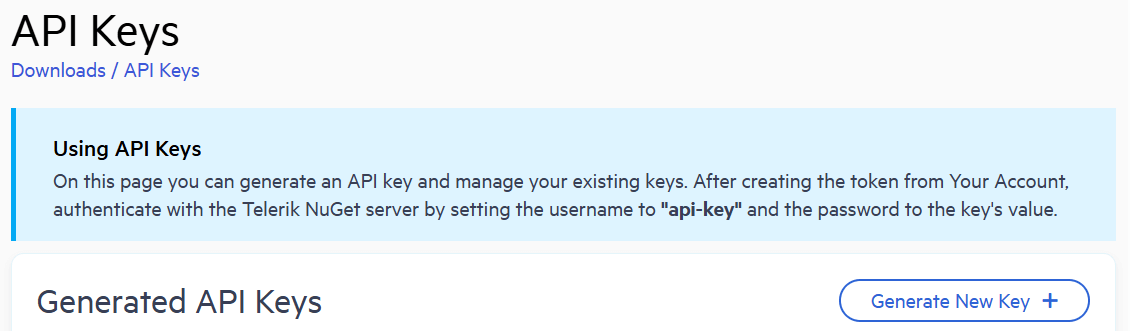
3. In the **Key Note** field, add a note that describes the API key.
4. Click **Generate Key**.
5. Select **Copy and Close**. Once you close the window, you can no longer copy the generated key. For security reasons, the **API Keys** page displays only a portion of the key.
6. Store the generated NuGet API key as you will need it in the next steps. Whenever you need to authenticate your system with the Telerik NuGet server, use `api-key` as the username and your generated API key as the password.
> API keys expire after two years. Telerik will send you an email when a key is about to expire, but we recommend that you set your own calendar reminder with information about where you used that key: file paths, project links, AzDO and GitHub Action variable names, and so on.
## Edit the NuGet.Config File
1. Go to the `NuGet.Config` file:
* On Windows, open the `%AppData%\NuGet\NuGet.Config` file.
* On Mac, open either the `~/.config/NuGet/NuGet.Config` or `~/.nuget/NuGet/NuGet.Config` file (varies by tooling).
If the file doesn't exist on your machine, create it by running the `dotnet new nugetconfig` command in the terminal. For more information about the command, see Microsoft's dotnet new command reference.
2. In the `nuget.config` file, add the Telerik feed by inserting the line ``in the `packageSources` section.
3. In the `packageSourceCredentials` section, add the [generated NuGet API key](https://www.telerik.com/maui-ui/documentation/installation/manual-installation-approaches/nuget/nuget-config#generate-an-api-key). Use `api-key` as a value for the user name.
```xml
```
## Securing Your API Key
Never hard-code NuGet API keys in a `NuGet.Config` file in a GitHub repository, Docker image, or any location that may be accessed by unauthorized parties. A NuGet API key is valuable and bad actors can use it to access the NuGet packages that are licensed under your account. A credentials abuse can lead to a review of the affected Telerik account.
For more details about the `NuGet.Config` file, see the following Microsoft resources:
* Configuring the NuGet package sources
* Creating a new NuGet config file
## See Also
* [Troubleshooting Common NuGet Setup Issues](https://www.telerik.com/maui-ui/documentation/installation/manual-installation-approaches/nuget/nuget-troubleshooting)
* [Using the Telerik NuGet Server as Part of Your CI Workflow](https://www.telerik.com/maui-ui/documentation/installation/manual-installation-approaches/nuget/nuget-keys)