# Installing from a Local NuGet Source
In some cases, you may want to place your Telerik UI for .NET MAUI NuGet packages in your local system storage or on a private server. This lets you control the installable versions in your development environment and also enables you to install the Telerik UI for .NET MAUI NuGet packages without internet access.
To get the NuGet package with the Telerik UI for .NET MAUI controls:
1. Go to your Telerik account and visit the [MAUI downloads](https://www.telerik.com/account/downloads/product-download?product=MAUI).
2. Download the `Telerik.UI.for.Maui.[version].nupkg` file.
> To download the NuGet package with the Telerik UI for .NET MAUI controls, you need an active trial or commercial license.
To set up a local NuGet source, you can use either of the following methods:
* [The NuGet Package Manager in Visual Studio](https://www.telerik.com/maui-ui/documentation/installation/manual-installation-approaches/nuget/local-nuget-package#setting-up-a-local-nuget-source-in-visual-studio).
* [The `nuget.config` file](https://www.telerik.com/maui-ui/documentation/installation/manual-installation-approaches/nuget/local-nuget-package#setting-up-the-nuget-source-in-nugetconfig).
## Setting Up a Local NuGet Source in Visual Studio
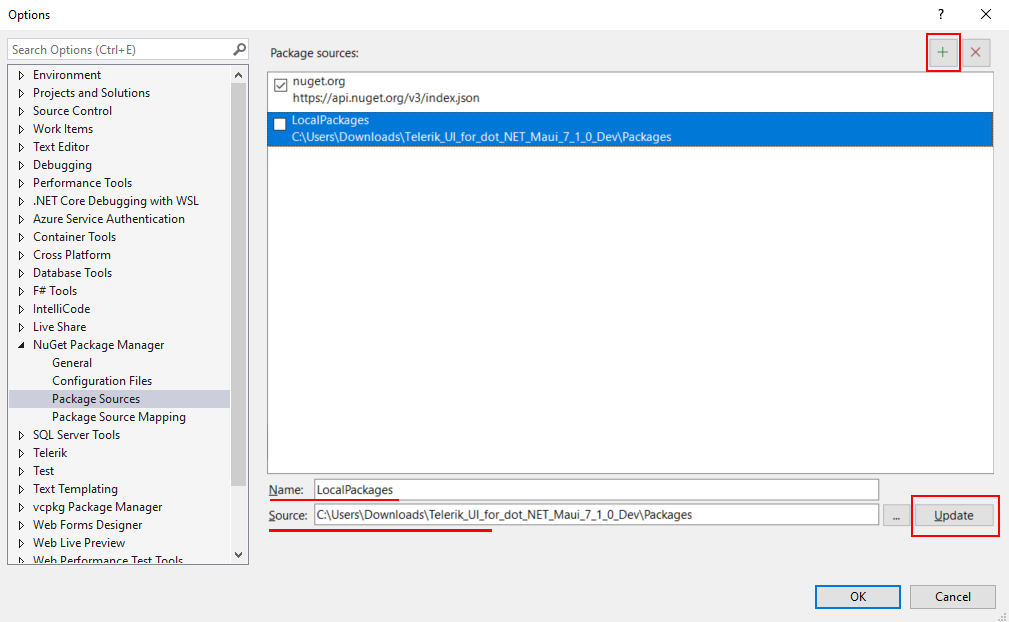
To configure a local NuGet source in Visual Studio:
1. Open Visual Studio.
2. Go to **Tools > NuGet Package Manager > Package Manager Settings**
3. Select **Package Sources**, and then click the + button.
4. In the **Source** field, add the path to the downloaded NuGet package or the URL for your private server.
5. Click **Update** and then **OK**.
## Setting Up the NuGet Source in NuGet.Config
An alternative way to configure your system to use locally available NuGet files is to directly edit the `nuget.config` file:
1. Go to the `NuGet.Config` file:
* On Windows, open the `%AppData%\NuGet\NuGet.Config` file.
* On Mac, open either the `~/.config/NuGet/NuGet.Config` or `~/.nuget/NuGet/NuGet.Config` file (varies by tooling).
If the file doesn't exist on your machine, create it by running the `dotnet new nugetconfig` command in the terminal. For more information about the command, see Microsoft's dotnet new command reference.
2. Add the path or URL to the NuGet file containing the Telerik UI for .NET MAUI library. Here is an example of how your config file can look like:
```xml
```
The local NuGet package does not require you to configure the authentication in the `NuGet.Config` file as it has already been downloaded from your Telerik account.
For more details about the `NuGet.Config` file, see the following Microsoft resources:
* Configuring the NuGet package sources
* Creating a new NuGet config file
## See Also
* [Troubleshooting Common NuGet Setup Issues](https://www.telerik.com/maui-ui/documentation/installation/manual-installation-approaches/nuget/nuget-troubleshooting)
* [Productivity Extensions for Visual Studio](https://www.telerik.com/maui-ui/documentation/installation/vs-integration/overview)
* [Telerik Toolbox for .NET MAUI on Windows](https://www.telerik.com/maui-ui/documentation/installation/vs-integration/toolbox)