# .NET MAUI ToggleButton Events
The .NET MAUI ToggleButton emits a set of events that allow you to configure the component's behavior in response to specific user actions.
The .NET MAUI ToggleButton exposes the following events:
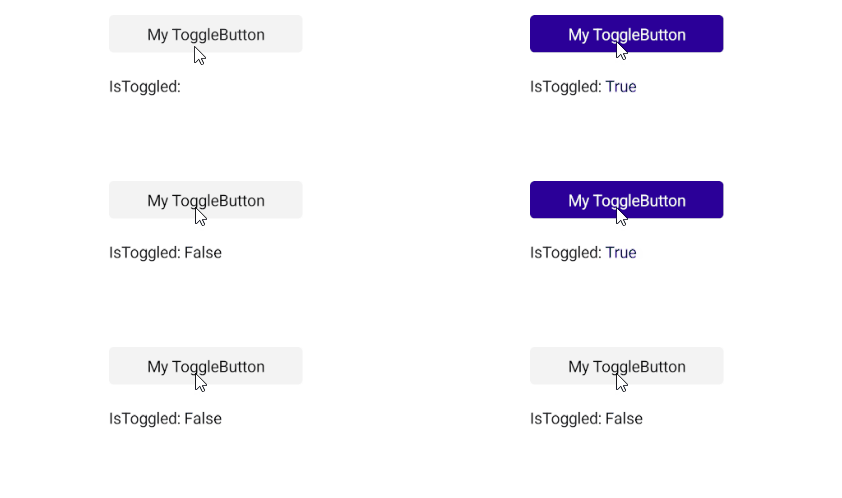
* `IsToggledChanged`—Occurs when the `RadToggleButton.IsToggled` property is changed. The `IsToggledChanged` event handler receives two parameters:
* The `sender` which is of type `Telerik.Maui.Controls.RadToggleButton`.
* `ValueChangedEventArgs` which provides the following properties:
* `NewValue`(`TValue`)—Gets the new value from the `IsToggled` property.
* `PreviousValue`(`TValue`)—Gets the previous value of the `IsToggled` property.
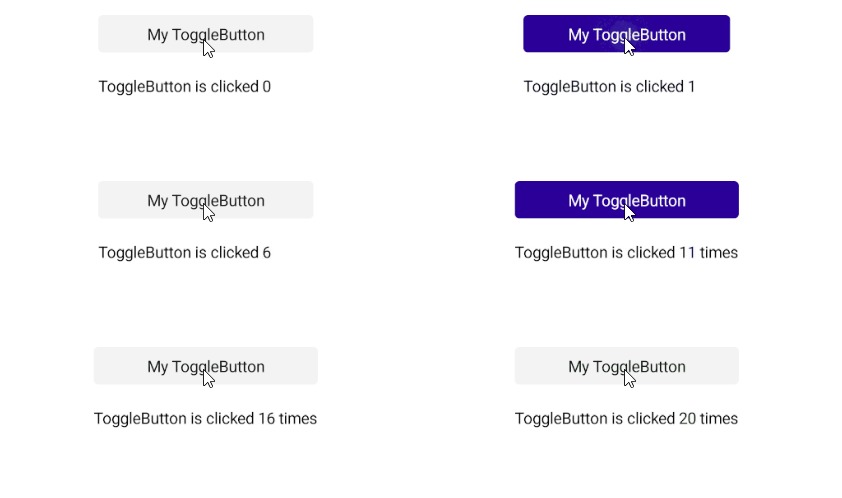
* `Clicked`—Raised when the `RadToggleButton` is clicked. The `Clicked` event handler receives two parameters:
* The `sender` argument which is of type `RadToggleButton`.
* An `EventArgs` object which provides information about the `Clicked` event.
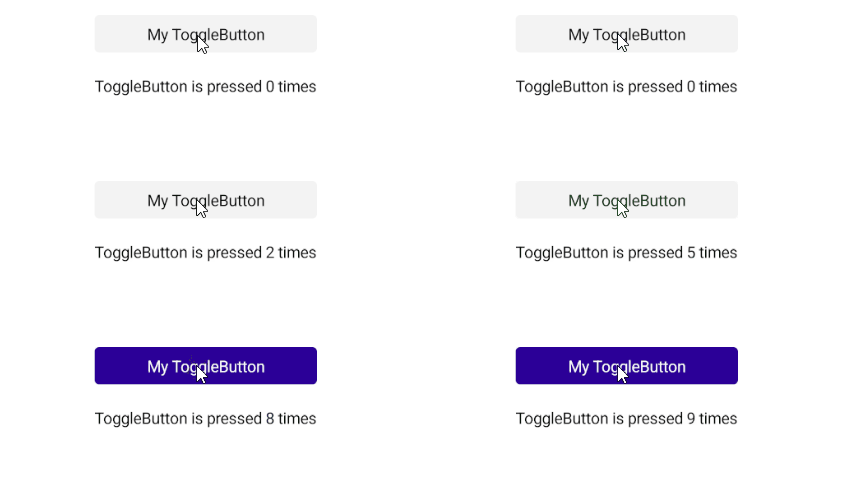
* `Pressed`—Raised when `RadToggleButton` is pressed (a finger presses on the button, or a mouse button is pressed with a pointer positioned over the button). The `Pressed` event handler receives two parameters:
* The `sender` argument which is of type `RadToggleButton`.
* An `EventHandler` object which provides information on the `Pressed` event.
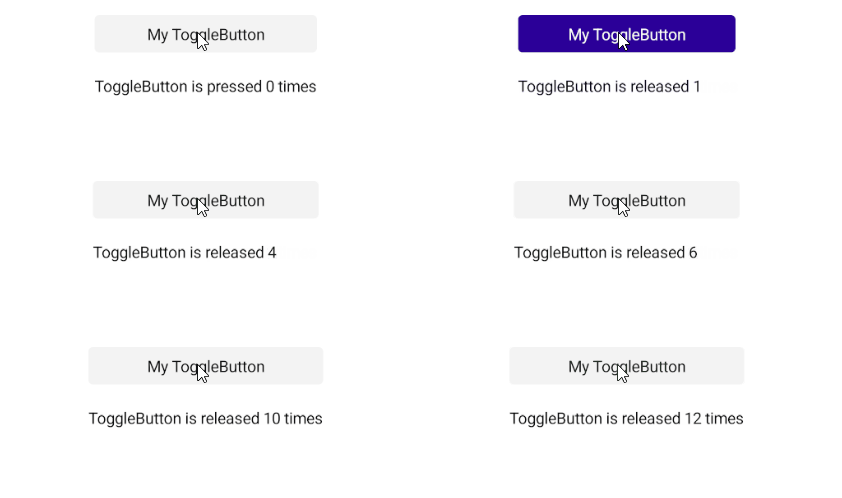
* `Released`—Raised when the `RadToggleButton` is released (the finger or mouse button is released). The `Released` event handler receives two parameters:
* The `sender` argument which is of type `RadToggleButton`.
* An `EventHandler` object which provides information on the `Released` event.
## Using the IsToggledChanged Event
The following example demonstrates how to use the `IsToggledChanged` event:
**1.** Define the button in XAML:
```XAML
```
**2.** Add the `telerik` namespace:
```XAML
xmlns:telerik="http://schemas.telerik.com/2022/xaml/maui"
```
**3.** Add the `IsToggledChanged` event:
```C#
private void ToggleButtonIsToggledChanged(object sender, Telerik.Maui.Controls.ValueChangedEventArgs e)
{
this.label.Text = "IsToggled: " + e.NewValue;
}
```
This is the result on Android:
> For a runnable example demonstrating the ToggleButton `IsToggledChanged` event, see the [SDKBrowser Demo Application](https://www.telerik.com/maui-ui/documentation/demos-and-sample-apps/sdkbrowser-app) and go to the **ToggleButton > Events** category.
## Using the Clicked Event
The following example demonstrates how to use the `Clicked` event:
**1.** Define the button in XAML:
```XAML
```
**2.** Add the `telerik` namespace:
```XAML
xmlns:telerik="http://schemas.telerik.com/2022/xaml/maui"
```
**3.** Add the `Clicked` event:
```C#
private void OnRadToggleButtonClicked(object sender, System.EventArgs e)
{
count++;
if (count == 1)
{
this.label.Text = $"ToggleButton is clicked {count} time";
}
else
{
this.label.Text = $"ToggleButton is clicked {count} times";
}
}
```
This is the result on Android:
> For a runnable example demonstrating the ToggleButton `Clicked` event, see the [SDKBrowser Demo Application](https://www.telerik.com/maui-ui/documentation/demos-and-sample-apps/sdkbrowser-app) and go to the **ToggleButton > Events** category.
## Using the Pressed Event
The following example demonstrates how to use the `Pressed` event:
**1.** Define the button in XAML:
```XAML
```
**2.** Add the `telerik` namespace:
```XAML
xmlns:telerik="http://schemas.telerik.com/2022/xaml/maui"
```
**3.** Add the `Pressed` event:
```C#
private void OnToggleButtonPressed(object sender, System.EventArgs e)
{
count++;
if (count == 1)
{
this.label.Text = $"ToggleButton is pressed {count} time";
}
else
{
this.label.Text = $"ToggleButton is pressed {count} times";
}
}
```
This is the result on Android:
> For a runnable example demonstrating the ToggleButton `Pressed` event, see the [SDKBrowser Demo Application](https://www.telerik.com/maui-ui/documentation/demos-and-sample-apps/sdkbrowser-app) and go to the **ToggleButton > Events** category.
## Using the Released Event
The following example demonstrates how to use the `Released` event:
**1.** Define the button in XAML:
```XAML
```
**2.** Add the `telerik` namespace:
```XAML
xmlns:telerik="http://schemas.telerik.com/2022/xaml/maui"
```
**3.** Add the `Released` event:
```C#
private void OnToggleButtonReleased(object sender, System.EventArgs e)
{
count++;
if (count == 1)
{
this.label.Text = $"ToggleButton is released {count} time";
}
else
{
this.label.Text = $"ToggleButton is released {count} times";
}
}
```
This is the result on Android:
> For a runnable example demonstrating the ToggleButton `Released` event, see the [SDKBrowser Demo Application](https://www.telerik.com/maui-ui/documentation/demos-and-sample-apps/sdkbrowser-app) and go to the **ToggleButton > Events** category.
## See Also
* [Configure the ToggleButton](https://www.telerik.com/maui-ui/documentation/controls/togglebutton/configuration)
* [Toggle State](https://www.telerik.com/maui-ui/documentation/controls/togglebutton/toggle-state)
* [Set Visual States](https://www.telerik.com/maui-ui/documentation/controls/togglebutton/visual-states)
* [Execute Command](https://www.telerik.com/maui-ui/documentation/controls/togglebutton/command)
* [Style the ToggleButton](https://www.telerik.com/maui-ui/documentation/controls/togglebutton/styling)