# .NET MAUI SpeechToTextButton Custom Recognizer
The .NET MAUI SpeechToTextButton allows you to use a custom speech recognizer by implementing the `IRadSpeechRecognizer` interface. This enables you to integrate third-party speech recognition services or customize the behavior of the speech recognition process.
## Implementation Steps
Follow these steps to implement a custom speech recognizer:
**1.** Define the `SpeechToTextButton` in XAML:
```XAML
```
**2.** Add the `telerik` namespace:
```XAML
xmlns:telerik="http://schemas.telerik.com/2022/xaml/maui"
```
**3.** Create a class `MyCustomSpeechRecognizer` that implements the `IRadSpeechRecognizer` interface:
```C#
public class MyCustomSpeechRecognizer : IRadSpeechRecognizer
{
private const string MockText = "This is a mocked speech recognizer response for testing purposes and it will not really do a voice transcription in your system.";
private SpeechRecognizerState state;
private int reportingSessionId;
public SpeechRecognizerState State
{
get => this.state;
private set
{
if (this.state != value)
{
this.state = value;
this.StateChanged?.Invoke(this, EventArgs.Empty);
}
}
}
public event EventHandler StateChanged;
public event EventHandler ErrorOccurred;
public event EventHandler SpeechRecognized;
public Task Init(SpeechRecognizerInitializationContext context)
{
this.State = SpeechRecognizerState.Ready;
this.reportingSessionId++;
return Task.CompletedTask;
}
public Task StartListening()
{
this.State = SpeechRecognizerState.StartingListening;
this.reportingSessionId++;
int localSessionId = this.reportingSessionId;
Task.Run(() =>
{
this.State = SpeechRecognizerState.Listening;
int i = 0;
string[] words = MockText.Split(' ', StringSplitOptions.RemoveEmptyEntries);
string fullText = string.Empty;
while (true)
{
string word = words[i % words.Length];
fullText += $" {word}";
i++;
Thread.Sleep(333);
if (localSessionId != this.reportingSessionId)
{
break;
}
this.SpeechRecognized?.Invoke(this, new SpeechRecognizerSpeechRecognizedEventArgs(fullText));
}
});
return Task.CompletedTask;
}
public async Task StopListening()
{
this.State = SpeechRecognizerState.Ready;
this.reportingSessionId++;
await Task.Yield();
}
public Task Reset()
{
this.State = SpeechRecognizerState.NotInitialized;
this.reportingSessionId++;
return Task.CompletedTask;
}
public ValueTask DisposeAsync()
{
this.State = SpeechRecognizerState.Disposed;
this.reportingSessionId++;
return ValueTask.CompletedTask;
}
}
```
**4.** Set the `SpeechRecognizerCreator` property of the `RadSpeechToTextButton` to an instance of your custom recognizer:
```C#
this.speechToTextButton.SpeechRecognizerCreator = () => new MyCustomSpeechRecognizer();
```
**5.** Handle the `SpeechRecognized` event to process the recognition results:
```C#
private void OnSpeechRecognized(object sender, Telerik.Maui.SpeechRecognizer.SpeechRecognizerSpeechRecognizedEventArgs e)
{
this.editor.Text = e.FullText;
}
```
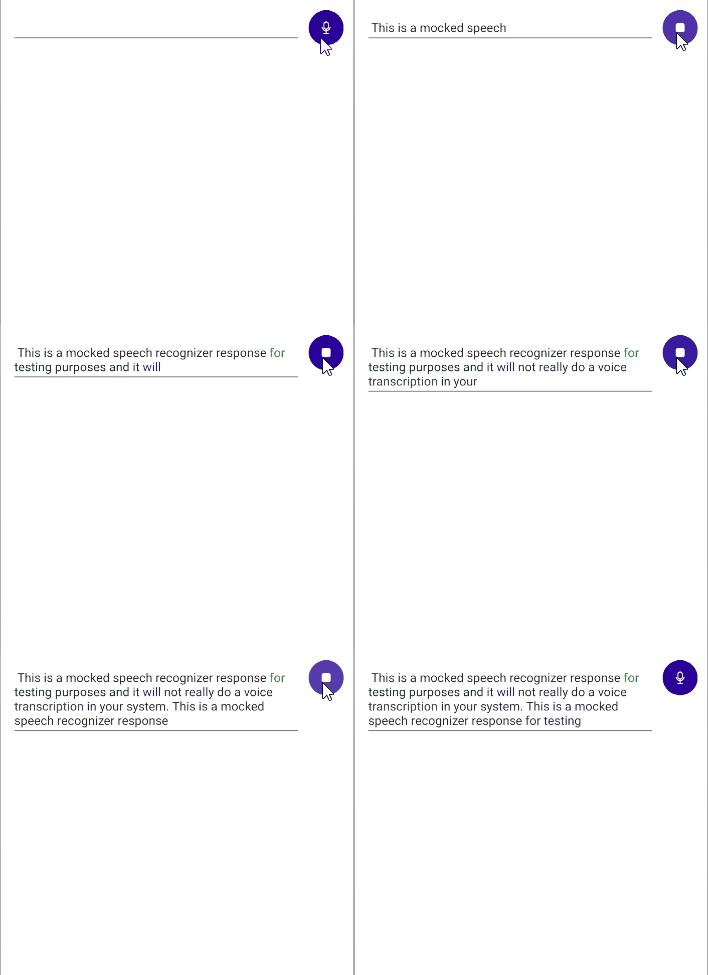
This is the result on Android:
> For a runnable example with the SpeechToTextButton Custom Recognizer scenario, see the [SDKBrowser Demo Application](https://www.telerik.com/maui-ui/documentation/demos-and-sample-apps/sdkbrowser-app) and go to the **SpeechToTextButton > Features** category.
## See Also
* [Set Visual States](https://www.telerik.com/maui-ui/documentation/controls/speechtotextbutton/visual-states)
* [Events](https://www.telerik.com/maui-ui/documentation/controls/speechtotextbutton/events)
* [Style the SpeechToTextButton](https://www.telerik.com/maui-ui/documentation/controls/speechtotextbutton/styling)