# Getting Started with the .NET MAUI Skeleton
This guide provides the information you need to start using the Telerik UI for [.NET MAUI Skeleton](https://www.telerik.com/maui-ui/documentation/controls/skeleton/overview) by adding the control to your project.
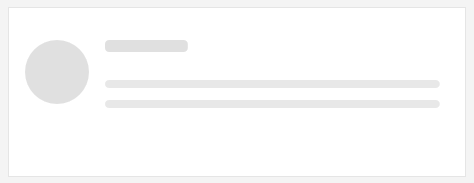
At the end, you will be able to achieve the following result.
## Prerequisites
Before adding the Skeleton, you need to:
1. [Set up your .NET MAUI application](https://www.telerik.com/maui-ui/documentation/get-started/quickstart#prerequisites).
2. [Set Up Telerik Development Environment](https://www.telerik.com/maui-ui/documentation/get-started/quickstart#set-up-telerik-development-environment)
## Define the Control
1. When your .NET MAUI application is set up, you are ready to add a Skeleton control to your page:
```XAML
```
```C#
var skeleton = new RadSkeleton();
```
2. Add the `telerik` namespace:
```XAML
xmlns:telerik="http://schemas.telerik.com/2022/xaml/maui"
```
3. Register the Telerik controls through the `Telerik.Maui.Controls.Compatibility.UseTelerik` extension method called inside the `CreateMauiApp` method of the `MauiProgram.cs` file of your project:
```C#
using Telerik.Maui.Controls.Compatibility;
public static class MauiProgram
{
public static MauiApp CreateMauiApp()
{
var builder = MauiApp.CreateBuilder();
builder
.UseTelerik()
.UseMauiApp()
.ConfigureFonts(fonts =>
{
fonts.AddFont("OpenSans-Regular.ttf", "OpenSansRegular");
});
return builder.Build();
}
}
```
> For a runnable example with the Skeleton Getting Started scenario, see the [SDKBrowser Demo Application](https://www.telerik.com/maui-ui/documentation/demos-and-sample-apps/sdkbrowser-app) and go to **Skeleton > Getting Started** category.
## Additional Resources
* [Built-in Views](https://www.telerik.com/maui-ui/documentation/controls/skeleton/default-view)
* [Configuration](https://www.telerik.com/maui-ui/documentation/controls/skeleton/configuration)
* [Animation](https://www.telerik.com/maui-ui/documentation/controls/skeleton/animation)
* [Custom Views](https://www.telerik.com/maui-ui/documentation/controls/skeleton/custom-view)
* [Styling](https://www.telerik.com/maui-ui/documentation/controls/skeleton/styling)
## See Also
* [.NET MAUI Skeleton Product Page](https://www.telerik.com/maui-ui/skeleton)
* [.NET MAUI Skeleton Forum Page](https://www.telerik.com/forums/maui?tagId=1764)
* [Telerik .NET MAUI Blogs](https://www.telerik.com/blogs/mobile-net-maui)
* [Telerik .NET MAUI Roadmap](https://www.telerik.com/support/whats-new/maui-ui/roadmap)