# .NET MAUI Scheduler Built-In Dialogs
The Telerik .NET MAUI Scheduler exposes built-in dialogs for the creation and modification of appointments, so you can provide users with the ability to directly schedule their meetings.
Check below the available dialogs for managing appointments.
## Create and Edit Appointment
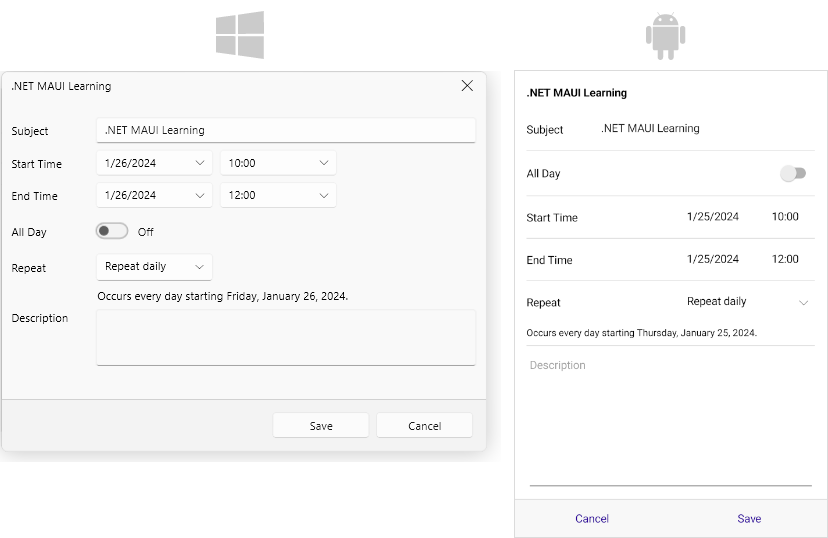
`EditAppointmentDialog` is the dialog that allows the end user to create a new appointment or edit an existing one.
* On desktop, the `EditAppointmentDialog` appears when the end user double-clicks an empty slot or an appointment.
* On mobile, the behavior of the `EditAppointmentDialog` depends on the selected calendar slot:
* If the end user taps an empty slot, the Edit Appointment dialog appears to let them create a new appointment.
* If the end user taps an existing appointment and then taps Edit in the Preview Appointment dialog, the Edit Appointment dialog appears to let them modify the appointment.
## Preview Appointment
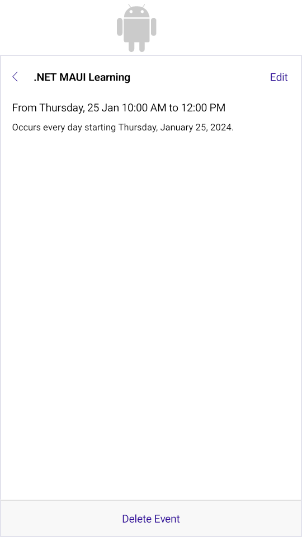
(Android- and iOS-only) When the end user taps an existing appointment, the `PreviewAppointmentDialog` lets them preview the appointment details, or edit or delete the appointment.
## Edit Recurrence
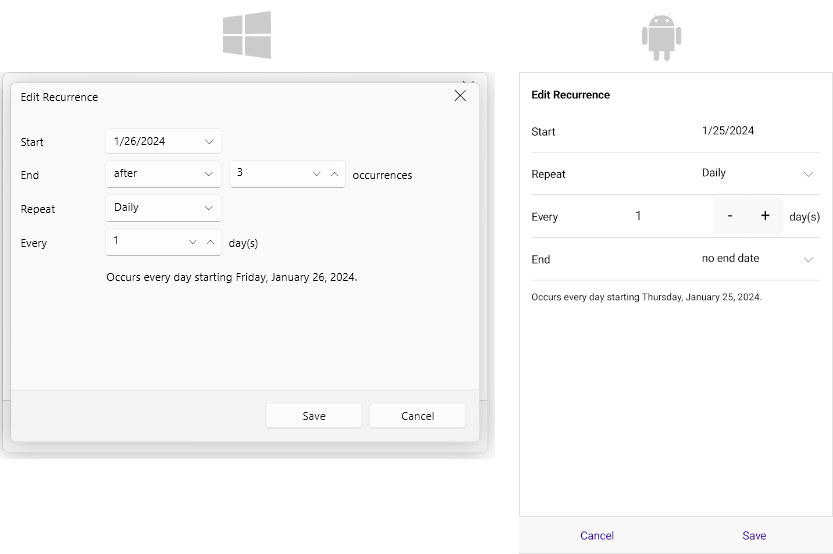
The `EditRecurrenceDialog` lets the end user configure the recurrence settings of an appointment.
## Edit Recurrence Choice
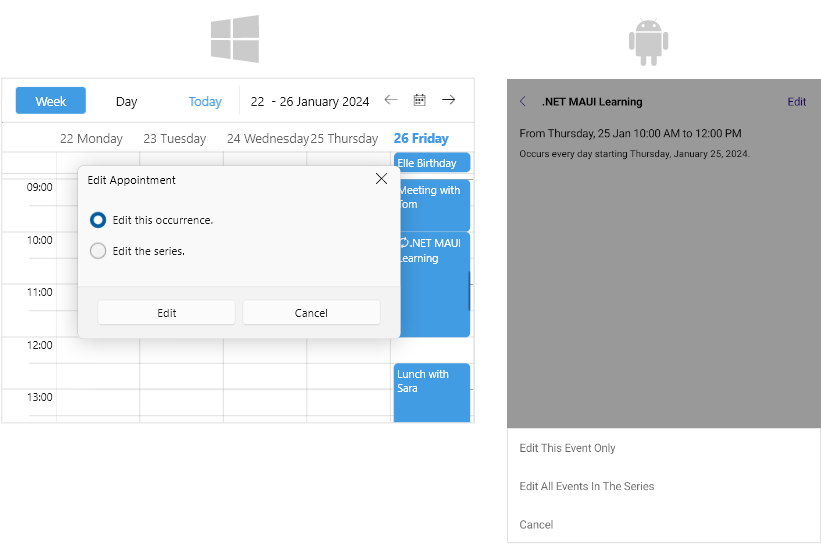
When the end user interacts with a recurring appointment, the `EditRecurrenceChoiceDialog` lets them choose if they want to edit a single occurrence or the entire series.
## Delete Recurrence Choice
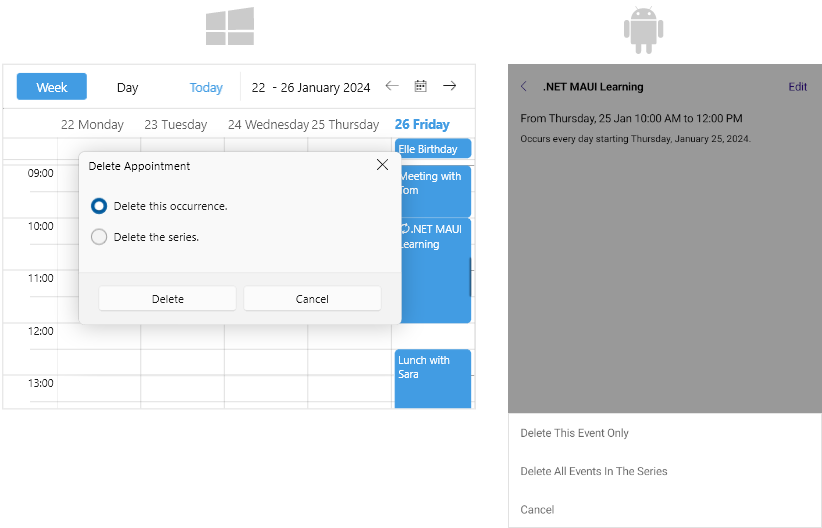
When the end user interacts with a recurring appointment, the `DeleteRecurrenceChoiceDialog` lets them choose if they want to delete a single occurrence or the entire series.
## Delete Appointment Choice
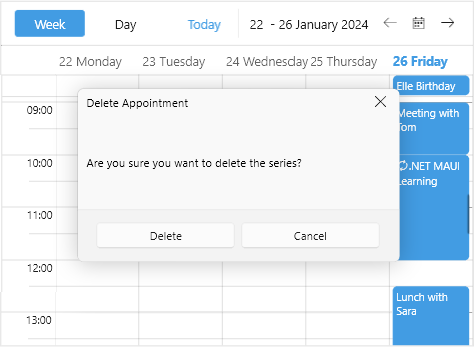
(Desktop-only) When the end user attempts to delete an appointment, the `DeleteAppointmentChoiceDialog` asks for confirmation.
## Methods
Use the following methods to show the built-in dialogs of the Scheduler:
* `CreateAppointmentWithDialog(DataRange range)`—Opens a dialog for creating an appointment.
* `EditAppointmentWithDialog(Occurrence occurrence)`—Opens a dialog for editing an existing appointment.
* `DeleteAppointmentWithDialog(Occurrence occurrence)`—Opens a dialog for deleting an existing appointment.
The following example demonstrates how to use the methods for managing the built-in dialogs:
**1.** Create a sample view with a `RadScheduler` instance and a few buttons:
```XAML
```
**2.** Add the buttons' clicked event handlers in the code-behind:
```C#
private void AddAppointmentClicked(object sender, EventArgs e)
{
this.scheduler.CreateAppointmentWithDialog(new DateRange(DateTime.Now, DateTime.Now.AddHours(1)));
}
private void EditAppointmentClicked(object sender, EventArgs e)
{
var app = this.scheduler.AppointmentsSource?.FirstOrDefault();
if (app != null)
{
if (app.RecurrenceRule != null)
{
this.scheduler.EditAppointmentWithDialog(Occurrence.CreateOccurrence(app, app.Start, app.End));
}
else
{
this.scheduler.EditAppointmentWithDialog(Occurrence.CreateMaster(app));
}
}
}
private void DeleteAppointmentClicked(object sender, EventArgs e)
{
var app = this.scheduler.AppointmentsSource?.FirstOrDefault();
if (app != null)
{
if (app.RecurrenceRule != null)
{
this.scheduler.DeleteAppointmentWithDialog(Occurrence.CreateOccurrence(app, app.Start, app.End));
}
else
{
this.scheduler.DeleteAppointmentWithDialog(Occurrence.CreateMaster(app));
}
}
}
```
## Events
The Scheduler exposes the following events for its built-in dialogs:
* `DialogOpening`—Raised when a dialog is about to be opened. The `DialogOpening` event handler receives two parameters:
* The sender argument, which is of type `object`, but can be cast to the `RadScheduler` type.
* A `SchedulerDialogOpeningEventArgs` object with the following properties:
* `DialogType`—Provides the dialog type.
* `Cancel`—If `True`, cancels the dialog opening.
* `DialogClosing`—Raised when a dialog is about to be closed. The `DialogClosing` event handler receives two parameters:
* The sender argument, which is of type `object`, but can be cast to the `RadScheduler` type.
* A `SchedulerDialogClosingEventArgs` object with the following properties:
* `DialogType`—Provides the dialog type.
* `Cancel`—If `True`, cancels the dialog closing.
* `DialogResult (bool?)`—Indicates how the dialog was closed. `null` when closed with the **Close** button. `False` when closed with the **Cancel** button. `True` in all other cases.
Check a quick example on how to use the `DialogOpening` and `DialogClosing` events:
**1.** Add the `RadScheduler` definition:
```XAML
```
**2.** Add the event handlers:
```C#
private void OnDialogOpening(object sender, Telerik.Maui.Controls.Scheduler.SchedulerDialogOpeningEventArgs e)
{
if(e.DialogType == Telerik.Maui.Controls.Scheduler.SchedulerDialogType.DeleteRecurrenceChoiceDialog)
{
e.Cancel = true;
logLabel.Text = "Cannot delete the recurrent appointment.";
}
else
{
logLabel.Text = "Opening ..." + e.DialogType;
}
}
private void OnDialogClosing(object sender, Telerik.Maui.Controls.Scheduler.SchedulerDialogClosingEventArgs e)
{
if (!e.DialogResult.HasValue || e.DialogResult.Value == false)
{
logLabel.Text = "Closing ..." + e.DialogType;
}
}
```
## Styling
You can style the visual appearance of each dialog by creating the corresponding `Style` with `TargetType` set to `SchedulerDialog`. Here is a list of the available `Style` properties:
* `EditAppointmentDialogStyle`—Defines the `Style` that will be applied on the Edit Appointment dialog.
* `EditRecurrenceDialogStyle`—Defines the `Style` that will be applied on the Edit Recurrence dialog.
* `EditRecurrenceChoiceDialogStyle`—Defines the `Style` that will be applied on the Edit Recurrence Choice dialog.
* `DeleteAppointmentChoiceDialogStyle`—(Desktop-only)Defines the `Style` that will be applied on the Delete Appointment Choice dialog.
* `DeleteRecurrenceChoiceDialogStyle`—Defines the `Style` that will be applied on the Delete Recurrence Choice dialog.
* `PreviewAppointmentDialogStyle`—(Android- and iOS-only)Defines the `Style` for the Preview Appointment dialog.
The following example demonstrates how to style the Edit Appointment dialog.
**1.** Define the Scheduler with the `EditAppointmentDialogStyle` in XAML:
```XAML
```
**2.** Define the style in the resources of the page:
```XAML
```
Review the `ControlTemplate` definition in the `Resources` folder of the Controls Samples application.
> For a runnable example demonstrating the Scheduler built-in edit appointment dialog customization, see the [Controls Samples Application](https://www.telerik.com/maui-ui/documentation/demos-and-sample-apps/controls-showcase-app) and go to **Scheduler > Customization**.
## See Also
* [Appointments](https://www.telerik.com/maui-ui/documentation/controls/scheduler/appointments/overview)
* [Recurrence Pattern](https://www.telerik.com/maui-ui/documentation/controls/scheduler/recurrence/recurrence-pattern)
* [Recurrence Rule](https://www.telerik.com/maui-ui/documentation/controls/scheduler/recurrence/recurrence-rule)
* [Views](https://www.telerik.com/maui-ui/documentation/controls/scheduler/views/overview)