# .NET MAUI NumericInput Configuration Options
This article will explain all configuration options that NumericInput control provides.
## Numeric Value
The NumericInput provides the `Value`(`double?`) property, which allows you to set a predefined value that will be presented by the control.
The following example demonstrates how to use `Value`.
**1.** Define the `RadNumericInput` instance in XAML with the `Value` property set:
```XAML
```
**2.** Add the `telerik` namespace:
```XAML
xmlns:telerik="http://schemas.telerik.com/2022/xaml/maui"
```
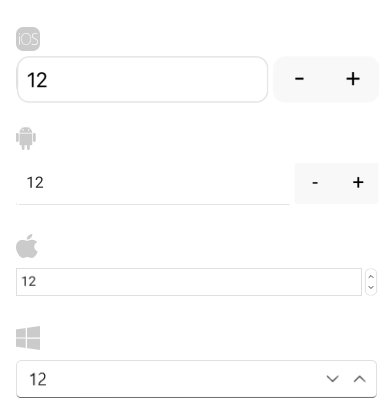
The following image shows the result on different platforms:
## Null Value Support
The `Value` property is of type nullable double, which enables the NumericInput control to accept `null` values as well.
The following example demonstrates how to set the `Value` property to accept `null` values.
```XAML
```
Check the result in the image below:

## Input Range
You can restrict the input using the `Minimum` and `Maximum` properties:
* `Minimum`(`double`)—The minimum value that can be insert in the numeric input.
* `Maximum`(`double`)—The maximum value that can be insert in the numeric input.
The following example demonstrates how to set a range.
```XAML
```
The following image shows the end result:

## Step for Increment and Decrement value
The `Step` property defines the value step that will be applied to the input value upon each decrease/increase action. The default step is 1.
The following example demonstrates how to set a step.
```XAML
```
The following image shows the end result:

## See Also
* [Globalization](https://www.telerik.com/maui-ui/documentation/controls/numericinput/globalization)
* [Commands](https://www.telerik.com/maui-ui/documentation/controls/numericinput/commands)