# .NET MAUI Map Selection
The Map allows users to select one or many shapes out of the source applied by each `MapShapefileLayer`. This feature provides both visual and programmatic feedback for the actions of the user.
The following members of the [ShapefileLayer](https://www.telerik.com/maui-ui/documentation/controls/map/layers/shapefilelayer) class are related to the selection:
* `SelectionMode` (`enum` of type `MapSelectionMode`)—Indicates the selection mode. The options are:
* `None`
* `Single`
* `Multiple`
* `SelectedShape` (of type `IShape`)—Defines the currently selected shape instance. When multiple selection is enabled, this value is set to the first selected shape.
* `SelectedShapes` (read-only collection of type `ObservableCollection<IShape>`)—Reads the collection with the currently selected shapes. When the selection is `Single`, only one shape can be selected–thus the collection will have count = 1.
* `SelectedShapeStyle` (of type `MapShapeStyle`): Defines the way selected shape look through the provided `StrokeWidth`, `StrokeColor` and `FillColor` properties. For more details on the `MapShapeStyle` usage go to [Shapes Styling](https://www.telerik.com/maui-ui/documentation/controls/map/styling/shapesstyles) topic.
Define `RadMap` with `SelectionMode`:
```XAML
```
Where the `Source` and the `DataSource` of the `MapShapeReader` have to be set to a `.shp` and `.dbf` files, respectively:
```C#
var assembly = this.GetType().Assembly;
var source = MapSource.FromResource("SDKBrowserMaui.Examples.MapControl.world.shp", assembly);
var dataSource = MapSource.FromResource("SDKBrowserMaui.Examples.MapControl.world.dbf", assembly);
this.reader.Source = source;
this.reader.DataSource = dataSource;
```
Add the namespace:
```XAML
xmlns:telerik="http://schemas.telerik.com/2022/xaml/maui"
```
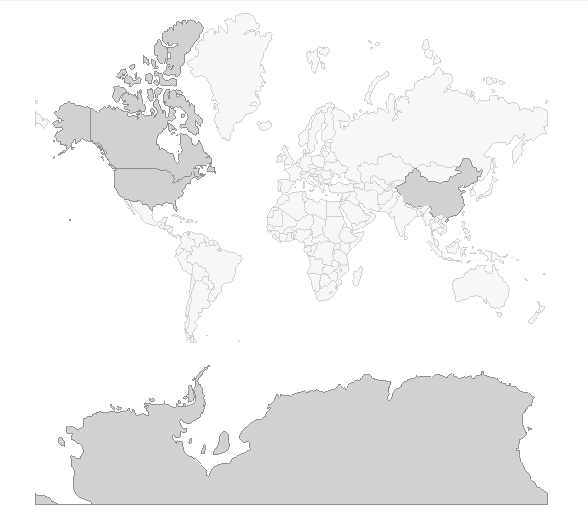
Check below how `RadMap` with a few selected shapes will look like:
## Example with Programmatical Shape Selection
The snippet below demonstrates how you can select a shape programmatically. In the example the used ESRI file contains the world map, so the shape that is selected is a country. The example uses the `Shapes` property of the Map to traverse through all the available shapes.
Let's select/deselect "France", for example, on clicking buttons:
```XAML
```
And the event handlers:
```C#
private void SelectFranceClicked(object sender, EventArgs e)
{
var shape = this.GetItemFromCountryName("France");
if (shape != null)
{
this.mapShapeLayer.SelectedShapes.Add(shape);
}
}
private void DeselectFranceClicked(object sender, EventArgs e)
{
var shape = this.GetItemFromCountryName("France");
if (shape != null && this.mapShapeLayer.SelectedShapes.Contains(shape))
{
this.mapShapeLayer.SelectedShapes.Remove(shape);
}
}
private IShape GetItemFromCountryName(string countryName)
{
foreach (var shape in this.reader.Shapes)
{
var name = shape.GetAttribute("CNTRY_NAME").ToString();
if (name == countryName)
{
return shape;
}
}
return null;
}
```
```XAML
xmlns:telerik="http://schemas.telerik.com/2022/xaml/maui"
```
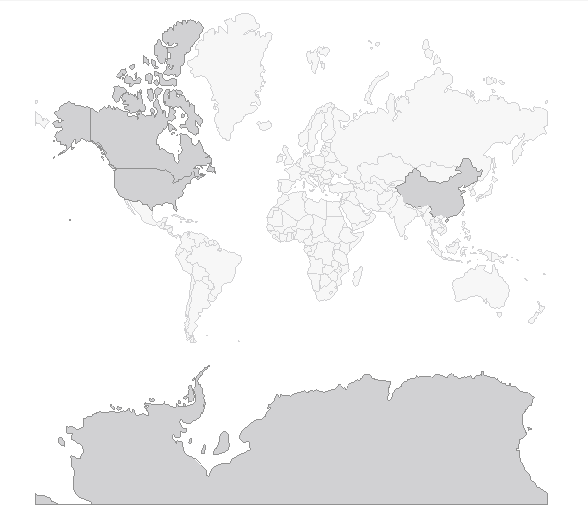
Here is the result:
> note A sample Programmatic Selection example can be found in the Map/Selection folder of the [SDK .NET MAUI Demo application](https://www.telerik.com/maui-ui/documentation/demos-and-sample-apps/sdkbrowser-app).
## See Also
* [ShapefileLayer](https://www.telerik.com/maui-ui/documentation/controls/map/layers/shapefilelayer)
* [Shapes Styling](https://www.telerik.com/maui-ui/documentation/controls/map/styling/shapesstyles)