# Getting Started with the .NET MAUI Expander
This article will guide you through the steps needed to add a basic `RadExpander` control in your application.
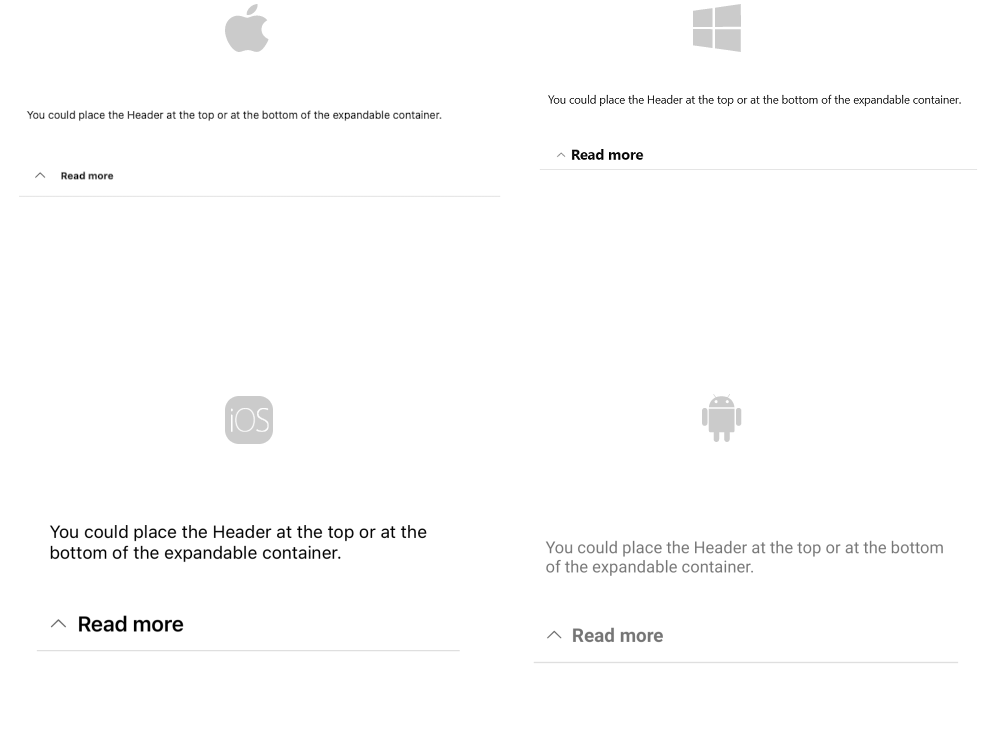
At the end, you will achieve the following result.
## Prerequisites
Before adding the BadgeView, you need to:
1. [Set up your .NET MAUI application](https://www.telerik.com/maui-ui/documentation/get-started/quickstart#prerequisites).
2. [Set Up Telerik Development Environment](https://www.telerik.com/maui-ui/documentation/get-started/quickstart#set-up-telerik-development-environment)
## Define the Control
The snippet below shows a simple `RadExpander` definition in XAML:
```XAML
```
To use the control in XAML, you need to add the following namespace:
```XAML
xmlns:telerik="http://schemas.telerik.com/2022/xaml/maui"
```
The snippet below shows a simple `RadExpander` definition in C#:
```C#
var mainStack = new VerticalStackLayout { Margin = new Thickness(10) };
var expander = new RadExpander { HeaderText = "More Options" };
var stackContainer = new VerticalStackLayout { Margin = new Thickness(5) };
var firstCheckboxStack = new HorizontalStackLayout { Spacing = 10 };
firstCheckboxStack.Children.Add(new RadCheckBox() { VerticalOptions = LayoutOptions.Center });
firstCheckboxStack.Children.Add(new Label { Text = "Make my profile private", HeightRequest = 60, VerticalTextAlignment = TextAlignment.Center });
stackContainer.Children.Add(firstCheckboxStack);
var secondCheckboxStack = new HorizontalStackLayout { Spacing = 10 };
secondCheckboxStack.Children.Add(new RadCheckBox() { VerticalOptions = LayoutOptions.Center });
secondCheckboxStack.Children.Add(new Label { Text = "Only show my posts to people who follow me", HeightRequest = 60, VerticalTextAlignment = TextAlignment.Center });
stackContainer.Children.Add(secondCheckboxStack);
expander.Content = stackContainer;
mainStack.Children.Add(expander);
```
To use the control in C#, you need to add the following namespace:
```C#
using Telerik.Maui.Controls;
```
Register the Telerik controls through the `Telerik.Maui.Controls.Compatibility.UseTelerik` extension method called inside the `CreateMauiApp` method of the `MauiProgram.cs` file of your project:
```C#
using Telerik.Maui.Controls.Compatibility;
public static class MauiProgram
{
public static MauiApp CreateMauiApp()
{
var builder = MauiApp.CreateBuilder();
builder
.UseTelerik()
.UseMauiApp()
.ConfigureFonts(fonts =>
{
fonts.AddFont("OpenSans-Regular.ttf", "OpenSansRegular");
});
return builder.Build();
}
}
```
> For a runnable example with the Expander Getting Started scenario, see the [SDKBrowser Demo Application](https://www.telerik.com/maui-ui/documentation/demos-and-sample-apps/sdkbrowser-app) and go to **Expander > Getting Started** category.
## Additional Resources
* [.NET MAUI Expander Product Page](https://www.telerik.com/maui-ui/expander)
* [.NET MAUI Expander Forum Page](https://www.telerik.com/forums/maui?tagId=1980)
* [Telerik .NET MAUI Blogs](https://www.telerik.com/blogs/mobile-net-maui)
* [Telerik .NET MAUI Roadmap](https://www.telerik.com/support/whats-new/maui-ui/roadmap)
## See Also
* [Configuration](https://www.telerik.com/maui-ui/documentation/controls/expander/configuration)