# Getting Started with the .NET MAUI DockLayout
This guide provides the information you need to start using the Telerik UI for .NET MAUI DockLayout by adding the control to your project.
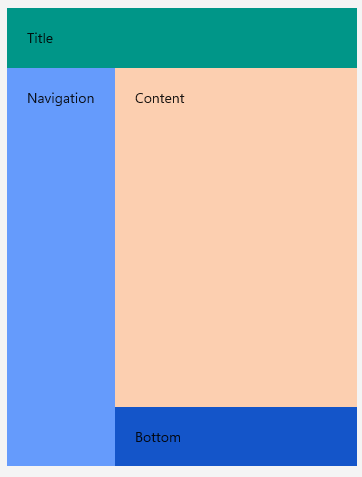
At the end, you will achieve the following result.
## Prerequisites
Before adding the DockLayout, you need to:
1. [Set up your .NET MAUI application](https://www.telerik.com/maui-ui/documentation/get-started/quickstart#prerequisites).
2. [Set Up Telerik Development Environment](https://www.telerik.com/maui-ui/documentation/get-started/quickstart#set-up-telerik-development-environment)
## Define the Control
**1.** When the your .NET MAUI application is set up, you are ready to add a DockLayout control to your page.
```XAML
```
**2.** Add the following namespace:
```XAML
xmlns:telerik="http://schemas.telerik.com/2022/xaml/maui"
```
**3.** Register the Telerik controls through the `Telerik.Maui.Controls.Compatibility.UseTelerik` extension method called inside the `CreateMauiApp` method of the `MauiProgram.cs` file of your project:
```C#
using Telerik.Maui.Controls.Compatibility;
public static class MauiProgram
{
public static MauiApp CreateMauiApp()
{
var builder = MauiApp.CreateBuilder();
builder
.UseTelerik()
.UseMauiApp()
.ConfigureFonts(fonts =>
{
fonts.AddFont("OpenSans-Regular.ttf", "OpenSansRegular");
});
return builder.Build();
}
}
```
## Additional Resources
* [.NET MAUI DockLayout Product Page](https://www.telerik.com/maui-ui/docklayout)
* [.NET MAUI DockLayout Forum Page](https://www.telerik.com/forums/maui?tagId=1828)
* [Telerik .NET MAUI Blogs](https://www.telerik.com/blogs/mobile-net-maui)
* [Telerik .NET MAUI Roadmap](https://www.telerik.com/support/whats-new/maui-ui/roadmap)
## See Also
* [Docking Functionality](https://www.telerik.com/maui-ui/documentation/controls/docklayout/docking)