# .NET MAUI DataGrid AI Smart Assistant Templates
The .NET MAUI DataGrid control allows you to override the built-in templates for the AI Smart Assistant feature to create a customized user experience.
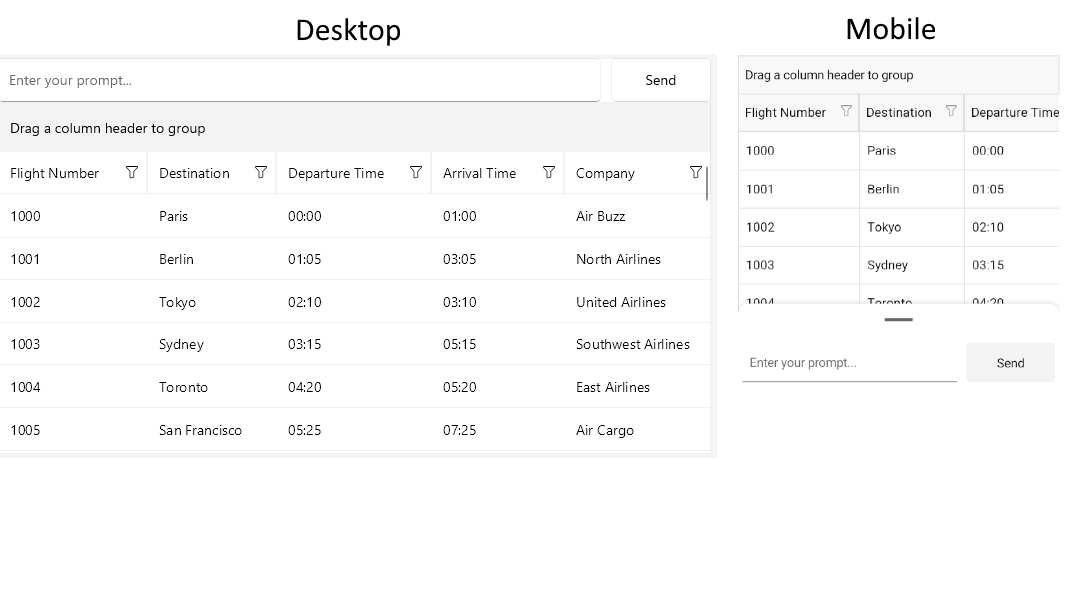
Use the `AIViewTemplate` (`DataTemplate`) property on DataGrid level to override the default template for the `DataGridAIPromptInput`.
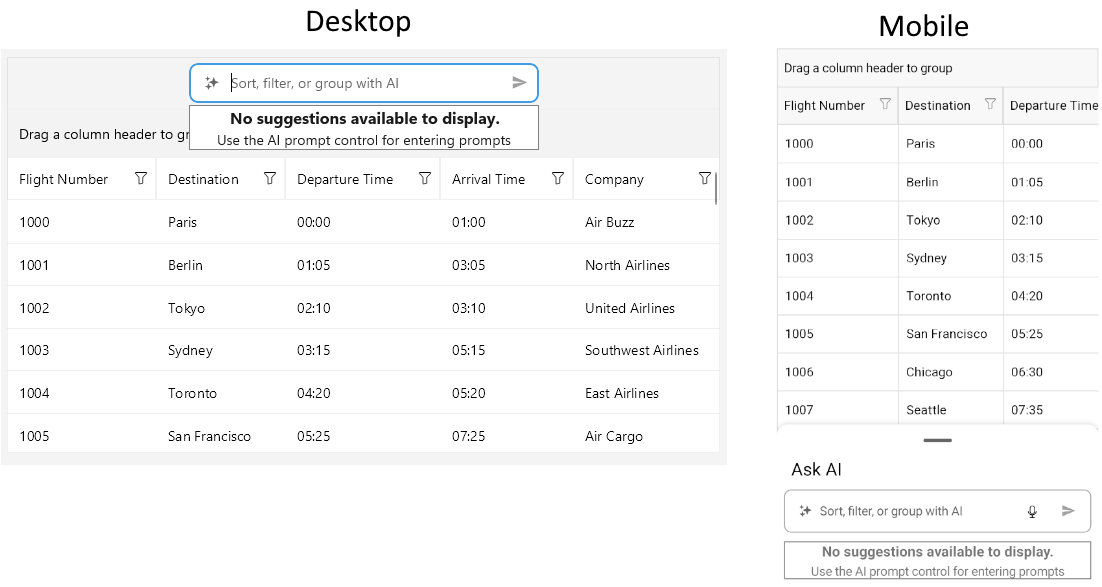
Use the `EmptyContentTemplate` (`DataTemplate`) property on `AISettings` level to override the default template for the empty content view displayed when there are no suggestions available.
> tip When you define both templates, the `AIViewTemplate` takes precedence over the `EmptyContentTemplate`.
Here is an example of how to define custom templates for the AI Smart Assistant feature.
An example of `AIViewTemplate`:
```XAML
```
This is how the custom `AIViewTemplate` looks like when applied:
An example of `EmptyContentTemplate`:
```XAML
```
This is how the custom `EmptyContentTemplate` looks like when applied:
> important The DataGrid AI Smart Assistant examples in the [SDKBrowser Demo Application](https://www.telerik.com/maui-ui/documentation/demos-and-sample-apps/sdkbrowser-app) use a Telerik-hosted AI service for demonstration purposes only.
> You have to configure your own AI service for the AI Smart Assistant to work in your application.
> How to do that is described in the [Getting Started with the AI Smart Assistant](https://www.telerik.com/maui-ui/documentation/controls/datagrid/smart-ai-features/ai-assistant/overview#getting-started-with-the-ai-smart-assistant) article.
> tip For a runnable example demonstrating custom templates, see the [SDKBrowser Demo Application](https://www.telerik.com/maui-ui/documentation/demos-and-sample-apps/sdkbrowser-app) and go to the **DataGrid > AI Smart Assistant** category.
## See Also
* [Prompt Controlled Overview](https://www.telerik.com/maui-ui/documentation/controls/datagrid/smart-ai-features/ai-assistant/overview)
* [Style the AI Smart Assistant](https://www.telerik.com/maui-ui/documentation/controls/datagrid/smart-ai-features/ai-assistant/styling)
* [Configure the AI Smart Assistant](https://www.telerik.com/maui-ui/documentation/controls/datagrid/smart-ai-features/ai-assistant/configuration)