# .NET MAUI DataGrid Frozen Columns
This article describes the frozen columns feature that the [.NET MAUI DataGrid](https://www.telerik.com/maui-ui/documentation/controls/datagrid/overview) provides.
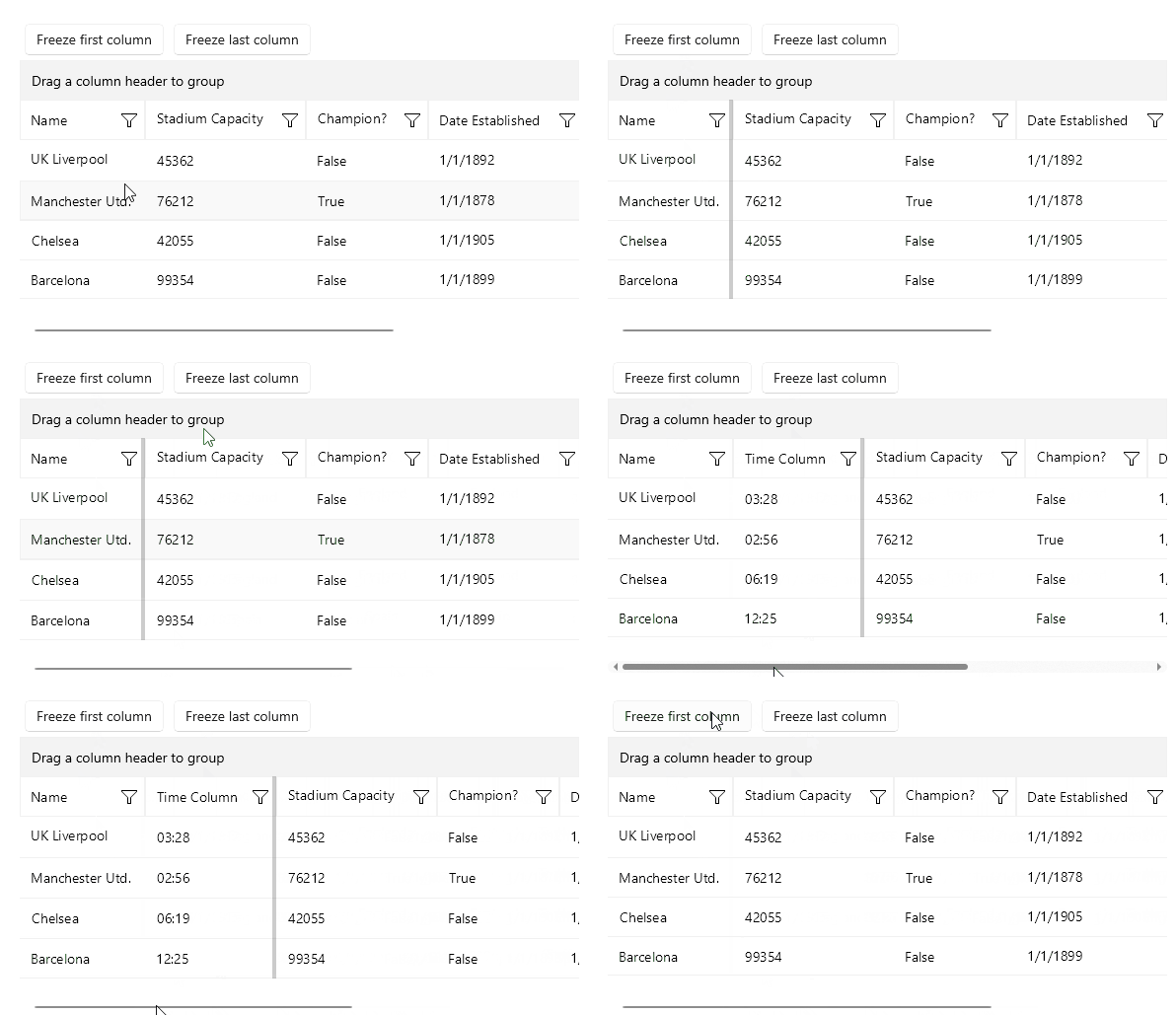
You can pin a column on the left side of the grid by setting the `IsFrozen`(`bool`) property to the column. By default the value is `False`. When setting it to `True` to a concrete column, it makes the column frozen.
**Frozen column in the .NET MAUI DataGrid**
Set the column freeze in XAML
```XAML
```
Set the column freeze programmatically.
```C#
this.grid.Columns[0].IsFrozen = !this.grid.Columns[0].IsFrozen;
```
## Collection of Frozen Columns
Once a column is frozen, it is added to the `FrozenColumns` collection (read-only collection). The collection can be used only for read-only purposes and cannot be modified. Freezing/Unfreezing the columns is done only through the `IsFrozen` property of the columns.
## Group Header and Frozen Columns
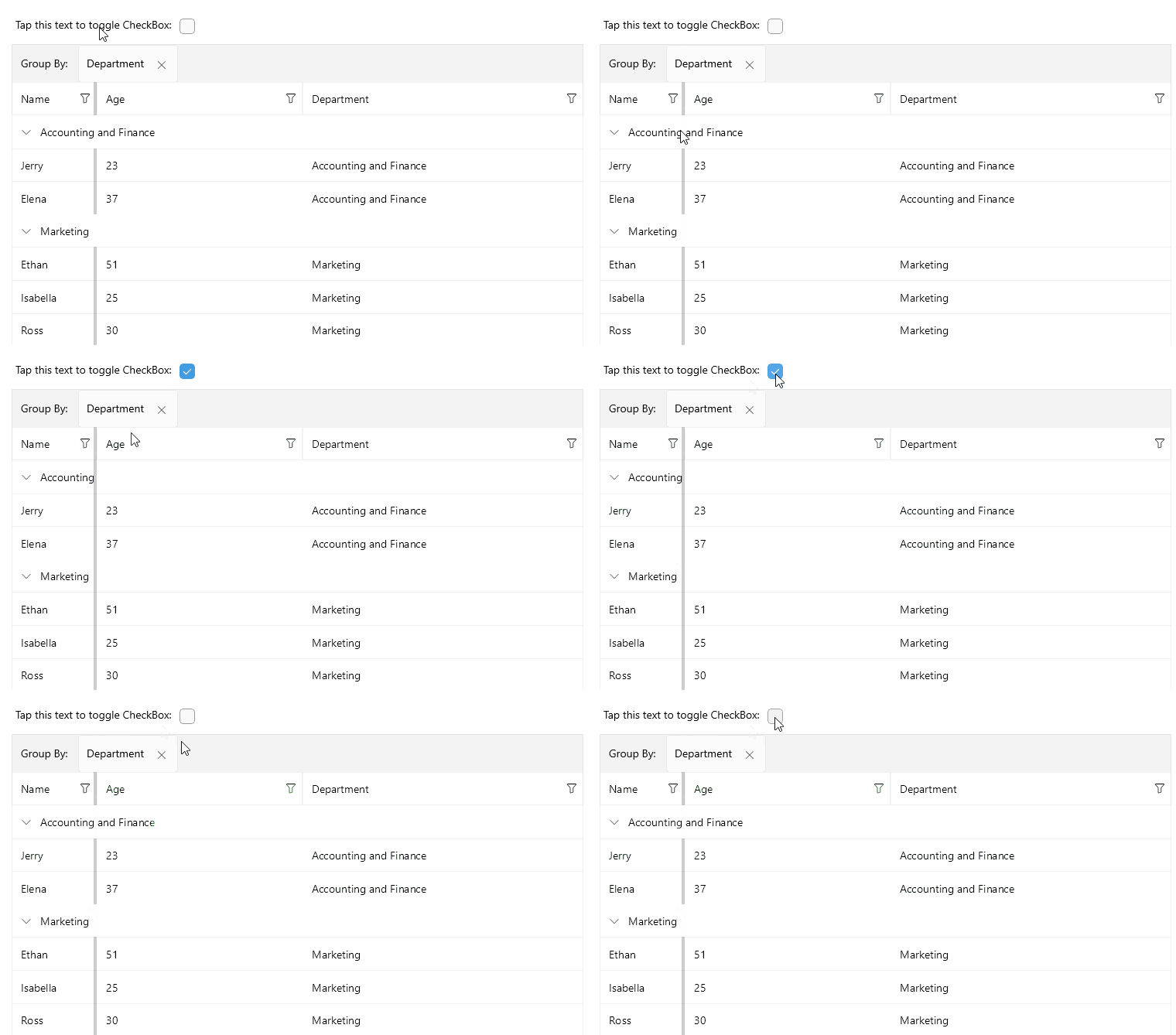
In a scenario with frozen columns and grouping, you can specify whether the group header will be clipped to the bounds of the frozen area by setting the `AreGroupHeadersClippedWhenFrozen` (`bool`) property. The default value is `False`.
Here is the result when the `AreGroupHeadersClippedWhenFrozen` property is set:
## Styling
When there is/are frozen column(s) a splitter UI is visualized. The splitter UI splits the frozen columns from the unfrozen.
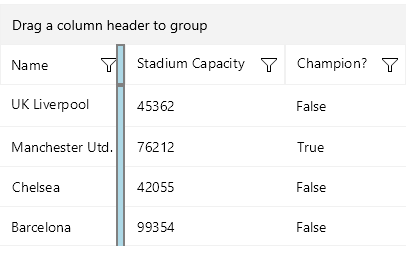
You can style the frozen splitter UI using the `FrozenColumnsSplitterStyle`(`Telerik.Maui.Controls.DataGrid.DataGridFrozenColumnsSplitterAppearance`) property. The `FrozenColumnsSplitterStyle` property is a property of the DataGrid. It cannot be set on a specific column.
Style the splitter UI's `Width`, `BackgroundColor`, `BorderColor` and `BorderThickness`.
> caption Example for `FrozenColumnsSplitterStyle`
```XAML
```
> caption Frozen columns splitter styling in the .NET MAUI DataGrid
## See Also
* [Picker Column](https://www.telerik.com/maui-ui/documentation/controls/datagrid/columns/column-types/combobox-column)
* [Template Column](https://www.telerik.com/maui-ui/documentation/controls/datagrid/columns/column-types/template-column)
* [Text Column](https://www.telerik.com/maui-ui/documentation/controls/datagrid/columns/column-types/text-column)