# .NET MAUI DataForm Commit Data
The values entered in the DataForm can be submitted to the underlying data object on three different occasions, using the `CommitMode` property of the DataForm.
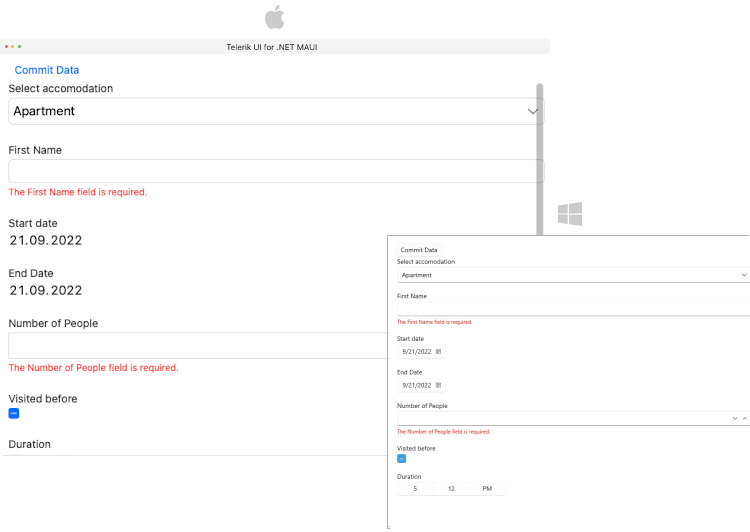
The next sections list all DataForm members related to commit data feature.
## Commit modes
The selected mode is applied through the `CommitMode`(of type`Telerik.Maui.Controls.DataFormCommitMode`) property of the DataForm control. You can choose between the three commit modes:
* `Explicit`—The changes are committed explicitly by invoking the `CommitCommand` or calling the `CommitChanges` method of the DataForm.
* `LostFocus`—The changes are committed after the editor loses focus.
* `PropertyChanged`—The changes in the editor are committed immediately on each property change (when the property value changes).
> important When the selected `CommitMode` is `LostFocus`, you have to set `ValidationMode` to `LostFocus` or `Explicit`.
The `CommitMode` must be applied globally to the `RadDataForm`:
```XAML
```
> For a runnable example with the DataForm CommitMode scenario, see the [SDKBrowser Demo Application](https://www.telerik.com/maui-ui/documentation/demos-and-sample-apps/sdkbrowser-app) and go to **DataForm > Commit** category.
## Properties
* `HasPendingChanges`(`bool`)—Gets a value indicating whether any changes are pending.
```XAML
```
## Manual Commit with Methods
DataForm exposes a `CommitChanges` method with two overloads:
* `CommitChanges()`—Commits all pending changes in the `RadDataForm` to the underlying business object. This method is useful when the `CommitMode` is `Explicit`.
The method returns `true` if the validation passes, otherwise `false`.
```C#
this.dataForm.CommitChanges();
```
* `CommitChanges(string propertyName)`—Commit the pending changes in the editor for the specified property. This method is useful when the DataForm `CommitMode` property is `Explicit`. `True` if the validation passes, `false` otherwise.
```C#
this.dataForm.CommitChanges(propertyName);
```
**DataForm exposes a `CancelChanges` method with two overloads:**
* `CancelChanges`—Cancels all pending changes in the `RadDataForm` and reverts to the original values from the underlying business object. This method is useful when the `CommitMode` property is `Explicit`.
```C#
this.dataForm.CancelChanges();
```
* `CancelChanges(string propertyName)`—Cancels the pending changes in the editor for the specified property. This method is useful when the DataForm `CommitMode` property is `Explicit`.
```C#
this.dataForm.CancelChanges(propertyName);
```
## Commands
* `CommitCommand`(`ICommand`)—Gets a command to a command to commit all pending changes in the `RadDataForm`. This command is useful when the DataForm `CommitMode` property is `Explicit`.
* `CancelCommand`(`ICommand`)—Gets a command to cancel all pending changes in the `RadDataForm`. This command is useful when the DataForm `CommitMode` property is `Explicit`.
> important All commit methods call validation first. If the property value passes validation, then the corresponding validation finished event is raised and the value is committed successfully.
## See Also
* [Editors](https://www.telerik.com/maui-ui/documentation/controls/dataform/editors/overview)
* [Grouping](https://www.telerik.com/maui-ui/documentation/controls/dataform/grouping/overview)
* [Headers](https://www.telerik.com/maui-ui/documentation/controls/dataform/headers)
* [Layouts](https://www.telerik.com/maui-ui/documentation/controls/dataform/layouts/overview)
* [Commands](https://www.telerik.com/maui-ui/documentation/controls/dataform/commands)