# Header and Footer in .NET MAUI ComboBox
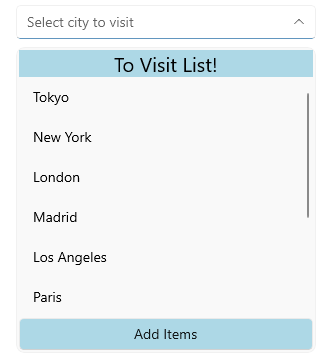
You can add Header and Footer to the drop-down list of the [.NET MAUI ComboBox](https://www.telerik.com/maui-ui/documentation/controls/combobox/overview) control through the following properties:
* `HeaderTemplate`(`DataTemplate`)—Defines the template of the header that will be visualized in the drop down list.
* `FooterTemplate`(`DataTemplate`)—Defines the template of the footer that will be visualized in the drop down list.
> It's not recommended to add controls in the Header and Footer which steal the focus (like Entry, editor, etc.) from the ComboBox control, as unexpected behavior may occur.
## Example
**1.** Define the ComboBox in XAML:
```XAML
```
**2.** Add a sample business model:
```C#
public class City
{
public string Name { get; set; }
public int Population { get; set; }
}
```
**3.** Add the `ViewModel` used:
```C#
public class ViewModel
{
public ViewModel()
{
this.Items = new ObservableCollection
{
new City { Name = "Tokyo", Population = 13929286 },
new City { Name = "New York", Population = 8623000 },
new City { Name = "London", Population = 8908081 },
new City { Name = "Madrid", Population = 3223334 },
new City { Name = "Los Angeles", Population = 4000000},
new City { Name = "Paris", Population = 2141000 },
new City { Name = "Beijing", Population = 21540000 },
new City { Name = "Singapore", Population = 5612000 },
new City { Name = "New Delhi", Population = 18980000 },
new City { Name = "Bangkok", Population = 8305218 },
new City { Name = "Berlin", Population = 3748000 },
};
}
public ObservableCollection Items { get; set; }
}
```
This is how the Header and Footer Templates look on WinUI:
> For the ComboBox Header and Footer example, go to the [SDKBrowser Demo Application](https://www.telerik.com/maui-ui/documentation/demos-and-sample-apps/sdkbrowser-app) and navigate to **ComboBox > Templates** category.
## See Also
* [Configuration](https://www.telerik.com/maui-ui/documentation/controls/combobox/configuration)
* [Header and Footer](https://www.telerik.com/maui-ui/documentation/controls/combobox/header-footer)
* [Edit Mode & Search](https://www.telerik.com/maui-ui/documentation/controls/combobox/editmode-and-search)
* [Single and Multiple Selection](https://www.telerik.com/maui-ui/documentation/controls/combobox/selection)
* [Styling](https://www.telerik.com/maui-ui/documentation/controls/combobox/styling)