# .NET MAUI ComboBox Commands
The [.NET MAUI ComboBox](https://www.telerik.com/maui-ui/documentation/controls/combobox/overview) provides commands that let you manipulate its selection.
## SelectAll Command
`SelectAllCommand` (`ICommand`)—Selects all items from the source.
To use the `SelectAll` command, set the selection mode to `Multiple`. If you invoke the command in `Single` selection mode, the ComboBox throws an exception.
## ClearSelection Command
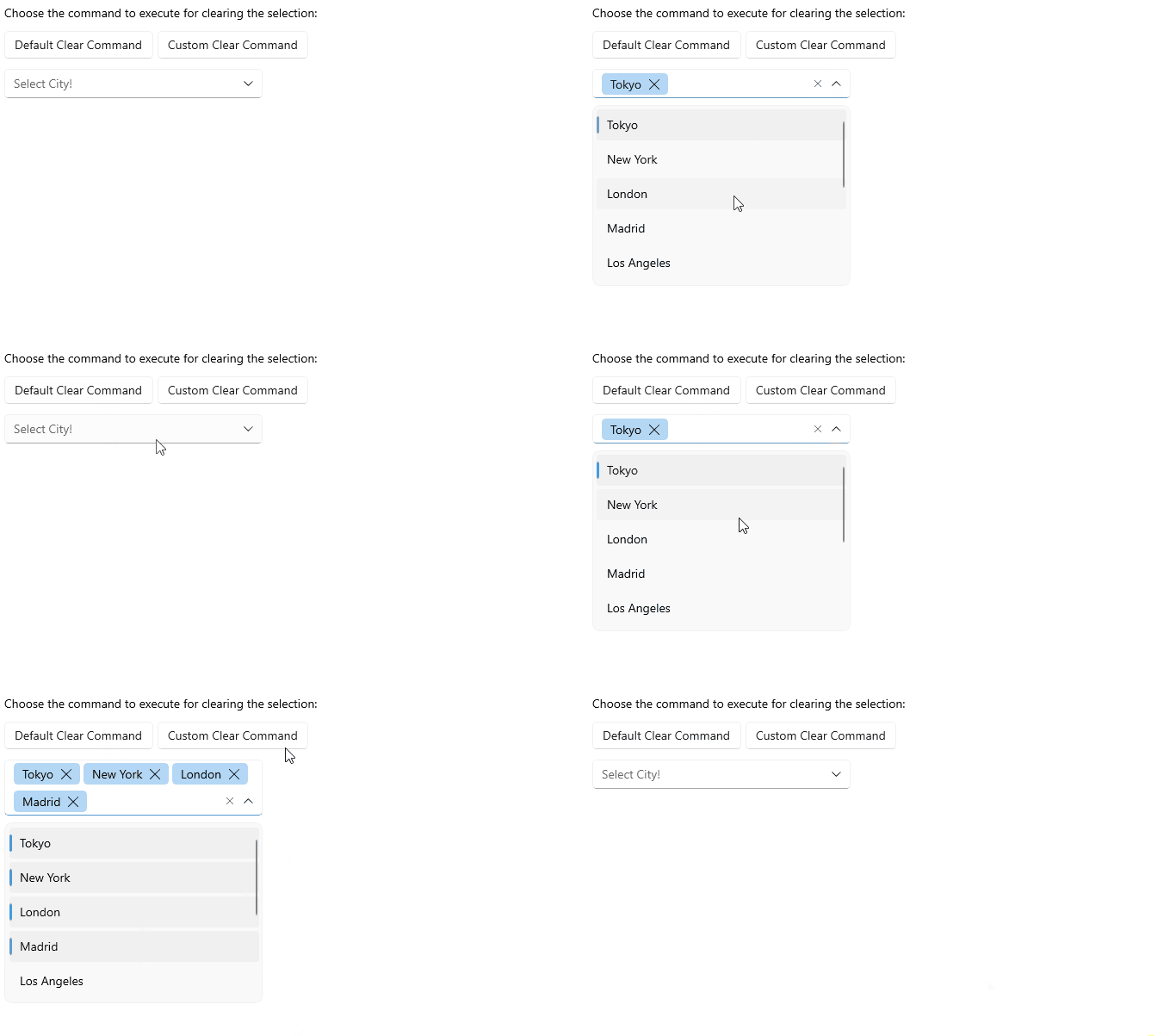
`ClearSelectionCommand` (`ICommand`)—Sets the selection to null. If you use the `Multiple` selection mode, this command will clear all selected items. You can override the default behavior and create a custom command.
The example below shows both cases, the default `ClearSelectionCommand` execution and custom `ClearSelectionCommand` implementation:
```XAML
```
```C#
class CustomClearSelectionCommand : ComboBoxClearSelectionCommand
{
public override async void Execute(object parameter)
{
bool executeDefault = await App.Current.Windows[0].Page.DisplayAlert("Command", "Execute command?", "Yes", "No");
if (executeDefault)
{
base.Execute(parameter);
}
}
}
private void ExecuteCustomCommanClicked(object sender, EventArgs e)
{
this.comboBox.ClearSelectionCommand = new CustomClearSelectionCommand();
this.comboBox.ClearSelectionCommand.Execute(true);
}
```
## RemoveToken Command
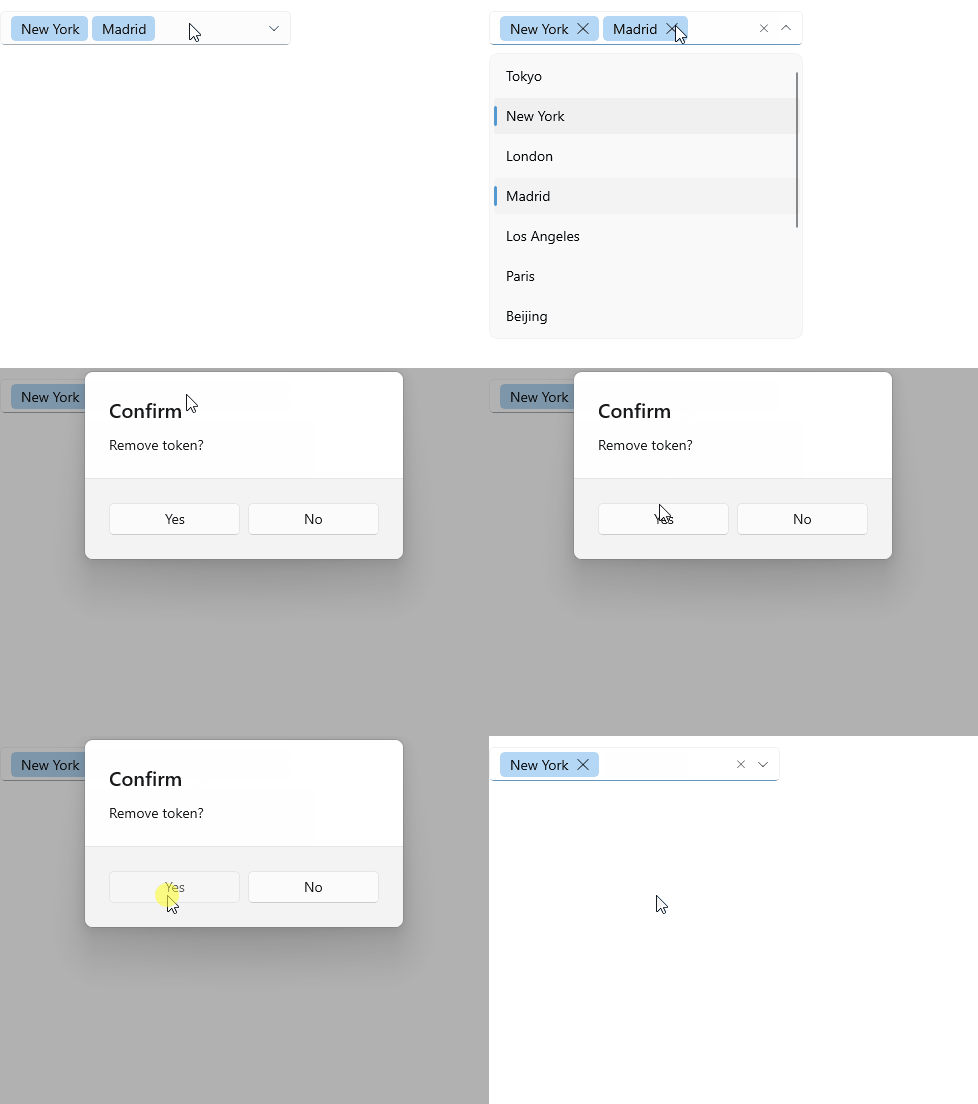
* `RemoveTokenCommand`(`ICommand`)—Removes a token from the ComboBox selection in `Multiple` selection mode. This command is called from the token's `DataTemplate` when the user taps the label for clearing the token.
> caption Example with the default `RemoveTokenCommand`
The example below shows how you can call the default `RemoveTokenCommand` from a custom `TokenTemplate` implementation:
```XAML
```

> caption Example with a custom `RemoveTokenCommand`
The example demonstrates a custom `RemoveTokenCommand` implementation - there is a confirmation dialog before the default command to be executed.
1. Create a custom command class that inherits from `ComboBoxRemoveTokenCommand` and override, for example, its `Execute` method:
```C#
public class CustomComboBoxRemoveTokenCommand : ComboBoxRemoveTokenCommand
{
public override async void Execute(object parameter)
{
bool executeDefault = await App.Current.Windows[0].Page.DisplayAlert("Confirm", "Remove token?", "Yes", "No");
if (executeDefault)
{
base.Execute(parameter);
}
}
}
```
2. Apply the newly created command class to the `RadComboBox`'s `RemoveTokenCommand`:
```XAML
```
## KeyDown Command Desktop
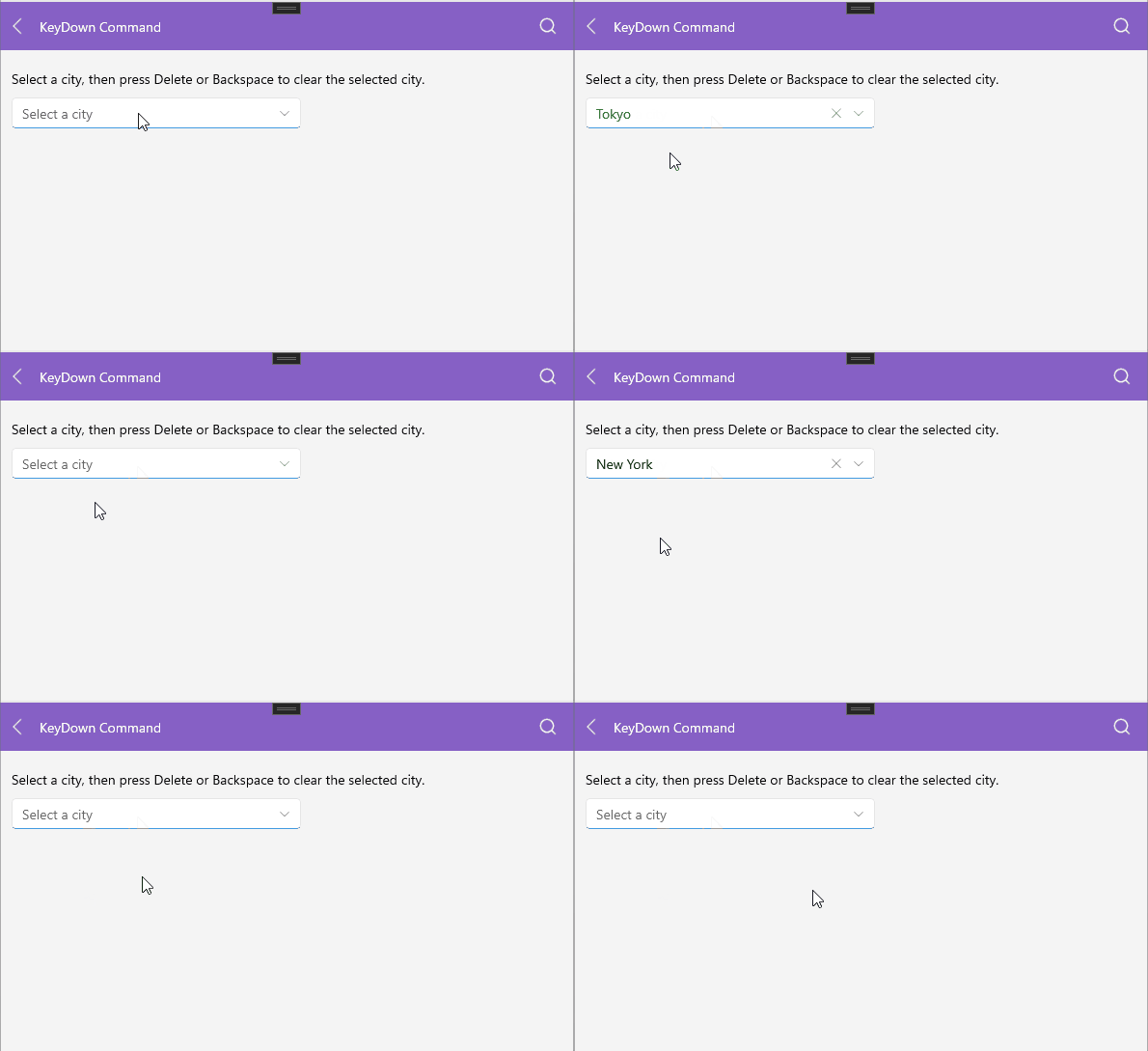
The ComboBox allows you to handle key press events through the `KeyDownCommand`(`ICommand`). This command is useful for implementing custom logic when a key is pressed. The parameter of the command is of type `Telerik.Maui.KeyboardInfo` and provides information about the key that is pressed.
The example below demonstrates a custom `KeyDownCommand` implementation:
1. Define a custom `KeyDownCommand` that inherits from `ComboBoxKeyDownCommand` and override its `Execute` method:
```C#
public class CustomComboBoxKeyDownCommand : ComboBoxKeyDownCommand
{
public override void Execute(object parameter)
{
var keyboardInfo = (KeyboardInfo)parameter;
var comboBox = this.ComboBox;
if (comboBox != null && !comboBox.IsDropDownOpen &&
(keyboardInfo.key == RadKeyboardKey.Delete || keyboardInfo.key == RadKeyboardKey.Back))
{
var clearSelectionCommand = comboBox.ClearSelectionCommand;
if (clearSelectionCommand != null && clearSelectionCommand.CanExecute(null))
{
clearSelectionCommand.Execute(null);
}
keyboardInfo.Cancel = true;
return;
}
base.Execute(parameter);
}
}
```
2. Apply the newly created command class to the `KeyDownCommand` of the ComboBox:
```XAML
```
3. Add the telerik namespace to the XAML page:
```XAML
xmlns:telerik="http://schemas.telerik.com/2022/xaml/maui"
```
4. Define sample data model:
```C#
public class City
{
public string Name { get; set; }
public int Population { get; set; }
}
```
5. Define the `ViewModel`:
```C#
public class ViewModel
{
public ViewModel()
{
this.Items = new ObservableCollection
{
new City { Name = "Tokyo", Population = 13929286 },
new City { Name = "New York", Population = 8623000 },
new City { Name = "London", Population = 8908081 },
new City { Name = "Madrid", Population = 3223334 },
new City { Name = "Los Angeles", Population = 4000000},
new City { Name = "Paris", Population = 2141000 },
new City { Name = "Beijing", Population = 21540000 },
new City { Name = "Singapore", Population = 5612000 },
new City { Name = "New Delhi", Population = 18980000 },
new City { Name = "Bangkok", Population = 8305218 },
new City { Name = "Berlin", Population = 3748000 },
};
}
public ObservableCollection Items { get; set; }
}
```
This is the result of the custom `KeyDownCommand` implementation:
## See Also
* [Configuration](https://www.telerik.com/maui-ui/documentation/controls/combobox/configuration)
* [Data Binding](https://www.telerik.com/maui-ui/documentation/controls/combobox/databinding)
* [Edit Mode & Search](https://www.telerik.com/maui-ui/documentation/controls/combobox/editmode-and-search)
* [Templates](https://www.telerik.com/maui-ui/documentation/controls/combobox/templates)