# .NET MAUI CollectionView Selection

The CollectionView for .NET MAUI exposes the Selection feature, which allows the user to select a single item or multiple items in the CollectionView. This feature provides both visual and programmatic feedback for the user's actions. If needed, you can disable the Selection.

## Selection Mode

The CollectionView provides three selection modes, which allow you to manipulate the selection type. This is controlled by the `SelectionMode` (`Telerik.Maui.Controls.CollectionView.CollectionViewSelectionMode`) property which has the following entries:

* `None`—The users cannot select an item.
* `Single` (default)—The users can select only one item.
* `SingleDeselect`—Only one item can be selected at a time. Tapping the selected item again deselects it.
* `Multiple`—The users can select more than one item.

The following images show multiple selection on desktop:
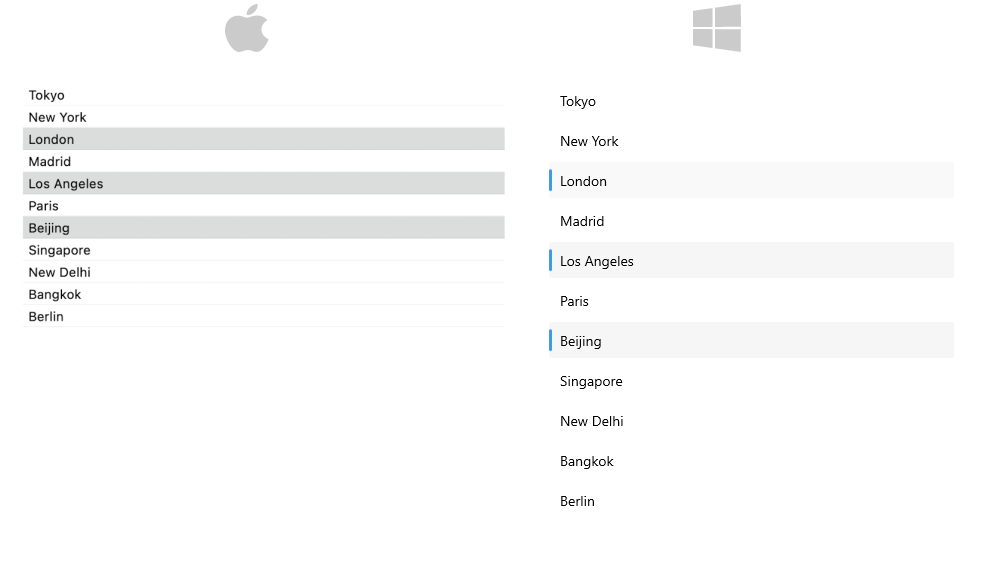
![Telerik UI for .NET MAUI CollectionView showing multiple selected cities across desktop and mobile platform layouts](https://www.telerik.com/maui-ui/documentation/assets/a8a97b5c1c5cfd71c5ef366a6641efb7/collectionview-multiple-selection-desktop.png "Telerik .NET MAUI CollectionView")

> For a runnable example demonstrating the CollectionView Multiple Selection and Disabled Selection, see the [SDKBrowser Demo Application](https://www.telerik.com/maui-ui/documentation/demos-and-sample-apps/sdkbrowser-app) and go to the **CollectionView > Selection** category.

## Selection Gesture

The CollectionView provides two selection gestures for selecting items in the control. The selection gesture defines how the users can select items in the CollectionView. The `SelectionGesture` (`enum` of type `Telerik.Maui.Controls.CollectionView.CollectionViewSelectionGesture`) property controls the selection gesture and accepts the following values:

* `Tap` (default)—The users can select item(s) by tapping on them.
* `Hold`—The users can select item(s) by holding on them.

> For a runnable example demonstrating the CollectionView Hold Selection Gesture, see the [SDKBrowser Demo Application](https://www.telerik.com/maui-ui/documentation/demos-and-sample-apps/sdkbrowser-app) and go to the **CollectionView > Selection** category.

## Selected Item

The CollectionView provides the `SelectedItem` (`object`) property, which specifies the first selected item of the CollectionView.

The following example demonstrates how to configure the CollectionView control for Single Selection by using the `SelectedItem` property.

**1.** Define the `RadCollectionView` in XAML:

```XAML
<telerik:RadCollectionView ItemsSource="{Binding Items}"
                           DisplayMemberPath="Name"
                           SelectedItem="{Binding SelectedItem, Mode=TwoWay}">
    <telerik:RadCollectionView.BindingContext>
        <local:ViewModel />
    </telerik:RadCollectionView.BindingContext>
</telerik:RadCollectionView>
```

**2.** Add the `telerik` namespace:

```XAML
xmlns:telerik="http://schemas.telerik.com/2022/xaml/maui"
```

**3.** Create a sample `DataModel`:

```C#
public class City
{
    public string Name { get; set; }
    public int Population { get; set; }
}
```

**4.** Define the `ViewModel` class:

```C#
public class ViewModel : NotifyPropertyChangedBase
{
    private City selectedItem;
    private int selectedIndex;
    private ObservableCollection<object> selectedItems;

    public ViewModel()
    {
        this.Items = new ObservableCollection<City>
        {
            new City { Name = "Tokyo", Population = 13929286 },
            new City { Name = "New York", Population = 8623000 },
            new City { Name = "London", Population = 8908081 },
            new City { Name = "Madrid", Population = 3223334 },
            new City { Name = "Los Angeles", Population = 4000000},
            new City { Name = "Paris", Population = 2141000 },
            new City { Name = "Beijing", Population = 21540000 },
            new City { Name = "Singapore", Population = 5612000 },
            new City { Name = "New Delhi", Population = 18980000 },
            new City { Name = "Bangkok", Population = 8305218 },
            new City { Name = "Berlin", Population = 3748000 },
        };
    }

    public ObservableCollection<City> Items { get; set; }

    public City SelectedItem 
    {
        get => this.selectedItem;
        set
        {
            if (this.UpdateValue(ref this.selectedItem, value))
            {
                this.selectedItem = value;
                App.Current.Windows[0].Page.DisplayAlert(" ", $"You have selected {selectedItem.Name} which has a population of {selectedItem.Population}.", "OK");
            }
        }
    }

    public ObservableCollection<object> SelectedItems
    {
        get => this.selectedItems;
        set
        {
            if (this.UpdateValue(ref this.selectedItems, value))
            {
                this.selectedItems = value;
                this.selectedItems.Add(this.Items[2]);
                this.selectedItems.Add(this.Items[4]);
                this.selectedItems.Add(this.Items[6]);
            }
        }
    }
}
```

> For a runnable example demonstrating the CollectionView `SelectedItem`, see the [SDKBrowser Demo Application](https://www.telerik.com/maui-ui/documentation/demos-and-sample-apps/sdkbrowser-app) and go to **CollectionView > Selection** category.

## Selected Index

The CollectionView provides the `SelectedIndex`(`int`) property. The `SelectedIndex` specifies the index of the first item in the current selection or `-1` if the selection is empty.

## Selected Items Collection

The CollectionView provides a read-only collection—`SelectedItems` of type `ObservableCollection<object>`. The collection contains the items that are currently selected in the control.

The following example demonstrates how to configure the CollectionView control for Multiple Selection by using the `SelectedItems` collection.

**1.** Define the `RadCollectionView` in XAML:

```XAML
<telerik:RadCollectionView ItemsSource="{Binding Items}"
                           DisplayMemberPath="Name"
                           SelectionMode="Multiple"
                           SelectedItems="{Binding SelectedItems}" >
    <telerik:RadCollectionView.BindingContext>
        <local:ViewModel />
    </telerik:RadCollectionView.BindingContext>
</telerik:RadCollectionView>
```

**2.** Add the `telerik` namespaces:

```XAML
xmlns:telerik="http://schemas.telerik.com/2022/xaml/maui"
```

**3.** Create a sample `CityModel`:

```C#
public class City
{
    public string Name { get; set; }
    public int Population { get; set; }
}
```

**4.** Define the `ViewModel` class:

```C#
public class ViewModel : NotifyPropertyChangedBase
{
    private City selectedItem;
    private int selectedIndex;
    private ObservableCollection<object> selectedItems;

    public ViewModel()
    {
        this.Items = new ObservableCollection<City>
        {
            new City { Name = "Tokyo", Population = 13929286 },
            new City { Name = "New York", Population = 8623000 },
            new City { Name = "London", Population = 8908081 },
            new City { Name = "Madrid", Population = 3223334 },
            new City { Name = "Los Angeles", Population = 4000000},
            new City { Name = "Paris", Population = 2141000 },
            new City { Name = "Beijing", Population = 21540000 },
            new City { Name = "Singapore", Population = 5612000 },
            new City { Name = "New Delhi", Population = 18980000 },
            new City { Name = "Bangkok", Population = 8305218 },
            new City { Name = "Berlin", Population = 3748000 },
        };
    }

    public ObservableCollection<City> Items { get; set; }

    public City SelectedItem 
    {
        get => this.selectedItem;
        set
        {
            if (this.UpdateValue(ref this.selectedItem, value))
            {
                this.selectedItem = value;
                App.Current.Windows[0].Page.DisplayAlert(" ", $"You have selected {selectedItem.Name} which has a population of {selectedItem.Population}.", "OK");
            }
        }
    }

    public ObservableCollection<object> SelectedItems
    {
        get => this.selectedItems;
        set
        {
            if (this.UpdateValue(ref this.selectedItems, value))
            {
                this.selectedItems = value;
                this.selectedItems.Add(this.Items[2]);
                this.selectedItems.Add(this.Items[4]);
                this.selectedItems.Add(this.Items[6]);
            }
        }
    }
}
```

This is the result on mobile:

![Telerik UI for .NET MAUI CollectionView mobile layouts with London selected in Multiple selection mode](https://www.telerik.com/maui-ui/documentation/assets/9692629beb736a9e1a992ec7c87e28af/collectionview-multiple-selection-mobile.png "Telerik .NET MAUI CollectionView")

> For a runnable example demonstrating the CollectionView `SelectedItems`, see the [SDKBrowser Demo Application](https://www.telerik.com/maui-ui/documentation/demos-and-sample-apps/sdkbrowser-app) and go to **CollectionView > Selection** category.

## Selection Events

The CollectionView provides the `SelectionChanged` event, which is raised when the current selection changes. The `SelectionChanged` event handler receives two parameters:

* The sender argument, which is the `RadCollectionView` control.
* A `RadSelectionChangedEventArgs` object, which provides the following properties:
  * `RemovedItems` (`IEnumerable<object>`)—The deselected items.
  * `AddedItems` (`IEnumerable<object>`)—The selected items.

## See Also

* [Grouping](https://www.telerik.com/maui-ui/documentation/controls/collectionview/grouping/overview)
* [Filtering](https://www.telerik.com/maui-ui/documentation/controls/collectionview/filtering)
* [Commands](https://www.telerik.com/maui-ui/documentation/controls/collectionview/commands)
