# .NET MAUI CollectionView Grid Layout
The CollectionView control provides a grid-like layout that you can specify by using the `ItemsLayout` property. The `ItemsLayout` property accepts values of type `CollectionViewLayoutBase`, which is a base class.
The grid layout allows distributing cells in a fixed number of columns and rows. To set the grid layout, create an instance of the `CollectionViewGridLayout` class and assign it to the `RadCollectionView.ItemsLayout` property.
The following code snippet represents a sample `RadCollectionView` definition with `CollectionViewGridLayout`:
```XAML
```
This is how the items are arranged when you define a grid layout:
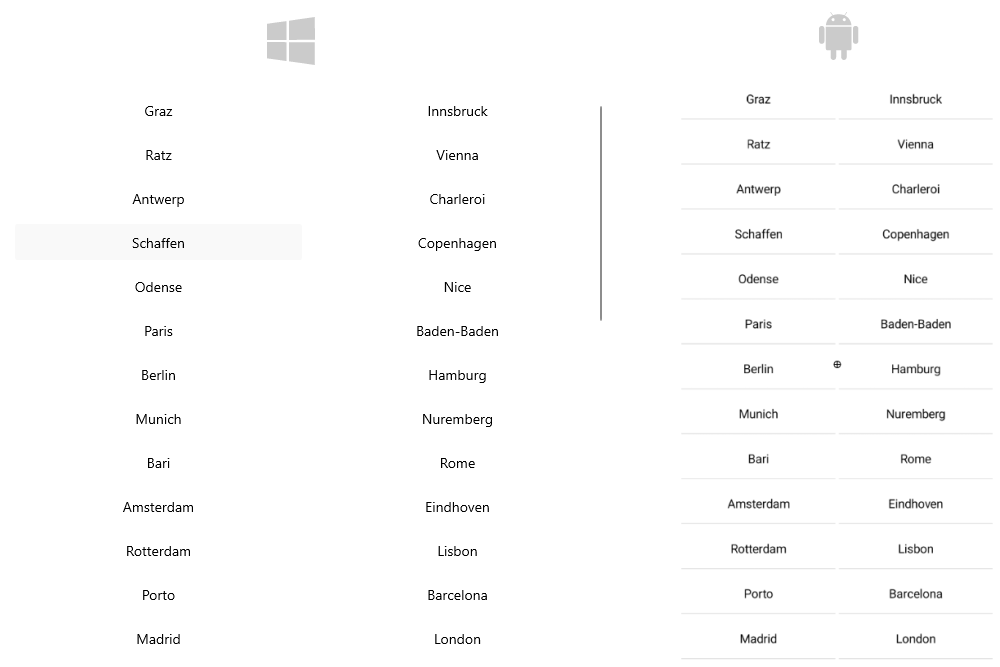
The `CollectionViewGridLayout` provides the following properties:
* `SpanCount` (`int`)—Specifies the count of the columns or rows (depending on the orientation) of the layout. The value must be `>= 1`. The default value is `2`.
* `HorizontalItemSpacing` (`double`)—Specifies the horizontal empty space around each item. The default value is `0.0`.
* `VerticalItemSpacing` (`double`)—Specifies the vertical empty space around each item. The default value is `0.0`.
* `Orientation` (enum or type `Telerik.Maui.Orientation`)—Specifies the orientation of the layout. The available options are: `Horizontal` and `Vertical` (default).
* `ItemLength` (`double`)—Specifies the width or height (depending on the layout orientation) of the items. The default value is `-1`, which means that the items will be sized according to the targeted platform default behavior.
## Example with Grid Layout
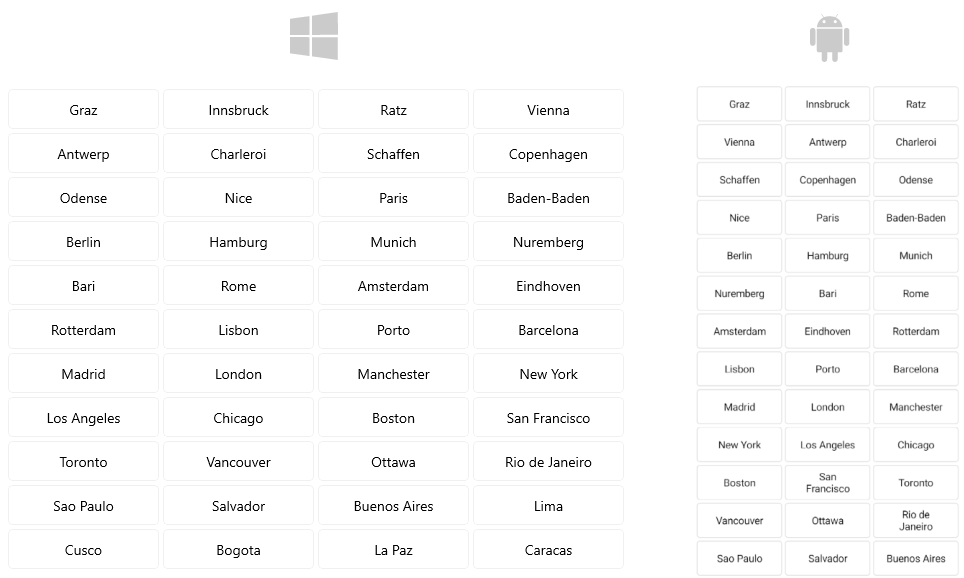
The following example demonstrates how to apply the grid layout to the `RadCollectionView`.
**1.** Define the following business object:
```C#
public class DataModel : NotifyPropertyChangedBase
{
private string continent;
private string country;
private string city;
private int id;
public string Continent
{
get => this.continent;
set => this.UpdateValue(ref this.continent, value);
}
public string Country
{
get => this.country;
set => this.UpdateValue(ref this.country, value);
}
public string City
{
get => this.city;
set => this.UpdateValue(ref this.city, value);
}
public int Id
{
get => this.id;
set => this.UpdateValue(ref this.id, value);
}
}
```
**2.** Create a `ViewModel` class as shown below:
```C#
public class ViewModel : NotifyPropertyChangedBase
{
public ViewModel()
{
this.Locations = new ObservableCollection
{
new DataModel { Continent = "Europe", Country = "Austria", City = "Graz", Id = 1 },
new DataModel { Continent = "Europe", Country = "Austria", City = "Innsbruck", Id = 2 },
new DataModel { Continent = "Europe", Country = "Austria", City = "Ratz", Id = 3 },
new DataModel { Continent = "Europe", Country = "Austria", City = "Vienna", Id = 4 },
new DataModel { Continent = "Europe", Country = "Belgium", City = "Antwerp", Id = 5 },
new DataModel { Continent = "Europe", Country = "Belgium", City = "Charleroi", Id = 6 },
new DataModel { Continent = "Europe", Country = "Belgium", City = "Schaffen", Id = 7 },
new DataModel { Continent = "Europe", Country = "Denmark", City = "Copenhagen", Id = 8 },
new DataModel { Continent = "Europe", Country = "Denmark", City = "Odense", Id = 9 },
new DataModel { Continent = "Europe", Country = "France", City = "Nice", Id = 10 },
new DataModel { Continent = "Europe", Country = "France", City = "Paris", Id = 11 },
new DataModel { Continent = "Europe", Country = "Germany", City = "Baden-Baden", Id = 12 },
new DataModel { Continent = "Europe", Country = "Germany", City = "Berlin", Id = 13 },
new DataModel { Continent = "Europe", Country = "Germany", City = "Hamburg", Id = 14 },
new DataModel { Continent = "Europe", Country = "Germany", City = "Munich", Id = 15 },
new DataModel { Continent = "Europe", Country = "Germany", City = "Nuremberg", Id = 16 },
new DataModel { Continent = "Europe", Country = "Italy", City = "Bari", Id = 17 },
new DataModel { Continent = "Europe", Country = "Italy", City = "Rome", Id = 18 },
new DataModel { Continent = "Europe", Country = "Netherlands", City = "Amsterdam", Id = 19 },
new DataModel { Continent = "Europe", Country = "Netherlands", City = "Eindhoven", Id = 20 },
new DataModel { Continent = "Europe", Country = "Netherlands", City = "Rotterdam", Id = 21 },
new DataModel { Continent = "Europe", Country = "Portugal", City = "Lisbon", Id = 22 },
new DataModel { Continent = "Europe", Country = "Portugal", City = "Porto", Id = 23 },
new DataModel { Continent = "Europe", Country = "Spain", City = "Barcelona", Id = 24 },
new DataModel { Continent = "Europe", Country = "Spain", City = "Madrid", Id = 25 },
new DataModel { Continent = "Europe", Country = "United Kingdom", City = "London", Id = 26 },
new DataModel { Continent = "Europe", Country = "United Kingdom", City = "Manchester", Id = 27 },
new DataModel { Continent = "North America", Country = "United States", City = "New York", Id = 28 },
new DataModel { Continent = "North America", Country = "United States", City = "Los Angeles", Id = 29 },
new DataModel { Continent = "North America", Country = "United States", City = "Chicago", Id = 30 },
new DataModel { Continent = "North America", Country = "United States", City = "Boston", Id = 31 },
new DataModel { Continent = "North America", Country = "United States", City = "San Francisco", Id = 32 },
new DataModel { Continent = "North America", Country = "Canada", City = "Toronto", Id = 33 },
new DataModel { Continent = "North America", Country = "Canada", City = "Vancouver", Id = 34 },
new DataModel { Continent = "North America", Country = "Canada", City = "Ottawa", Id = 35 },
new DataModel { Continent = "South America", Country = "Brazil", City = "Rio de Janeiro", Id = 36 },
new DataModel { Continent = "South America", Country = "Brazil", City = "Sao Paulo", Id = 37 },
new DataModel { Continent = "South America", Country = "Brazil", City = "Salvador", Id = 38 },
new DataModel { Continent = "South America", Country = "Argentina", City = "Buenos Aires", Id = 39 },
new DataModel { Continent = "South America", Country = "Peru", City = "Lima", Id = 40 },
new DataModel { Continent = "South America", Country = "Peru", City = "Cusco", Id = 41 },
new DataModel { Continent = "South America", Country = "Colombia", City = "Bogota", Id = 42 },
new DataModel { Continent = "South America", Country = "Bolivia", City = "La Paz", Id = 43 },
new DataModel { Continent = "South America", Country = "Venezuela", City = "Caracas", Id = 44 },
new DataModel { Continent = "South America", Country = "Chile", City = "Santiago", Id = 45 },
new DataModel { Continent = "Asia", Country = "China", City = "Hong Kong", Id = 46 },
new DataModel { Continent = "Asia", Country = "China", City = "Shanghai", Id = 47 },
new DataModel { Continent = "Asia", Country = "China", City = "Macau", Id = 48 },
new DataModel { Continent = "Asia", Country = "India", City = "Delhi", Id = 49 },
new DataModel { Continent = "Asia", Country = "India", City = "Hyderabad", Id = 50 },
new DataModel { Continent = "Asia", Country = "Japan", City = "Tokyo", Id = 51 },
new DataModel { Continent = "Asia", Country = "Japan", City = "Osaka", Id = 52 },
new DataModel { Continent = "Asia", Country = "Japan", City = "Kyoto", Id = 53 },
new DataModel { Continent = "Asia", Country = "Vietnam", City = "Ho Chi Minh", Id = 54 },
new DataModel { Continent = "Asia", Country = "Vietnam", City = "Hanoi", Id = 55 },
new DataModel { Continent = "Asia", Country = "Thailand", City = "Bangkok", Id = 56 },
new DataModel { Continent = "Asia", Country = "Thailand", City = "Phuket", Id = 57 },
new DataModel { Continent = "Africa", Country = "Nigeria", City = "Lagos", Id = 58 },
new DataModel { Continent = "Africa", Country = "Egypt", City = "Cairo", Id = 59 },
new DataModel { Continent = "Africa", Country = "Algeria", City = "Algiers", Id = 60 },
new DataModel { Continent = "Oceania", Country = "Australia", City = "Sydney", Id = 61 },
new DataModel { Continent = "Oceania", Country = "Australia", City = "Melbourne", Id = 62 },
new DataModel { Continent = "Oceania", Country = "Australia", City = "Canberra", Id = 63 },
new DataModel { Continent = "Oceania", Country = "New Zealand", City = "Auckland", Id = 64 },
new DataModel { Continent = "Oceania", Country = "New Zealand", City = "Wellington", Id = 65 },
};
}
public ObservableCollection Locations { get; set; }
}
```
**3.** Add the `RadCollectionView` definition with the grid layout:
```XAML
```
**4.** Include the `telerik` namespace:
```XAML
xmlns:telerik="http://schemas.telerik.com/2022/xaml/maui"
```
This is the result:
> For a runnable demo with the CollectionView `CollectionViewGridLayout`, see the [SDKBrowser Demo Application](https://www.telerik.com/maui-ui/documentation/demos-and-sample-apps/sdkbrowser-app) and go to the **CollectionView > Layouts** category.
## See Also
* [Grouping](https://www.telerik.com/maui-ui/documentation/controls/collectionview/grouping/overview)
* [Sorting](https://www.telerik.com/maui-ui/documentation/controls/collectionview/sorting)
* [Selection](https://www.telerik.com/maui-ui/documentation/controls/collectionview/selection)
* [Commands](https://www.telerik.com/maui-ui/documentation/controls/collectionview/commands)