# .NET MAUI Chat Typing Indicator
The `TypingIndicator` functionality of the `RadChat` component allows you to indicate that other Chat participants are currently typing.
By default, the `TypingIndicator` is not visible. As soon as its `Authors` (or `ItemsSource`) collection is updated, it is displayed with a text message indicating the authors' names. It can also be displayed explicitly by setting the `IsTyping` and/or `IsVisible` properties to `true`.
The text message is built according to the count of authors like this:
* If the collection of `Authors` contains 1 item: "\[Author name] is typing";
* If the authors are two: "\[Author 1 name] and \[Author 2 name] are typing";
* If the authors are three: "\[Author 1 name], \[Author 2 name] and \[Author 3 name] are typing";
* If the authors are four or more: "\[Author 1 name], \[Author 2 name] and 2 others are typing";
When the `Authors` (or `ItemsSource`) collection is cleared, the `TypingIndicator` is hidden.
In addition, by setting the `Text` property of the indicator, the text message can be replaced with any other of your choice.
## Adding a Typing Indicator
To add a typing indicator, set the `TypingIndicator` property of the `RadChat` control:
```XAML
```
To display the typing indicator, use the `Authors` collection. You can use the `Authors` collection, which is of type `ObservableCollection` to show the participants who are currently typing. Here is a quick example:
```C#
var author1 = new Author { Name = "Sandra" };
var author2 = new Author { Name = "John" };
chat.Author = author2;
chat.Items.Add(new TextMessage { Author = author2, Text = "Hello there" });
chat.Items.Add(new TextMessage { Author = author1, Text = "Hi, John" });
typingIndicator.Authors.Add(author1);
typingIndicator.Authors.Add(author2);
Task.Delay(3000).ContinueWith(t =>
{
Application.Current.Windows[0].Page.Dispatcher.Dispatch(() =>
{
this.typingIndicator.Authors.Clear();
this.chat.Items.Add(new TextMessage { Author = author2, Text = "What are you doing today?" });
this.chat.Items.Add(new TextMessage { Author = author1, Text = "Do you have any plans for the afternoon?" });
});
});
```
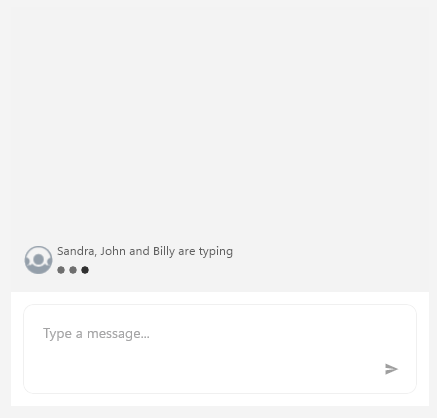
The following images shows the results from the example above:
> caption `RadChat` with a typing indicator
## See Also
* [Commands](https://www.telerik.com/maui-ui/documentation/controls/chat/commands)
* [Chat Items](https://www.telerik.com/maui-ui/documentation/controls/chat/items/overview)
* [MVVM Support](https://www.telerik.com/maui-ui/documentation/controls/chat/mvvm-support)