# Getting Started with the .NET MAUI CartesianChart
This guide provides the information you need to start using the Telerik UI for [.NET MAUI CartesianChart](https://www.telerik.com/maui-ui/documentation/controls/charts/cartesian-chart/overview) by adding the control to your project.
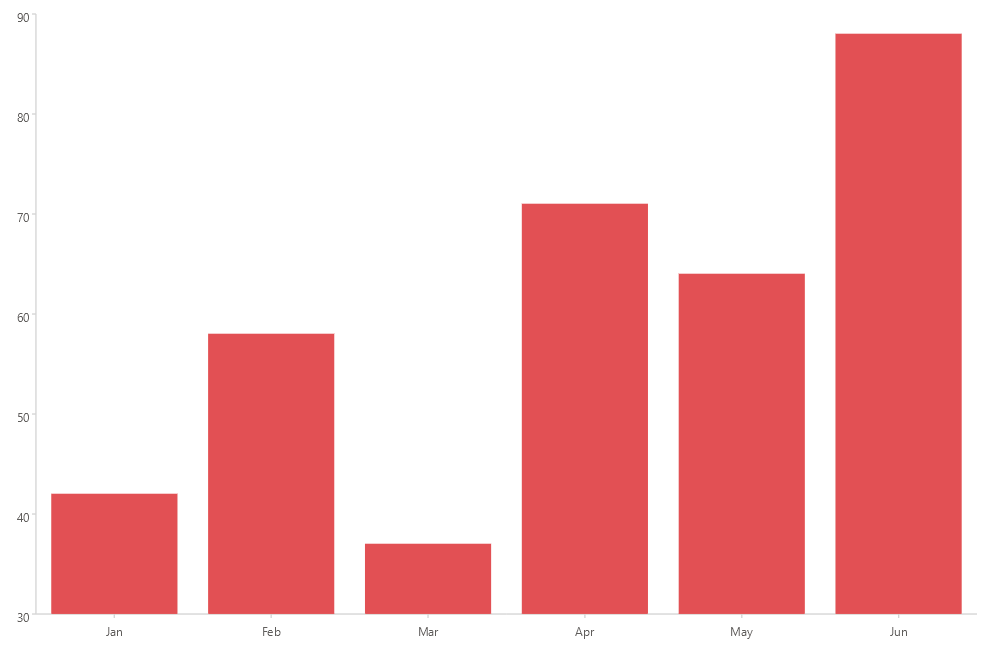
At the end, you will be able to achieve the following result.
## Prerequisites
Before adding the CartesianChart, you need to:
1. [Set up your .NET MAUI application](https://www.telerik.com/maui-ui/documentation/get-started/quickstart#prerequisites).
2. [Set Up Telerik Development Environment](https://www.telerik.com/maui-ui/documentation/get-started/quickstart#set-up-telerik-development-environment)
## Define the Control
1. When your .NET MAUI application is set up, you are ready to add a `RadCartesianChart` to your page. The following example defines a chart with a `CategoricalAxis`, a `NumericalAxis`, and a `BarSeries`:
```XAML
```
2. Add the `chart` namespace:
```XAML
xmlns:charts="clr-namespace:Telerik.Maui.Controls.Charts;assembly=Telerik.Maui.Controls"
```
3. Register the Telerik controls through the `Telerik.Maui.Controls.Compatibility.UseTelerik` extension method called inside the `CreateMauiApp` method of the `MauiProgram.cs` file of your project:
```C#
using Telerik.Maui.Controls.Compatibility;
public static class MauiProgram
{
public static MauiApp CreateMauiApp()
{
var builder = MauiApp.CreateBuilder();
builder
.UseTelerik()
.UseMauiApp()
.ConfigureFonts(fonts =>
{
fonts.AddFont("OpenSans-Regular.ttf", "OpenSansRegular");
});
return builder.Build();
}
}
```
The `BarSeries` binds to a collection of items through its `ItemsSource` property, while the `HorizontalBinding` and `VerticalBinding` properties define which data-item members supply the category and the value of each data point.
> For a runnable example with the CartesianChart Getting Started scenario, go to the [SDKBrowser Demo Application](https://www.telerik.com/maui-ui/documentation/demos-and-sample-apps/sdkbrowser-app) and navigate to the **Charts > Getting Started** category.
## Additional Resources
* [.NET MAUI CartesianChart Categorical Axis](https://www.telerik.com/maui-ui/documentation/controls/charts/cartesian-chart/axes/categorical-axis)
* [.NET MAUI CartesianChart Numerical Axis](https://www.telerik.com/maui-ui/documentation/controls/charts/cartesian-chart/axes/numerical-axis)
* [.NET MAUI CartesianChart Date-Time Axis](https://www.telerik.com/maui-ui/documentation/controls/charts/cartesian-chart/axes/datetime-axis)
* [.NET MAUI Charts Product Page](https://www.telerik.com/maui-ui/charts)
* [.NET MAUI Charts Forum Page](https://www.telerik.com/forums/maui)
## See Also
* [Categorical Axis](https://www.telerik.com/maui-ui/documentation/controls/charts/cartesian-chart/axes/categorical-axis)
* [CartesianChart Visual Structure](https://www.telerik.com/maui-ui/documentation/controls/charts/cartesian-chart/visual-structure)