# Getting Started with the .NET MAUI Chart
This guide provides the information you need to start using the Telerik UI for .NET MAUI Chart by adding the control to your project.
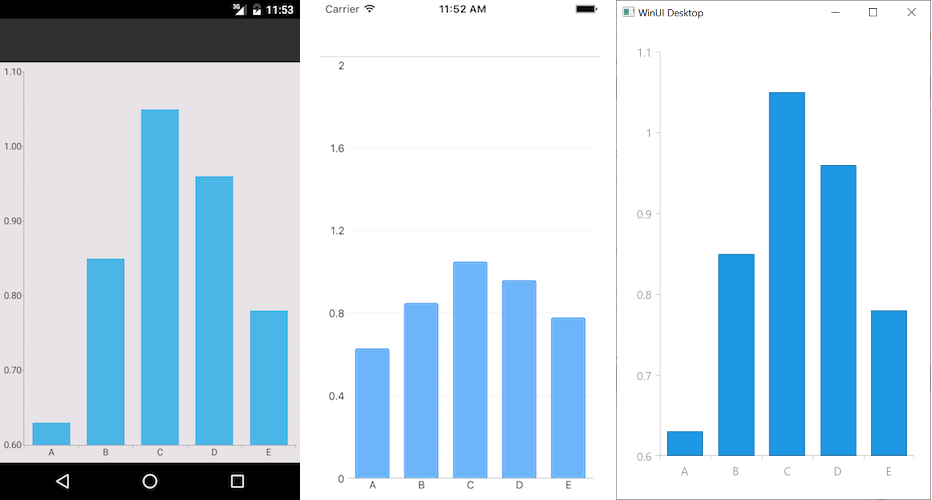
At the end, you will achieve the following result.
## Prerequisites
Before adding the Chart, you need to:
1. [Set up your .NET MAUI application](https://www.telerik.com/maui-ui/documentation/get-started/quickstart#prerequisites).
2. [Set Up Telerik Development Environment](https://www.telerik.com/maui-ui/documentation/get-started/quickstart#set-up-telerik-development-environment)
## Define the Control
**1.** When your .NET MAUI application is set up, you are ready to add a Chart control to your page.
```XAML
```
```C#
var chart = new RadCartesianChart
{
HorizontalAxis = new CategoricalAxis(),
VerticalAxis = new NumericalAxis(),
BindingContext = new ViewModel()
};
var series = new BarSeries();
series.SetBinding(ChartSeries.ItemsSourceProperty, new Binding("Data"));
series.ValueBinding = new PropertyNameDataPointBinding { PropertyName = "Value" };
series.CategoryBinding = new PropertyNameDataPointBinding { PropertyName = "Category" };
chart.Series.Add(series);
```
**2.** Add the following namespace:
```XAML
xmlns:telerik="http://schemas.telerik.com/2022/xaml/maui"
```
```C#
using Telerik.Maui.Controls.Compatibility.Chart;
```
**3.** Register the Telerik controls through the `Telerik.Maui.Controls.Compatibility.UseTelerik` extension method called inside the `CreateMauiApp` method of the `MauiProgram.cs` file of your project:
```C#
using Telerik.Maui.Controls.Compatibility;
public static class MauiProgram
{
public static MauiApp CreateMauiApp()
{
var builder = MauiApp.CreateBuilder();
builder
.UseTelerik()
.UseMauiApp()
.ConfigureFonts(fonts =>
{
fonts.AddFont("OpenSans-Regular.ttf", "OpenSansRegular");
});
return builder.Build();
}
}
```
## Visualize Sample Data
**1.** Now that you have added the control to your project, define the business model:
```C#
public class CategoricalData
{
public object Category { get; set; }
public double Value { get; set; }
}
```
**2.** Set the ViewModel:
```C#
public class ViewModel
{
public ViewModel()
{
this.Data = GetCategoricalData();
}
public ObservableCollection Data { get; set; }
private static ObservableCollection GetCategoricalData()
{
var data = new ObservableCollection {
new CategoricalData { Category = "A", Value = 0.63 },
new CategoricalData { Category = "B", Value = 0.85 },
new CategoricalData { Category = "C", Value = 1.05 },
new CategoricalData { Category = "D", Value = 0.96 },
new CategoricalData { Category = "E", Value = 0.78 },
};
return data;
}
}
```
## Additional Resources
* [.NET MAUI Chart Product Page](https://www.telerik.com/maui-ui/chart)
* [.NET MAUI Chart Forum Page](https://www.telerik.com/forums/maui?tagId=1765)
* [Telerik .NET MAUI Blogs](https://www.telerik.com/blogs/mobile-net-maui)
* [Telerik .NET MAUI Roadmap](https://www.telerik.com/support/whats-new/maui-ui/roadmap)
## See Also
* [Cartesian Charts](https://www.telerik.com/maui-ui/documentation/controls/chart/types/cartesian-chart)
* [Pie Charts](https://www.telerik.com/maui-ui/documentation/controls/chart/types/pie-chart)
* [Chart Series](https://www.telerik.com/maui-ui/documentation/controls/chart/series/overview)
* [Chart Behaviors](https://www.telerik.com/maui-ui/documentation/controls/chart/behaviors/selection-behavior)
* [Chart Axes](https://www.telerik.com/maui-ui/documentation/controls/chart/axes/categorical-axis)
* [Chart Legend](https://www.telerik.com/maui-ui/documentation/controls/chart/legend)