# Getting Started with the .NET MAUI AutoComplete control
This guide provides the information you need to start using the Telerik UI for .NET MAUI AutoComplete by adding the control to your project.
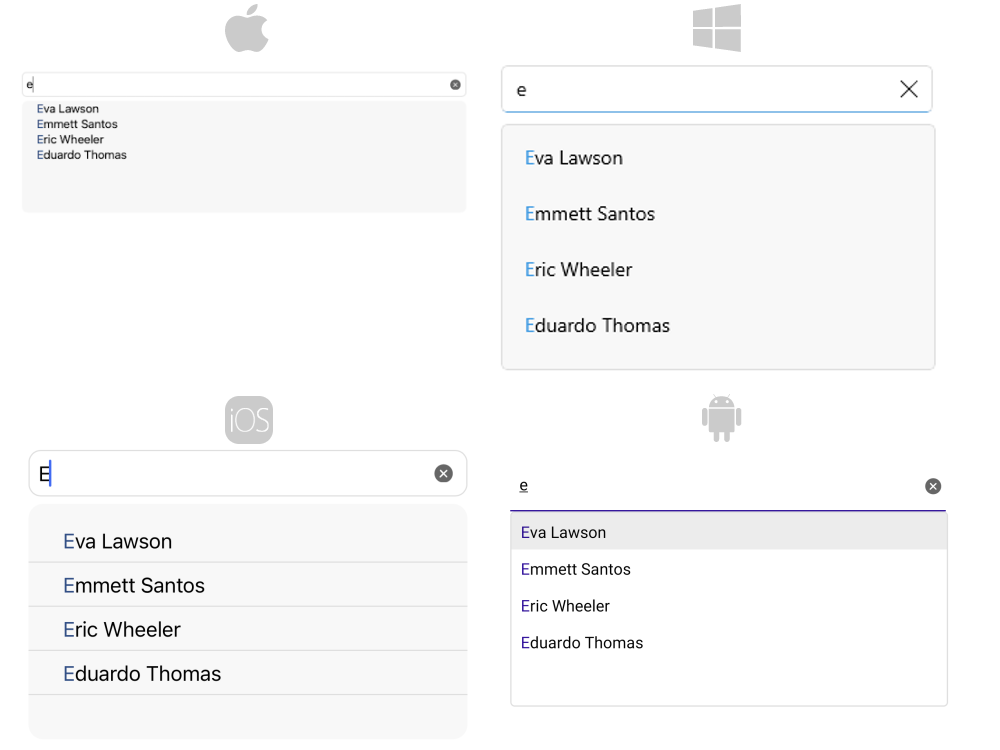
At the end, you will achieve the following result.
## Prerequisites
Before adding the AutoComplete, you need to:
1. [Set up your .NET MAUI application](https://www.telerik.com/maui-ui/documentation/get-started/quickstart#prerequisites).
2. [Set Up Telerik Development Environment](https://www.telerik.com/maui-ui/documentation/get-started/quickstart#set-up-telerik-development-environment)
## Define the Control
When your .NET MAUI application is set up, you are ready to add a AutoComplete control to your page.
**1.** Here is the AutoComplete definition in XAML and C#:
```XAML
```
```C#
var autoComplete = new RadAutoComplete { Placeholder = "Search here..." };
```
**2.** Add the items source for the suggestion list:
```C#
this.autoComplete.ItemsSource = new List()
{
"Freda Curtis",
"Jeffery Francis",
"Eva Lawson",
"Emmett Santos",
"Theresa Bryan",
"Jenny Fuller",
"Terrell Norris",
"Eric Wheeler",
"Julius Clayton",
"Alfredo Thornton",
"Roberto Romero",
"Orlando Mathis",
"Eduardo Thomas",
"Harry Douglas"
};
```
**3.** Add the following namespace:
```XAML
xmlns:telerik="http://schemas.telerik.com/2022/xaml/maui"
```
**4.** Register the Telerik controls through the `Telerik.Maui.Controls.Compatibility.UseTelerik` extension method called inside the `CreateMauiApp` method of the `MauiProgram.cs` file of your project:
```C#
using Telerik.Maui.Controls.Compatibility;
public static class MauiProgram
{
public static MauiApp CreateMauiApp()
{
var builder = MauiApp.CreateBuilder();
builder
.UseTelerik()
.UseMauiApp()
.ConfigureFonts(fonts =>
{
fonts.AddFont("OpenSans-Regular.ttf", "OpenSansRegular");
});
return builder.Build();
}
}
```
> important For the AutoComplete Getting Started example refer to the [SDKBrowser Demo Application](https://www.telerik.com/maui-ui/documentation/demos-and-sample-apps/sdkbrowser-app).
## Additional Resources
* [.NET MAUI AutoComplete Product Page](https://www.telerik.com/maui-ui/autocomplete)
* [.NET MAUI AutoComplete Forum Page](https://www.telerik.com/forums/maui?tagId=1978)
* [Telerik .NET MAUI Blogs](https://www.telerik.com/blogs/mobile-net-maui)
* [Telerik .NET MAUI Roadmap](https://www.telerik.com/support/whats-new/maui-ui/roadmap)
## See Also
* [Data Binding](https://www.telerik.com/maui-ui/documentation/controls/autocomplete/data-binding)
* [Configuration](https://www.telerik.com/maui-ui/documentation/controls/autocomplete/configuration)
* [Suggest Mode](https://www.telerik.com/maui-ui/documentation/controls/autocomplete/suggest-mode)
* [Display Text](https://www.telerik.com/maui-ui/documentation/controls/autocomplete/display-text)
* [Tokens Support](https://www.telerik.com/maui-ui/documentation/controls/autocomplete/tokens-support)
* [Remote Search](https://www.telerik.com/maui-ui/documentation/controls/autocomplete/remote-search)
* [Filtering](https://www.telerik.com/maui-ui/documentation/controls/autocomplete/filtering)
* [Events](https://www.telerik.com/maui-ui/documentation/controls/autocomplete/events)
* [Methods](https://www.telerik.com/maui-ui/documentation/controls/autocomplete/methods)
* [Templates](https://www.telerik.com/maui-ui/documentation/controls/autocomplete/templates/overview)
* [Styling](https://www.telerik.com/maui-ui/documentation/controls/autocomplete/styling)